
If you want to find all the Signed in Users in Windows 11 or Windows 10, here is how you can do that. You can find the names of all signed-in users on your computer using the Start Menu, Command Prompt, and Task Manager. You can follow any of the methods as per your requirements.

Let’s assume you changed something in the Registry Editor and need to restart your computer for the change to take effect. If your computer has only one user, you can simply restart it. However, if you have multiple users and use their accounts for different purposes, it might be complicated for you. Many people use multiple user accounts for different tasks or for different family members. If you do the same, you need to save the work in those user accounts to retain all the data after the restart. That is why you need to know the names of the signed-in users.
How to find all Signed in Users using Start Menu in Windows 11
To find all Signed-in Users in Windows 11/10 using Start Menu, follow these steps:
- Press the Windows key or click the Start Menu button
- Click on the profile picture.
- Find the username with Signed in tag.
First, open the Start Menu on your computer. For that, you can either press the Windows key on your keyboard or click on the Start Menu button visible on the Taskbar.
Once the Start Menu opens, click your profile picture or name. Here you can find all the users. You need to find the usernames with Signed in tag.
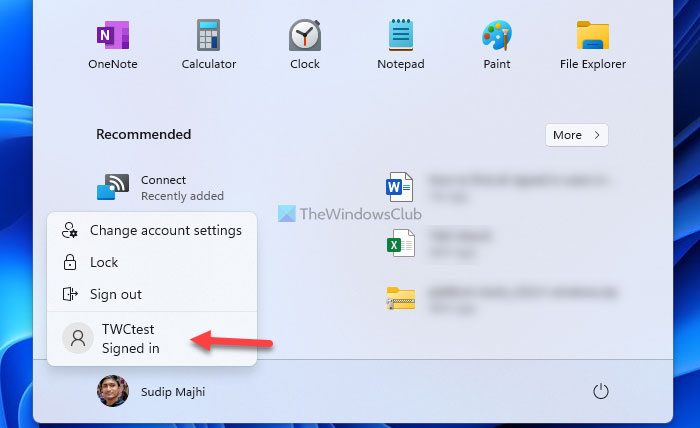
Those accounts are currently signed in to your computer.
For your information, you can do the same using Command Prompt, Windows PowerShell, or Windows Terminal. You can open any of these utilities and use the same command to get the job done. However, for this example, we will use the traditional Command Prompt.
Read: How to list all Users in Windows 11
Find out who is logged in using Command Prompt in Windows 11
To find all signed-in users using Command Prompt, follow these steps:
- Search for cmd in the Taskbar search box.
- Click on the search result.
- Enter this command: query user
- Find the list of users.
Let’s take a closer look at these steps.
First, you need to open the Command Prompt. For that, you can search for cmd in the Taskbar search box and click on the individual search result.
Then enter this command:
query user
It lists down all the signed in users on the prompt.
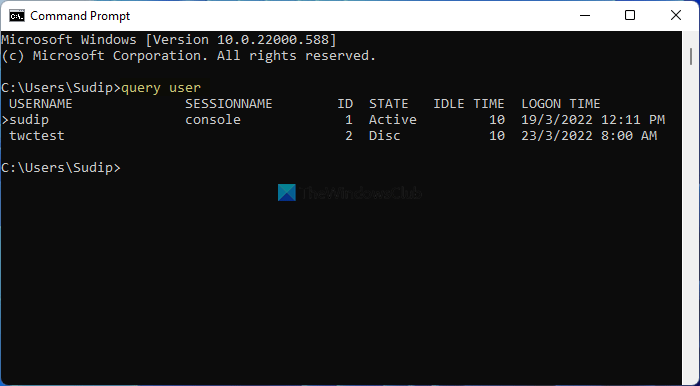
You can check the USERNAME column for this purpose. Also, it displays the current user account using an arrow (>).
How to see all signed-in users in Windows using Task Manager in Windows 11
To see all signed-in users in Windows 11/10 using Task Manager, follow these steps:
- Press Ctrl+Shift+Escto open Task Manager.
- Switch to the Users tab.
- Find the signed in users.
Let’s delve into these steps in detail.
Like Command Prompt and the Start Menu methods, you can use the Task Manager to see all the signed-in users on Windows 11/10.
For that, press Ctrl+Shift+Esc to open the Task Manager on your computer. Then, switch to the Users tab.
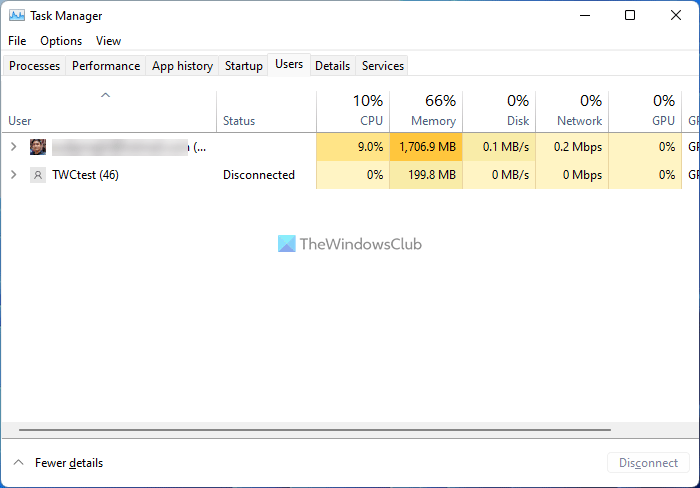
Here you can find all the signed-in users.
How can I see what users are logged in?
To see which users are logged in to Windows 11/10, you can follow any of the guides mentioned above. It is possible to view the list in Task Manager, the Start Menu, and Command Prompt. In the Command Prompt, enter this command: query user.
How do I see all users on my computer?
To see users on your computer, you can get the help of Windows PowerShell. For that, you can open PowerShell or a PowerShell instance in Windows Terminal. Then, enter this command: net user. It lists all the users on your screen.
Read: How to create a new User Account or Profile in Windows 11.
