
We know that we can easily add a new user to Windows 11/10 PC using the Settings page. The other way to add a new user to Windows PC is to use ‘netplwiz‘ command and add a new user using “User Accounts” window. Here is the error description:
We’re sorry, but something went wrong, This user wasn’t added to this PC, Code: 0xd0000225
In this article, we will discuss an error that may occur when you try to add a new user to the PC.
This user wasn’t added to this PC, Code: 0xd0000225
This might be experienced by any Windows user, whether it is a clean install or an upgraded installation. If you’ve also faced such an error or if you’re the victim of this issue, then using the fix provided below, and see if it helps you. Remember: create a system restore point first!
Edit the Registry
You need to do is to follow these steps:
1. Press Windows Key + R combination, type put Regedt32.exe in Run dialog box, and hit Enter to open the Registry Editor.
2. Navigate to the following location:
HKEY_LOCAL_MACHINE\SYSTEM\CurrentControlSet\Control\Lsa
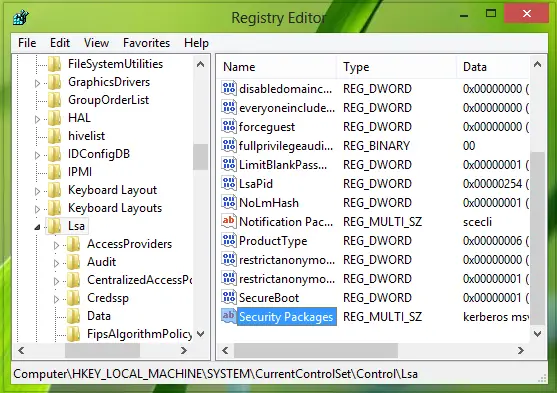
3. In the right pane of this location, you’ll see a multi-value string named Security Packages. Double-click over this string, and you’ll get this:
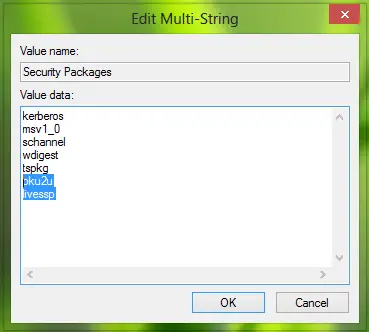
4. In the above shown prompt, put the Value data as pku2u and livessp add to the data already existing as shown above. Click OK.
That’s it!
Now reboot the system and you should be able to add a new user without any sort of issues. In this way, you can add a new user, whether it is a local user or Microsoft account.
Reset the Ngc folder
If this does not help, reset the Ngc folder and reconfigure your PIN.
Boot into Advanced Startup Options and go to Troubleshoot > Advanced Options > Command Prompt, and execute the following commands:
icacls C:\Windows\ServiceProfiles\LocalService\AppData\Local\Microsoft\Ngc /T /Q /C /RESET
Ren C:\Windows\ServiceProfiles\LocalService\AppData\Local\Microsoft\Ngc Ngc.old
Now re-add your PIN and then see if this makes the problem go away.
I hope this helps!
