
In this tutorial, we will show you how to set an animated GIF as a profile picture on a Windows 11 PC. Although Windows 11 has no official way or native feature to set an animated GIF as a profile picture, a Registry workaround can make it happen. It works for both Microsoft and local user accounts in Windows 11. For a Microsoft account, the changes are applied locally. That means it won’t replace your original Microsoft account avatar or profile picture. The changes apply to the lock screen (as visible below) and in the Start menu.
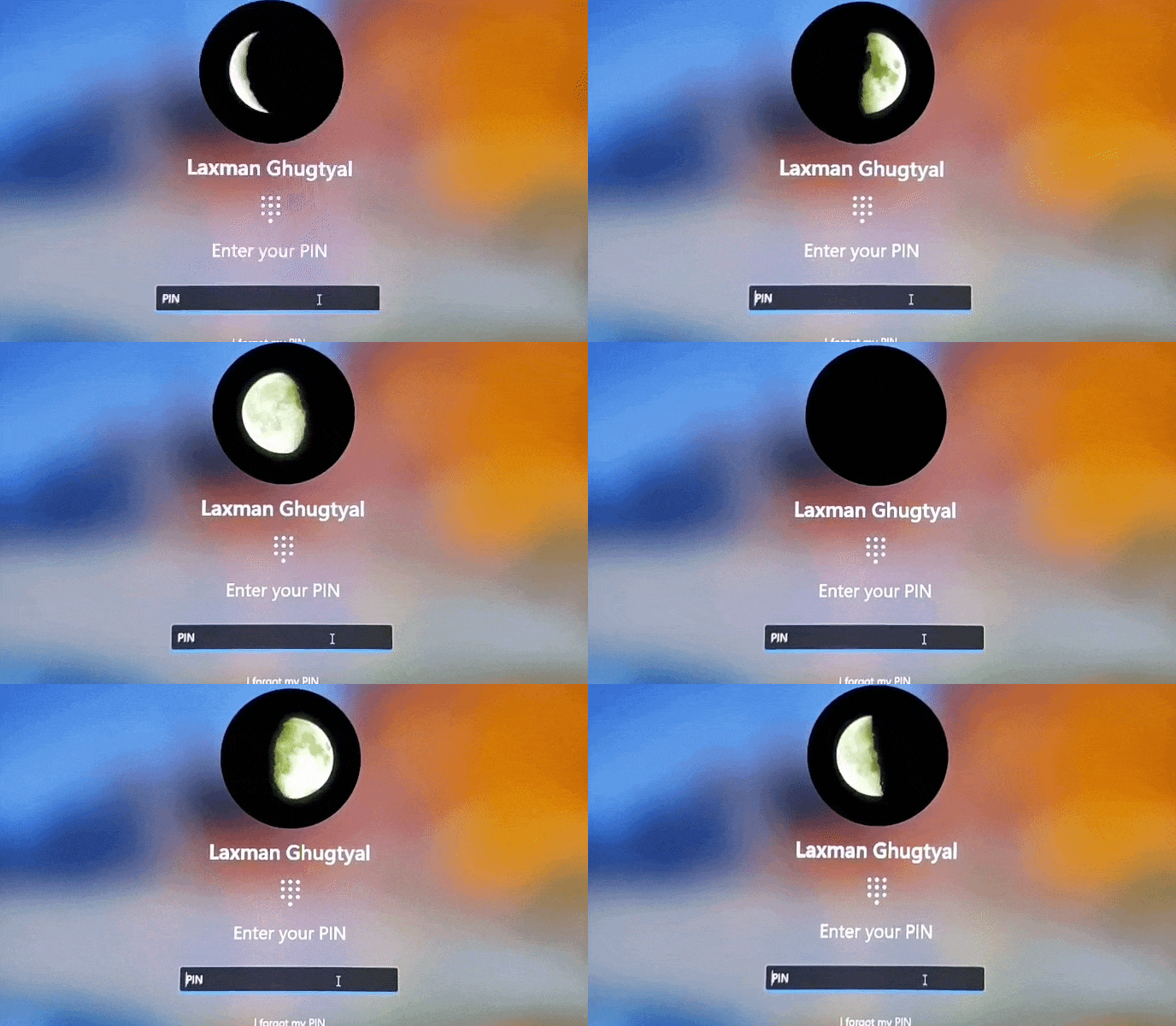
Before you proceed, make sure you already have set a profile picture for your account. In the Settings app, navigate to Accounts > Your info > and use the Browse files button to add an image. This lets Windows automatically generate resized copies of the image and store their Registry entries/paths. We will use those Registry entries to add an animated GIF as a Windows 11 profile picture.
How to set animated GIF as Profile Picture in Windows 11
To set an animated GIF as a profile picture in a Windows 11 PC, carefully follow these steps:
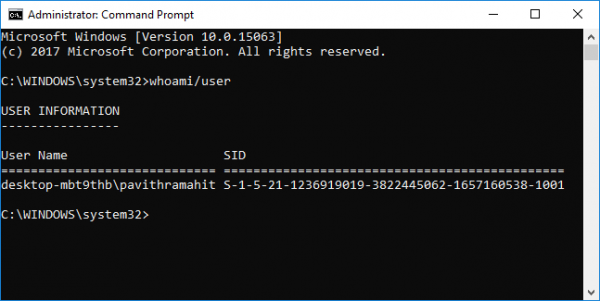
- Open the Command Prompt window, type
whoami/userand hit Enter. This will show your Windows user account SID (Security Identifier). It should be like S-1-5-21….. Copy this SID
- Download the ZIP file of Microsoft’s official PsTools (PsExec) and extract it
- Open an elevated PowerShell window. Run a command that includes the full path to PsTools and opens Registry Editor under SYSTEM. This is necessary because if you launch Registry Editor as an administrator, you won’t be able to make the required changes. So, the command would be:
& "C:\Users\username\Desktop\PSTools\PsExec.exe" -i -s regedit.exe
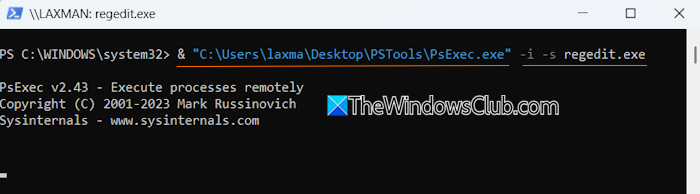
- In the command above, replace username with your actual PC username and make sure the correct path to PsExec.exe is added so the command runs successfully. This will launch Registry Editor under the SYSTEM account with the following path:
HKEY_LOCAL_MACHINE\SOFTWARE\Microsoft\Windows\CurrentVersion\AccountPicture\Users
- Under the Users Registry key, you will find multiple SIDs (if available). Select your Windows account SID
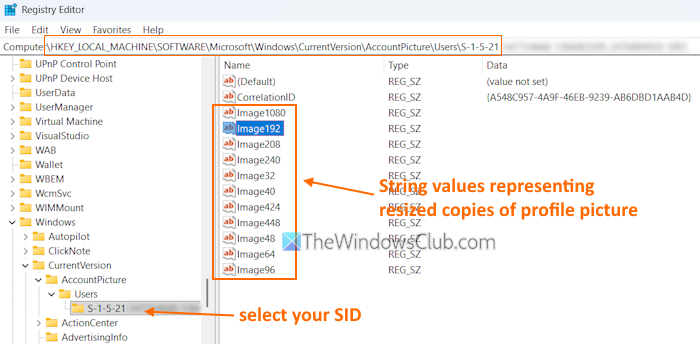
- In the right section, you will see multiple String Values such as Image1080, Image208, Image32, Image40, Image96, etc. These values represent different sizes of your current account picture
- Copy the path of your animated GIF
- Double-click on an Image## String Value and replace the Value data text with the full path of your animated GIF file
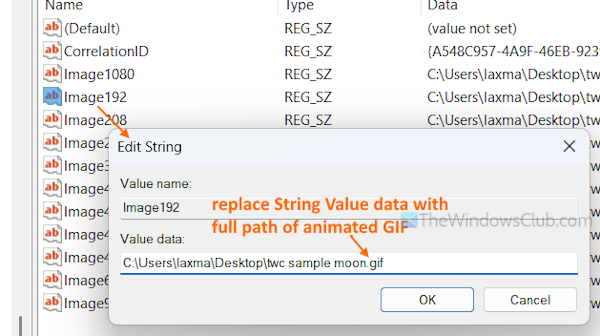
- Press OK
- Repeat this process for all other Image## String Values so that all those String Values will point to your GIF file
- Sign out and sign in to your Windows 11 PC or restart it.
If everything goes well, you will see an animated GIF as your Windows 11 profile picture on the Lock Screen and in the Start menu.
That’s all.
Related: How to change User Account picture to a video in Windows PC
How to set GIF as screensaver in Windows PC?
To set a GIF as wallpaper or desktop background in Windows 11, use a free tool called BioniX Wallpaper. You can also set a video as a desktop background in Windows 11 using free tools. Tools like DesktopHut, AwesomeWallpaper, and VideoPaper can do this.
How to create a GIF image on a Windows PC?
There are multiple ways to create a GIF file on a Windows 11 PC. For example, you can create a transparent GIF with GIMP. You can also convert video files to GIFs in Windows 11 using free tools like QGifer and Video to GIF Converter.
Read next: How to change the default User Account Picture in Windows PC.
