
Split Screen is a useful feature introduced in Chrome and Edge that lets users open a link in the same tab by splitting the current tab into two sections. This article will show you how to enable and use Split Screen in the Edge and Chrome browsers.
How to enable & use Split Screen in Edge browser
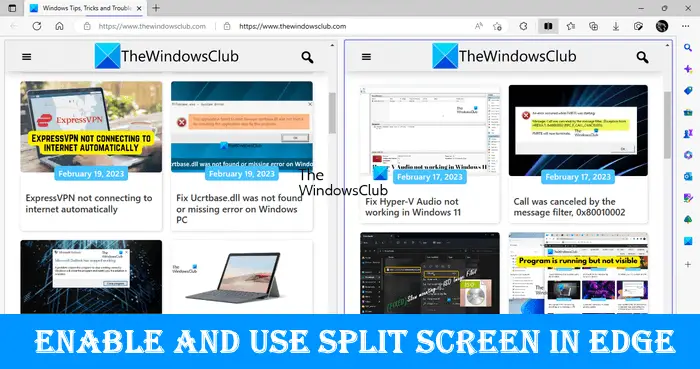
The Split Screen feature is available in the stable version and all insider versions of Microsoft Edge. The method to enable and use Split Screen in Edge browser is the same for all versions of the browser. If you want to use it, this post will help you. Before you proceed, make sure that you have updated Edge to the latest version.
How to enable Split Screen in Microsoft Edge
If the Split Screen feature is enabled in Edge, you will see its icon next to the address bar and you will also see the same option in the context menu when you right-click on a link on a web page. If the Split Screen feature is not enabled in Edge, you can enable it by following the steps written below:

Open Edge Settings and select Appearance from the left side. On the left side, scroll down till you see the Split screen section. Here, turn off the Enable Split Screen switch and restart the browser.
How to use Split Screen in Microsoft Edge
Now, let’s see how to use the Split Screen feature in Edge. You can split a tab into two sections by clicking on the Split window icon available next to the address bar in Edge. Clicking on the icon again will close the split tab.
To open a link in the split tab, follow the steps written below:
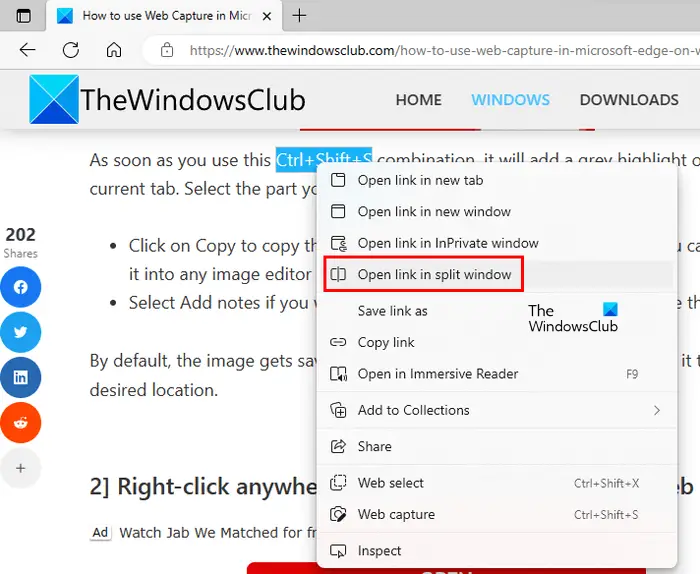
- Open a web page.
- Right-click on a link on that web page.
- Select the “Open link in split window” option.
After that, Edge will open the link on the same tab by splitting it into two sections. The address bar will also show two URLs for two different web pages. Also, the selected web page on the split tab will be highlighted with a blue border. You can close a particular split window by clicking on the cross icon available on the top right side of the split window.
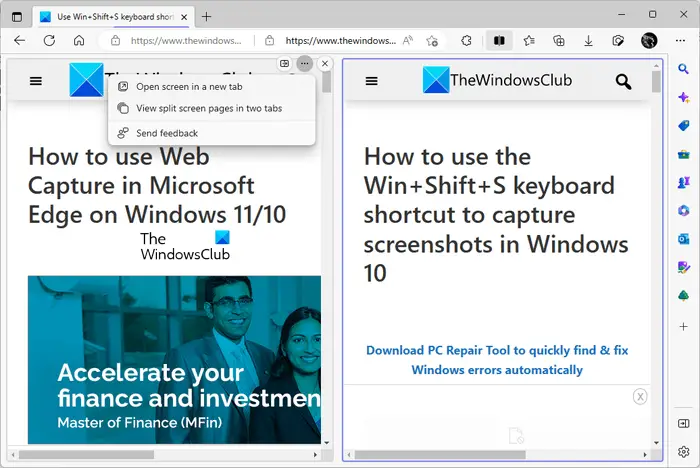
When you hover your mouse over a split window and click on the three horizontal dots, Edge will show you the following two options:
- Open screen in a new tab
- View split-screen pages in two tabs
If you select the first option, Edge will open that split window in a new tab without closing the split-screen tab. If you select the second option, Edge will close the split tab and open both the split windows in two separate tabs.
View all opened tabs in Split Window
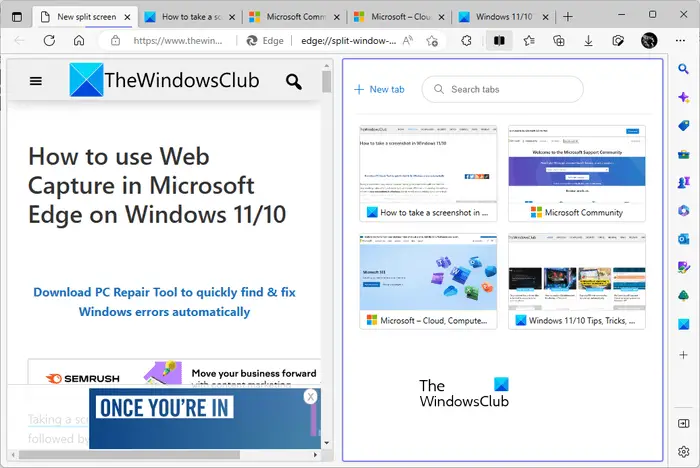
You can view all your opened tabs in Edge in the split window. To do so, click on the Split window icon next to the address bar in Edge. After that, your current tab will be split into two sections. The right window will show you all the opened tabs. You can also use the search feature to find a specific tab. When you click a tab in the list of open tabs, Edge will close that tab and open it in the split window.
If you see the above screenshot, you will notice that there is a New tab link on the split window. When you click this link, Edge opens a new tab in the split window. Now, you can surf the internet in this new split window.
How to enable & use Split Screen in Chrome browser
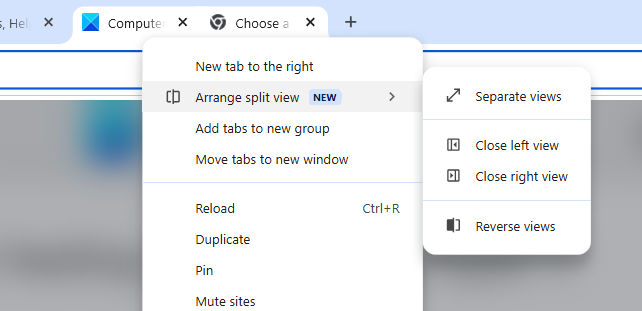
To use Split Screen in Chrome browser, make sure that two Tabs are oenand then right-click on onof the Tabs. Now, choose New split view with current tab if the other is active, or select Add tab to new split view if the other is inactive. Chrome will then automatically arrange the tabs side-by-side.
If you have one page open, then right-click on a link you want to view in the other pane and select Open link in split view.
I hope this helps.
Read: How to split screen on Windows 11 computer?
How to view two pages side-by-side in Microsoft Edge?
The Split Screen feature in Microsoft Edge lets users view two web pages side-by-side in the currently open tab. If you do not find this feature, you have to enable it first. You can do so by searching for Microsoft Edge Split Screen in Edge Flags.
How do I open two tabs at the same time in Microsoft Edge?
There are many extensions available for Edge that will help you open two or multiple tabs at the same time. Google Chrome extensions also work in Edge. Google Chrome has wide extension support. Hence, if you are using an extension for opening multiple links at the same time in Chrome, you can use the same extension in Edge. But before installing an extension, make sure to check its reviews and ratings.
How do I remove the Split Screen button in Edge?
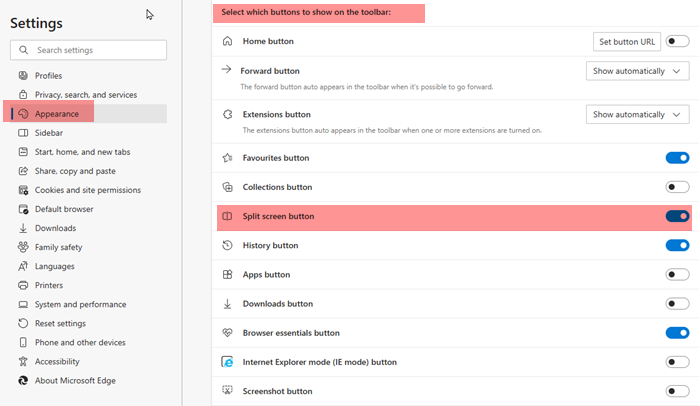
To remove the Split Screen button in Edge toolbar, pen Edge Settings and select Appearance from the left side. On the left side, scroll down till you see the Split screen button. Here, turn off this switch and restart the browser.
Read next: How to use Microsoft Editor in Edge.
