
In this tutorial, we will show you how to enable and use the Agent in the Settings app on a Windows 11 PC. Agent in Windows Settings is a new feature in Windows 11 Copilot+ PCs that uses on-device AI to find and change settings and get relevant recommendations within the Settings app. It can also automate tasks based on your input. For example, if prompted for screen brightness to be set to “too high” in the Settings app, it will display a “Decrease brightness” result with an “Apply” button, as shown in the image below. Pressing the Apply button will decrease screen brightness instantly. You will also receive a suggestion to adjust the built-in display’s brightness manually.
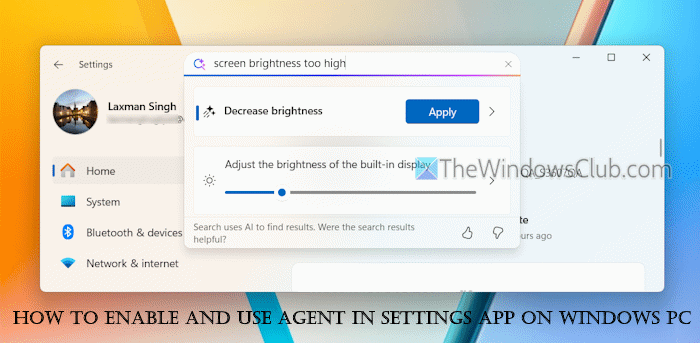
It uses a lightweight language model (called Settings MU), which runs locally on your device to provide intelligent search suggestions and help users quickly find and change system settings. In other words, this Settings agentic search experience enhances search results within the Settings app.
How to enable or disable Agent in Settings app in Windows 11
You can enable or disable the Agent in the Settings app in Windows 11 with two native options:
- Using Local Group Policy Editor
- Using the Windows Registry.
1] Using Local Group Policy Editor
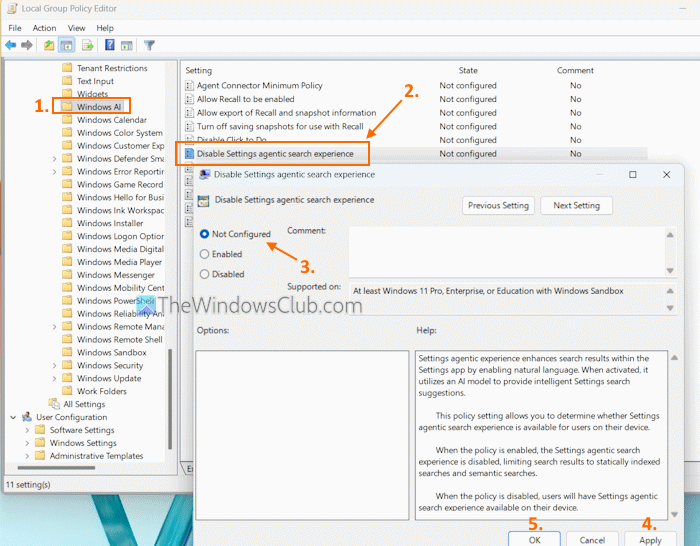
Follow these steps to enable or disable the Agent in the Settings app using the Local Group Policy Editor:
- Type gpedit.msc in the Search box
- Press Enter to open the Local Group Policy Editor window
- Navigate to the Windows AI folder using this path:
Computer Configuration > Administrative Templates > Windows Components > Windows AI
- Open the Disable Settings agentic search experience setting by double-clicking on it
- Select the Not Configured or Disabled option
- Press the Apply button and the OK button.
If you need to disable the Agent in the Settings app, select the Enabled option for the Disable Settings agentic search experience setting, and select OK. When the Settings agentic search experience is disabled, only the standard search results are displayed.
2] Using the Windows Registry
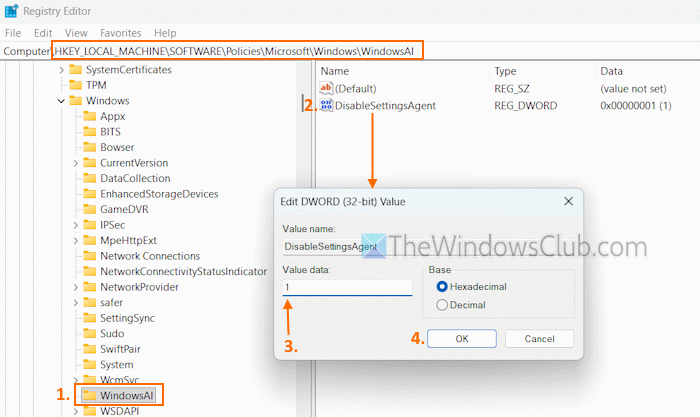
The steps to enable or disable the Agent in the Settings app using the Windows Registry are as follows:
- In the Search box, type regedit, and hit Enter. This will open the Windows Registry (or Registry Editor)
- Access the WindowsAI Registry key. The path is:
HKEY_LOCAL_MACHINE\SOFTWARE\Policies\Microsoft\Windows\WindowsAI
- On the right side, double-click on the DisableSettingsAgent DWORD (32-bit)
If this value is not present, create a new DWORD (32-bit) Value and rename it - Add 0 in the Value data box to enable Agent in the Settings app. If the value is already present, do nothing
- Press the OK button.
To disable the Agent in the Settings app using Registry Editor, set the Value data field of the DisableSettingsAgent DWORD (32-bit) Value to 1, then press OK.
How to use the Agent in the Settings app on Windows 11
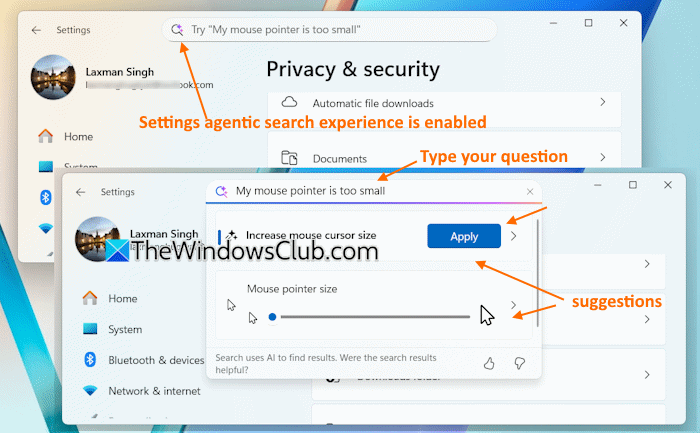
When you open the Windows 11 Settings app (Win+I), a search icon or magnifying glass will be visible in the search box, which indicates the Settings agentic search experience is enabled and active. Now you can use Agent in the Settings app by typing your question in the search box.
Type a query, say My mouse pointer is too small, Turn on night light, or anything else. Based on the input, the agent will provide recommendations and relevant information or settings already available in the Settings app. So, you don’t have to access the source page to access and apply a specific setting.
You can also request the agent to make a change or apply a setting using the Apply button. An Undo button is also available to revert the changes. You can also access a setting page by clicking on it.
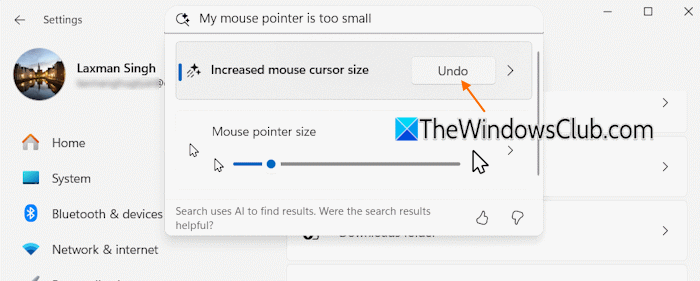
In case the feature can’t classify your query to a specific setting, then it will display standard search results only. Also, if your query is generic, say desktop, then it will display a specific setting to apply and related search suggestions.
That’s all.
Now read: How Mu Language Model acts as an Agent in Windows Settings
How to access app Settings on Windows 11?
If you want to access the Advanced app settings page in Windows 11, open the Settings app. Access the Apps category and click on the Advanced app settings option. After that, you can choose where to get apps, enable or disable the archive apps feature, set App execution aliases, and other settings. In case you want to manage App permissions (Location, Camera, Microphone, etc.), access the Privacy & security category in the Settings page, and you will see the App permissions section.
How do I install Windows Agent?
To manage your computers and Windows workstations, you need to install the Windows agent. You can use Windows Configuration Designer to install agents. Once you have installed this tool or app, you can create a Provision Desktop Device project and configure your project to set up a device. Once done, you can prepare the new device for deployment.
Read next: Enable or Disable AI Actions in Explorer Context Menu in Windows PC.
