
If you are a tech fanatic, you may have heard of the Mu Language Model from Microsoft. It is an SLM, or a Small Language Model, that runs on your device locally. Unlike cloud-dependent AIs, MU operates entirely on your computer’s NPU or Neural Processing Unit. This makes it faster, enabling it to respond at over 100 tokens per second. The best part is, if you have a Copilot+ PC, Mu can transform how you interact with your system by converting natural language queries into precise settings adjustments, improving Windows Settings in general. In this post, we will talk more about the Mu Language Model from Microsoft and how it acts as an agent in Windows Settings.
Mu Language Model is a Small Language Model (SLM) from Microsoft that acts as an AI Agent for Windows Settings. It allows you to give Settings a prompt and let the decoder work for you.
Mu Language Model from Microsoft as an Agent in Windows Settings
As mentioned earlier, Mu Language Model acts as an agent in Windows Settings; however, there is more to it. Let us go ahead and learn more about SLM.
Mu uses an encoder-decoder architecture for efficiency
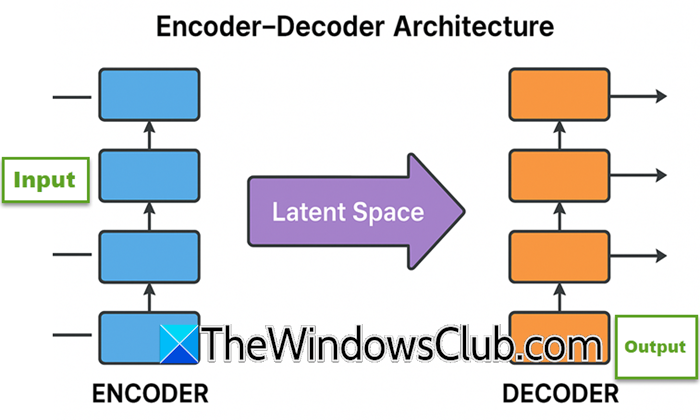
The encoder-decoder architecture is a neural network framework where the encoder transforms input data into a dense, abstract representation, capturing its essential features. The decoder then uses this representation to generate the desired output, such as translated text or reconstructed signals.
Basically, the encoder converts your query, let’s say you ask to increase the idle time after which your screen sleeps, into a compact representation. Then, the decoder generates an action based on the query. This results in less strain on your computer and faster archiving of the result.
Mu Uses Clever Hardware Tricks to Stay Small and Powerful

Mu is tiny but works really well because it’s been cleverly squeezed. It fits into small devices without slowing down.
Mu uses weight sharing to save space. It reuses the same numbers for both reading inputs and writing outputs. This simple trick significantly reduces its memory needs. Also, it only runs tasks that its NPU can handle. It skips anything the NPU can’t speed up. That way, it never wastes time on slow operations.
Mu also has smart transformer upgrades. It uses Rotary Positional Embeddings to keep track of context better. It adds Grouped-Query Attention to shrink memory use. All this lets Mu punch above its weight with just 330 million parameters.
Read: Which AI Model can run on a regular PC?
How is Mu Helpful
If you are familiar with Post-training quantization, you would be able to pick up on the fact that Mu is using it to make it fit better on devices and still work fast. Earlier, Mu’s numbers used to be 32-bit floats. Now, many are 8-bit or 16-bit integers. That change cuts memory use and boosts speed.
Chip manufacturers, AMD, Intel, and Qualcomm, teamed up with Mu’s creators to add special hardware tweaks so it can run at its best.
Also, since it is a Microsoft product, on the Surface Laptop 7, it can handle tokens over 200 every second, basically making it lag-free.
Mu is an agent for Windows Settings
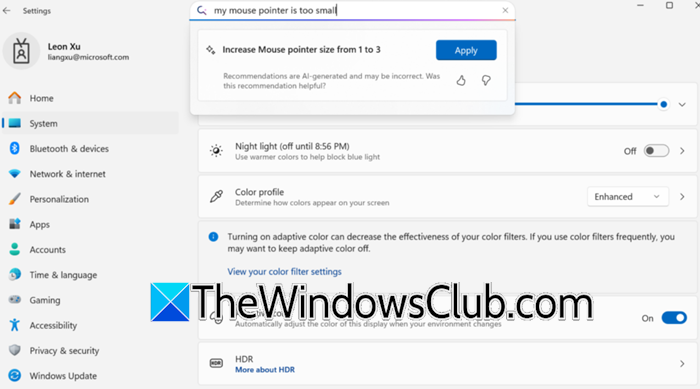
Windows Settings can feel like a maze with hundreds of options. Mu turns your words into the right clicks.
If you type “Turn on dark mode,” Mu finds the dark-mode switch and flips it for you. It knows exactly what to do. When you say “Increase brightness,” Mu checks which monitor you use most. It then raises the screen’s brightness so you don’t have to.
Early on, Mu got confused by one-word commands like “Bluetooth”.
Now it only jumps in when you type two or more words. Single-word searches still use the normal search. To teach Mu, developers showed it 3.6 million sample sentences. They also mixed in random “noise” so Mu learns to handle all kinds of phrasing.
Big AI tools like ChatGPT get all the attention, but Mu shows that tiny models can do impressive work too. By sticking to specific jobs, like guiding you through Windows Settings, small models stay fast and lean, unlike bulky, general-purpose ones.
Mu is currently rolling out to Windows Insiders. For developers, its hardware-aware design sets a blueprint for building efficient, privacy-first AI applications.
Hopefully, with the help of this post, you understand the enchantment that Mu brings to your Windows Settings, making even non-tech-savvy individuals curate their computer as per their liking.
Read: How to choose the best LLM for your Task?
Which devices support the Mu-powered Settings agent?
The agent currently requires a Copilot+ PC with an NPU (e.g., Qualcomm Snapdragon X Series chips). It’s available only to Windows Insiders in the Dev Channel, with English as the primary display language. AMD and Intel NPUs are supported, with support for other platforms expected in the near future. However, you can install the latest Insider Preview build to access the feature.
Read: Query multiple LLMs at once using LLM Comparison Tool
Why does Mu outperform larger models for Settings tasks despite its small size?
Mu’s encoder–decoder design cuts latency by 47% and cranks up decoding speed by 4.7× compared to similar decoder‐only models. It achieves this by matching its parameters to NPU tensor sizes for maximum hardware efficiency, converting 32-bit floats into 8-bit or 16-bit integers through post-training quantization, letting it process over 200 tokens per second on devices like the Surface Laptop, and then fine-tuning with LoRA for Settings navigation to hit sub-500 ms response times.
Also Read: Create AI agents using LLMs Claude, Copilot, ChatGPT, Gemini.
