
In Windows 11, a wide array of UI elements and menus including the Context menu have rounded corners. However, you can change this arrangement and make it feel more like Windows 10 by switching back to sharp corners. A simple application lets you do it. Here’s how you can use it to disable rounded corners in Windows 11.
Disable Rounded Corners in Windows 11
Although it is not currently possible to fully revert Windows 11 to the Windows 10 look, you can change certain elements to give you the Windows 10 feel. For instance, you can disable rounded corners in Windows 11 and make them look sharp, as in Windows 10.
- Download Win11DisableRoundedCorners from the GitHub page.
- Run the executable.
- Allow the command to be executed via CMD.
- Wait for the operation to complete.
- See the rounded corners disabled.
- To enable rounded corners again, run the executable file again.
By design, apps, flyouts and menus appear rounded in Windows 11 only when they are present in the snapped view. When maximized or switched to the full-screen mode, the rounded corners just disappear. Still, you can disable the rounded corners even in the snapped view.
After you have created a system restore point, go to the GitHub page and download a tool named Win11DisableRoundedCorners. It is a simple utility that cold patches the Desktop Window Manager (uDWM.dll) to disable window rounded corners in Windows 11.
Run the executable file Win11DisableOrRestoreRoundedCorners.exe.
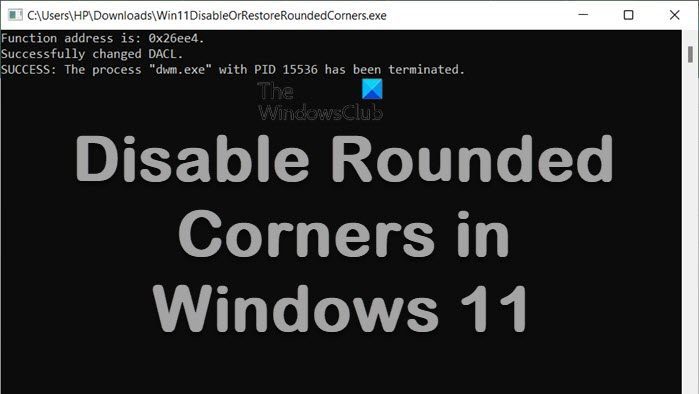
Instantly, a command prompt window should open to download symbol files for uDWM.dll. Once the process is complete, you’ll see a message –
Success: The process “dwm.exe” with PID ABCD has been terminated.
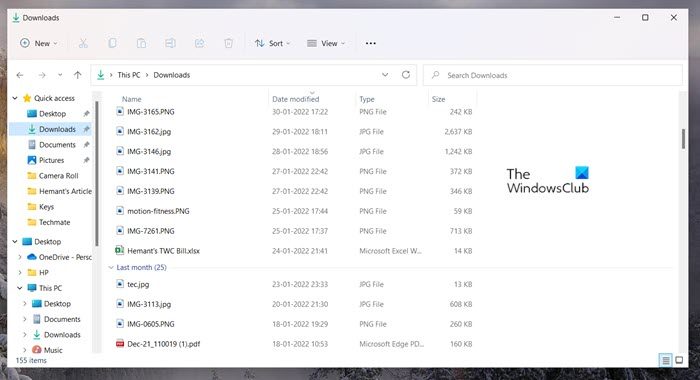
The message indicates the rounded corners have been disabled. You can confirm this by opening File Explorer.
If you would like to reverse the changes and switch back to rounded corners, simply run the executable again.
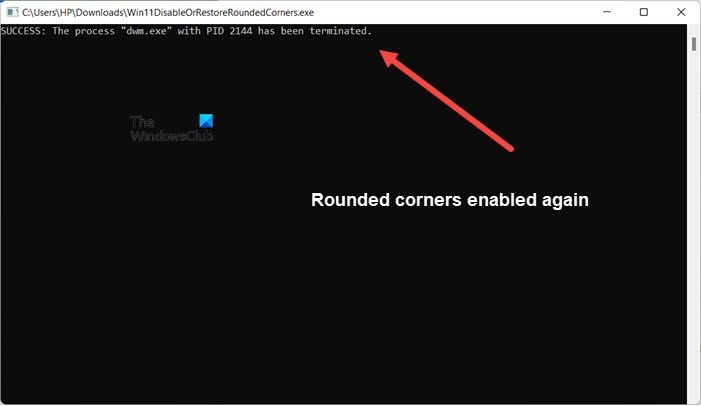
The message shown in the screenshot above should appear. Wait for your system to automatically round top-level window corners for all inbox apps, including all UWP apps, and most other apps.
Note: The application requires an active Internet connection when patching in order. Also, to successfully patch without bricking your system, ensure only one dwm.exe process is running.
If you wish you can download Win11DisableRoundedCorners here from github.com. It is safe because it creates a backup of the modified file.
The other ways to disable rounded corners in Windows 11, recommended on the internet, are:
- Turn Off Hardware Graphics Acceleration. This will hit security and performance.
- Open Device Manager > Expand Display Adapters > Right-click your display adapter > Select Disable Device. The screen will flicker a moment but, the rounded corners will be gone after that. This will hit your video performance.
But we do not recommend these methods for the reasons mentioned.
Read: How to Turn On/Off Rounded Corners in Microsoft Edge
Does Windows 11 use Fluent design?
Yes, Fluent Design is a design language that has been a part of both Windows 11 and Windows 10. It’s quite different from the flat look (seen in Windows 8)and embraces light and depth. It comes with design materials like “Acrylic” a type of Brush that creates a translucent texture.
What is Fluent UI?
It is a collection of UX frameworks for building beautiful, cross-platform apps that deliver best-in-class experiences. Microsoft has adopted this system across all its variants — desktop, mixed reality, Xbox, server, IoT, and even on the web.
Related: Enable or Disable Immersive Search and Rounded Corners in Windows 10.
