
If you want to disable Antimalware Service Executable in Windows 11/10, here is how you can do that. You can turn it off using the Windows Security app, Local Group Policy Editor, and Windows PowerShell. Although adding an exclusion works, it may not always work because it depends on other settings as well.
As a rule, you should not disable the Antimalware Service Executable unless you have installed a third-party antivirus program. The Antimalware Service Executable (MsMpEng.exe) is the core process for Windows Defender and it protects your computer from malware.
How to disable Antimalware Service Executable in Windows 11
To disable Antimalware Service Executable in Windows 11/10, follow any of these methods:
- Use Task Manager to end the process
- Disable Real-time protection
- Disable Periodic scanning
- Disable Microsoft Defender Antivirus Service
Before you proceed, keep this in mind: If you have third-party security software, these suggestions may help. But if Windows Defender is the only security software installed on your computer, these suggestions may or may not work. Windows OS may automatically turn on this Service, after a Windows Update or a few reboots to protect your computer.
1] Use Task Manager to end the process

It is probably the easiest way to temporarily disable Antimalware Service Executable in Windows 11/10. To end Antimalware Service Executable using Task Manager, follow these steps:
- Press Win+X to open the WinX menu.
- Select Task Manager from the menu.
- Find the Antimalware Service Executable process.
- Select it and click the End task button.
The process will be terminated immediately. However, it will return after you restart your computer.
2] Disable Real-time protection
The Antimalware Service Executable process represents Windows Security’s real-time protection. If you want to disable this process permanently, you need to disable the Real-time protection. However, we don’t recommend doing so unless you experience major issues with this process.
Using Windows Security:
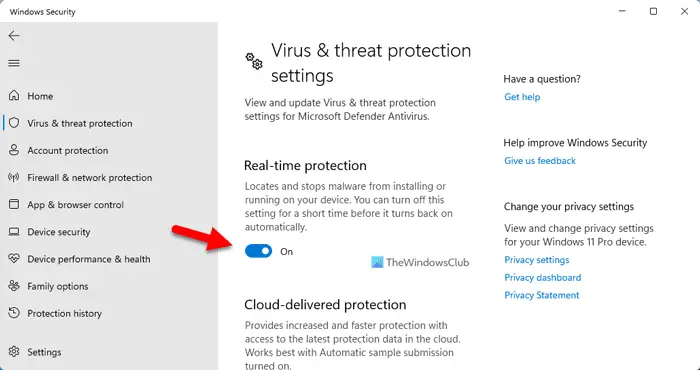
To disable Real-time protection using Windows Security, follow these steps:
- Open Windows Security on your computer.
- Switch to the Virus & threat protection tab.
- Find the Virus & threat protection settings section.
- Click on the Manage settings option.
- Toggle the Real-time protection button to turn it off.
Using Local Group Policy Editor:
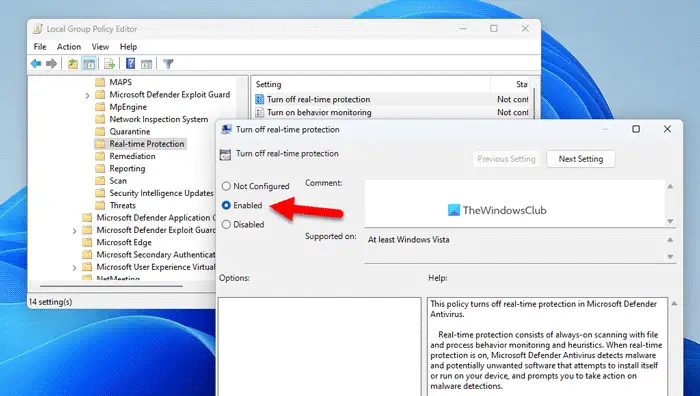
To disable Real-time protection using Local Group Policy Editor, follow these steps:
- Press Win+R to open the Run prompt.
- Type gpedit.msc and click the OK button.
- Navigate to this path: Computer Configuration > Administrative Templates > Windows Components > Microsoft Defender Antivirus > Real-time Protection
- Double-click on the Turn off real-time protection setting.
- Choose the Enabled option.
- Click the OK button.
3] Disable Periodic scanning
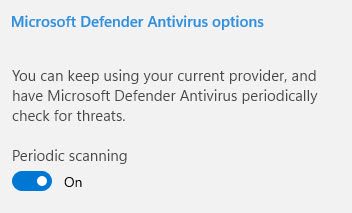
Open Windows Security > Virus and threat protection and disable Periodic scanning. This will likely help.
4] Disable Microsoft Defender Antivirus Service
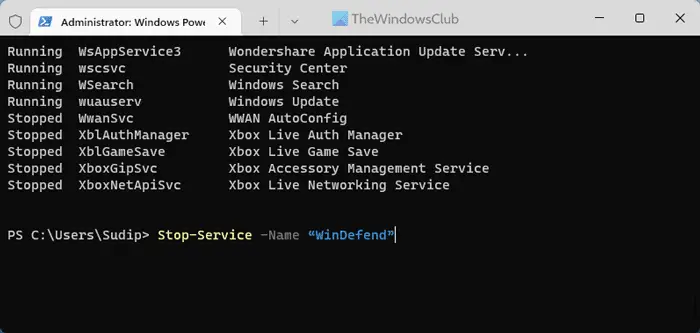
It is the last thing you can do to disable Antimalware Service Executable in Windows 11. However, if the Services panel doesn’t allow you to do that, you can use Windows PowerShell to get the job done. To disable Microsoft Defender Antivirus Service using Windows PowerShell, follow these steps:
- Press Win+X to open the WinX menu.
- Select Terminal (Admin) from the menu.
- Click on the Yes button in the UAC prompt.
- Make sure that the Windows PowerShell instance is opened.
- Enter this command: Stop-Service -Name “WinDefend”
After that, you can close the PowerShell window.
I hope this article helped.
Read: How to disable Microsoft Defender in Windows
How do I permanently disable Antimalware Service Executable?
To permanently disable the Antimalware Service Executable process, you need to disable Real-time protection in Windows Security. There are mainly two ways to do that. First, you can use the in-built option in Windows Security. Second, you can use the Local Group Policy Editor to do it.
Read: Service Host DCOM server process launcher high CPU, Memory usage
Can I turn off Antimalware Service Executable?
Yes, you can turn off Antimalware Service Executable in Windows 11. There are three methods to do it in Windows 11 and Windows 10. This article explains each method in detail, and you can follow any one to disable this process. However, you should not disable the Antimalware Service Executable unless you have installed a third-party antivirus program.
Read: Antimalware Service Executable (msmpeng.exe) High CPU, Memory, Disk Usage.
