
If you need to delete empty 0-byte files in Windows 11/10, you can use the command line or this free software to do it quickly. Zero-byte files are files that do not have any data. Before you proceed, please read – Is it safe to delete Zero-byte files?
How to delete Empty 0-byte files from your PC?
Before you begin, please create a system restore point first if you are using these instructions on your system drive.
1] Delete Empty files using PowerShell
Fire up PowerShell and execute the following command:
Get-ChildItem -Path "D:\FolderName" -Recurse -Force | Where-Object { $_.PSIsContainer -eq $false -and $_.Length -eq 0 } | Select -ExpandProperty FullName | Set-Content -Path D:\EmptyFiles.txt
This will output the list of empty files in folder D:\FolderName to a text file named EmptyFiles.
To delete all the zero-byte files, execute this command:
Get-ChildItem -Path "D:\FolderName" -Recurse -Force | Where-Object { $_.PSIsContainer -eq $false -and $_.Length -eq 0 } | remove-item
2] Use freeware Find Empty Files and Folder
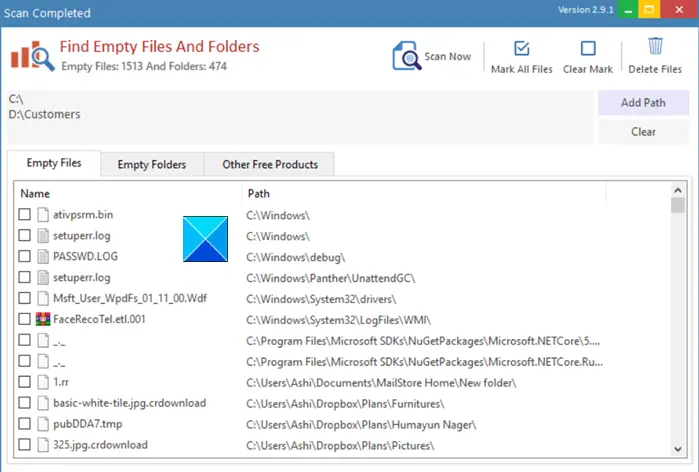
Download and use Find Empty Files and Folder software. This software scans your entire drive, analyzes the files and folders in it, and displays all the empty directories and files if found.
Once the list is ready, review the list of empty files to determine which ones are safe to delete. Once clear, hit the Delete button.
I hope you find this post useful.
