
In this post, we will show you how to customize the Outlook ribbon on a Windows 11/10 PC.
Microsoft has taken different approaches to the ribbon across its Outlook platforms. In the new Outlook app for Windows and Outlook.com, the traditional ribbon has been replaced with a streamlined toolbar. Users can switch between the simplified ribbon and the classic ribbon, and customize which actions appear for quicker access. The classic Microsoft Outlook still retains its fully customizable ribbon, where you can add or remove commands, create custom groups, and rearrange tabs. If the default ribbon setup doesn’t meet your needs, you can easily customize it in Windows 11/10.
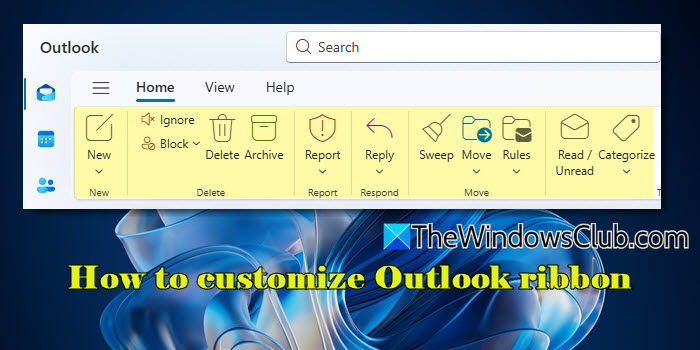
How to customize Outlook ribbon
To customize the Outlook ribbon on a Windows 11/10 PC, you need to follow a few simple steps. These steps differ slightly depending on whether you’re using the new Outlook app, Outlook.com, or the classic MS Outlook desktop software.
Let’s go through them one by one.
Customizing ribbon in Microsoft Outlook
The Microsoft Outlook desktop app still uses the traditional ribbon interface. To customize the ribbon in Microsoft Outlook, follow these steps:
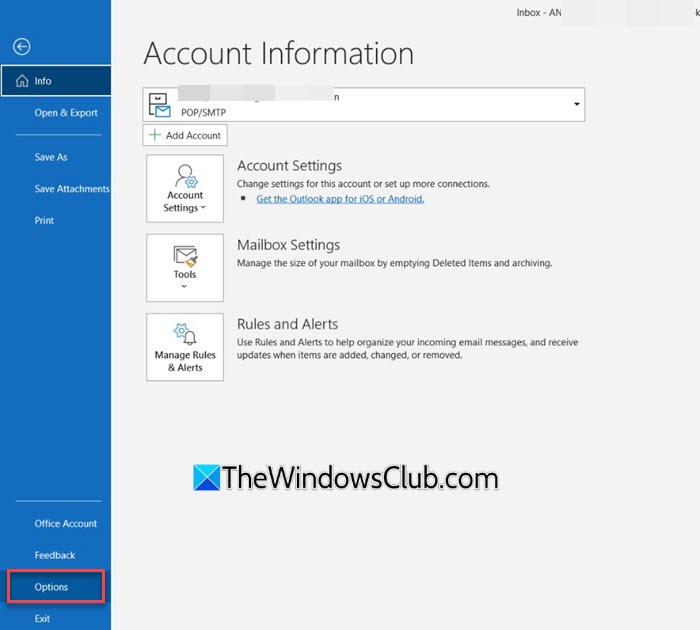
Open Outlook, and go to File > Options.
In the Outlook Options dialog, select Customize Ribbon from the left pane. This will display all available options to customize the ribbon. On the left, you’ll see a list of commands that are not present in the ribbon (and other available options). On the right, you’ll see the current ribbon structure with tabs and groups.
Select a command from the left panel, then choose the tab/group on the right where you want to place it. Click Add >> to add the command.
To remove a command from the ribbon, expand the tab (in the right panel), then expand the group that contains the command you want to remove. Select the command and click Remove <<.
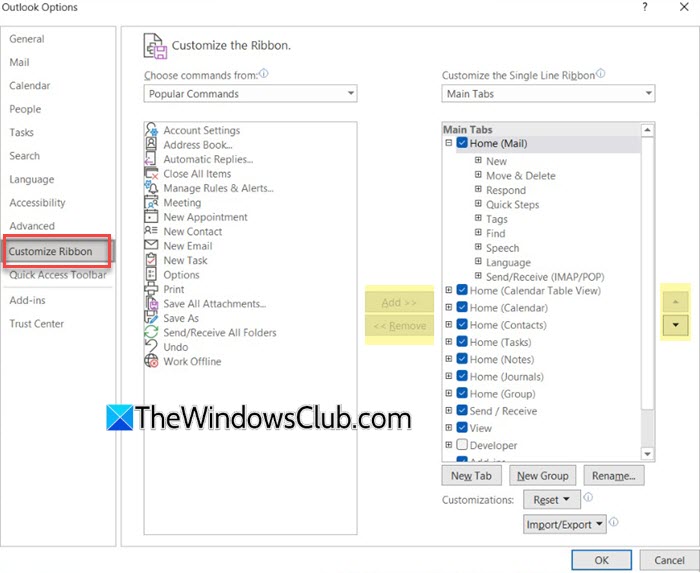
To create custom groups, select the tab where you want the new group. Click New Group (bottom right). A new group will appear under that tab. Select the group and click Rename to give it a meaningful name. With the group selected, you can add commands to it from the left panel.
To create new tabs, click New Tab. A new tab will appear on the right panel with a default New Group inside it. Rename the tab and the group, then add commands to it as described earlier.
You can also rearrange tabs and groups. In the right panel, select a tab or group and use the Up/Down arrows or simply drag and drop to reposition them as you like.
Once you’re happy with the changes, click OK to apply them.
Read: How to add the Search tab to Outlook Ribbon
Customizing ribbon in new Outlook app
After recent updates, the New Outlook for Windows has introduced a revamped ribbon interface. You can now switch between two layouts:
- Classic Ribbon: This layout occupies more screen space and contains almost all the options and commands you may need. The downside of this layout is that it cannot be customized.
- Simplified Ribbon: This is the default ribbon layout in the New Outlook for Windows. It displays the most commonly used commands in a single line, making the interface less cluttered. Unlike the classic version, the simplified ribbon is fully customizable.
To customize the simplified ribbon in New Outlook, select Mail from the left pane. Navigate to the tab you want to customize (Home / View). On the right side of the ribbon, click the three dots (More options), then choose Customize.

In the Customize window that opens, you may:
Add or remove buttons: Check or uncheck commands under Buttons. When you check a command, it’s added to the ribbon, and when you uncheck a command, it’s removed from the ribbon and moved to the More options flyout menu.
The changes you made are immediately reflected under the Ribbon preview on top of the window.
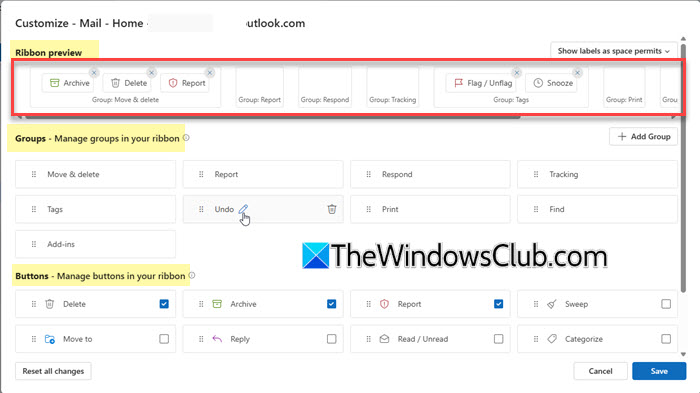
When you add a button, it goes to the beginning of the group it belongs to. You may drag and drop buttons within the same group or into another group to change their order.
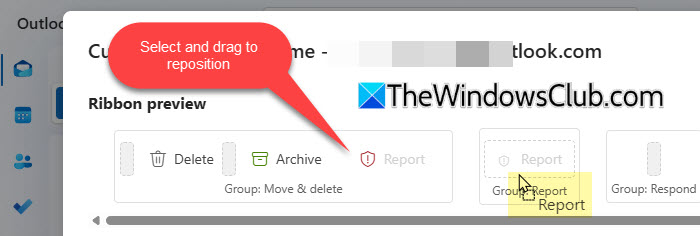
Create new groups: Under Groups, click Add Group. Hover over the group and click the Pencil icon to rename it. Then drag it to the desired position on the ribbon. You can add commands to this custom group just like any other group.
Delete groups: Hover over a group in the Groups section, then click the trash icon to remove it.
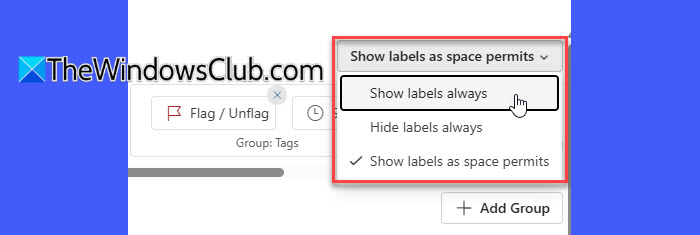
Show or hide labels: The dropdown in the top-right corner of the window lets you choose whether the ribbon displays just icons or icons with text labels:
- Show labels always: Every button on the ribbon shows both its icon and text label, even if it takes up more space.
- Hide labels always: Buttons only show their icons (no text), which saves screen space but might make commands harder to recognize.
- Show labels as space permits (default): Outlook automatically shows labels for some commands and hides them for others depending on the available screen space.
When you’re satisfied, click Save to apply your customizations. If you want to undo all changes and return to the default layout, click Reset all changes in the lower-left corner.
Note: Customizations apply only to the Mail ribbon and only to the account you currently have selected.
Read: How to add Back and Forward buttons to Outlook Ribbon
Customizing ribbon in Outlook.com
Outlook.com offers the same ribbon customization interface as the New Outlook for Windows. When you open the Customize Ribbon option, you’ll see a preview of the ribbon at the top, along with sections for Groups and Buttons, where you can add, remove, reorder, or group commands just like in the app. You can also control how labels appear on the ribbon (whether to always show, always hide, or display them as space permits).
Also, ribbon customizations are synced across Outlook.com and the New Outlook app. Any changes you make in the web version will reflect in the Windows app, and vice versa.
That’s all! I hope you find this useful.
Read: How to add the Search tab to the Outlook Ribbon.
How do I customize the ribbon in Outlook?
To customize the ribbon in the New Outlook app or Outlook.com, open Outlook, click More options, and select Customize. In Microsoft Outlook, click File > Options, then select Customize Ribbon in the window that appears. You’ll see options to add, remove, or rearrange items within the ribbon.
How to get classic ribbon in Outlook?
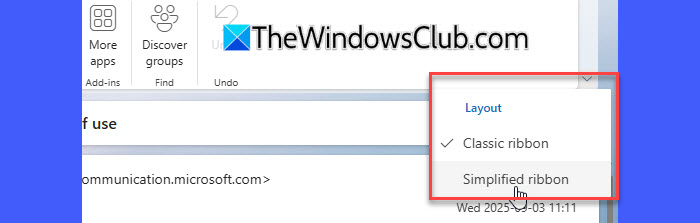
To switch to the classic ribbon in the New Outlook or Outlook.com, click the downward arrow icon at the top-right corner of the window. From there, select Classic ribbon. You may switch back to the simplified ribbon anytime from the same menu.
Read Next: How to move Outlook toolbar from side to bottom.
