
Windows 11 makes it possible for users to customize and personalize settings. With millions of users around the world with different preferences and personalities, some people want to customize. Personalizing your mouse can help you work more effectively. This article will show you how to customize your mouse on Windows 11.
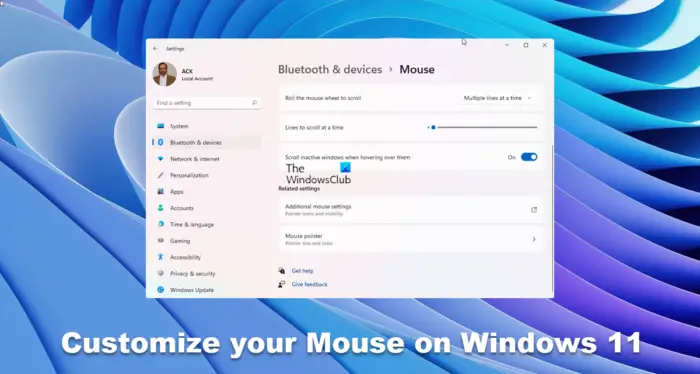
How to customize Mouse Buttons, Pointer, Cursor on Windows 11
Personalizing your mouse in Windows 11 can be useful for graphic artists who work with lots of colors and need a cursor that changes accordingly. Some people may have conditions that require changes to the mouse cursor so they can use it more comfortably.
- Change cursor color
- Change cursor size
- Change Text Cursor Indicator
1] Change cursor color
You may do a lot of work with different color graphics and need a different mouse cursor color. This helps the cursor stand out against different colors. This also helps people who may have problems with certain colors. Changing the color may also be just a way to personalize the cursor, making it yours instead of looking like everyone else. You may want a solid color or the ability to change color based on what it is hovering over.
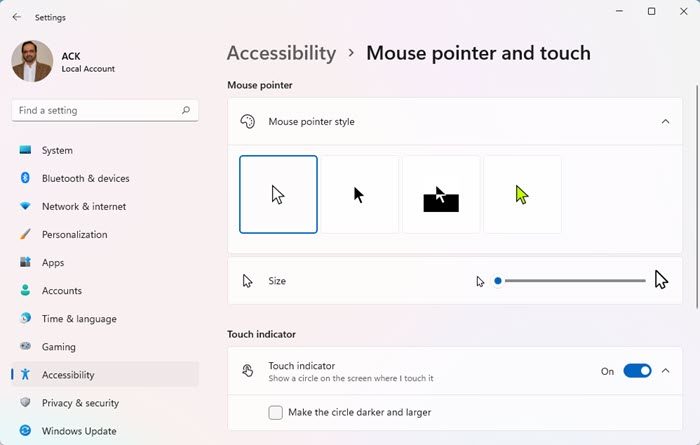
To change the color of the cursor in Windows 11:
- Go to the search icon on the taskbar and type Mouse Settings, and click on it.
- You will be taken to the Bluetooth & Devices – Mouse window.
- Go to the bottom of the window and click Mouse pointer.
- You will be taken to Accessibility – Mouse pointer and touch.
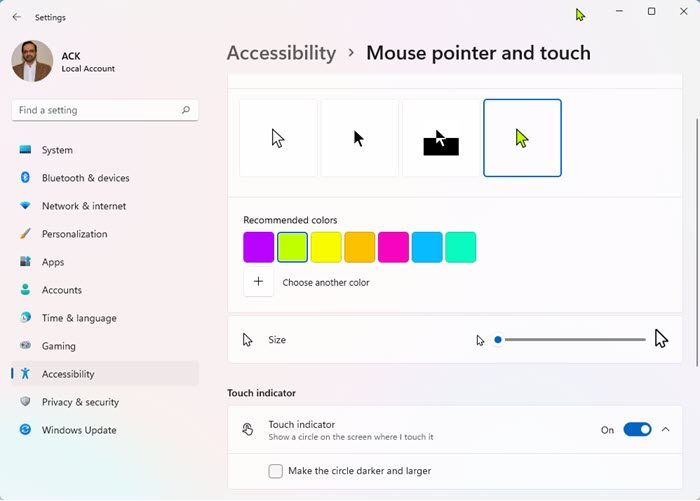
Look under Mouse pointer then Mouse pointer style. You will see four color options, white, black, inverted, and custom. White will give a plain white cursor, black will give a plain black cursor, inverted will give the cursor the opposite color of the thing that it is hovering over, and the Custom option gives the option for you to change the cursor to the color you want.
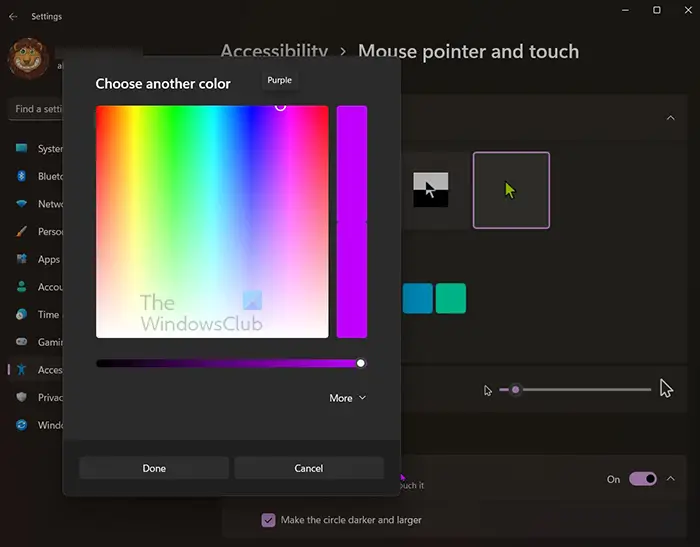
When you choose custom. You will see some recommended colors then a + for you to choose another color.
In the option to choose another color, you can customize the color even further by moving the cursor in the different colors.
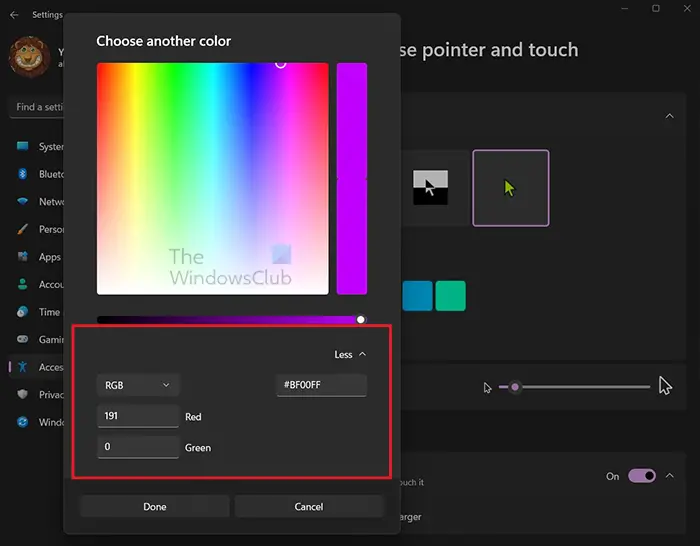
You can also choose More to enter the Red, Green, and Blue (RGB) values or the color code at the #.
2] Change cursor size
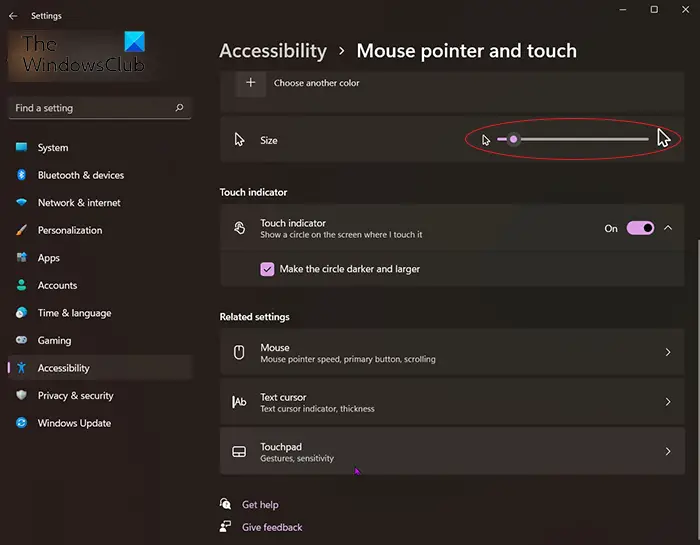
The cursor may be too small for you and you want it to be a little bigger or much bigger. This helps with accessibility for people who may need a bigger cursor for better visibility.
- To change the size of the cursor, click Start and search or go to the search icon on the taskbar and type Mouse Settings, and click on it to open.
- You will be taken to the Bluetooth & Devices – Mouse window. go to the bottom of the window and click Mouse pointer.
- You will be taken to the Accessibility – Mouse pointer and touch. Look under Mouse pointer then Mouse pointer style. Look below the color option and you will see the Size.
- There is a slide bar, you can move the slide to the left or right to make the mouse pointer bigger or smaller.
Touch Indicator
If you have a touch screen computer, you can modify the Touch Indicator and turn on Show a circle on the screen when I touch it. You can also make the circle darker and larger by selecting that option.
More mouse settings
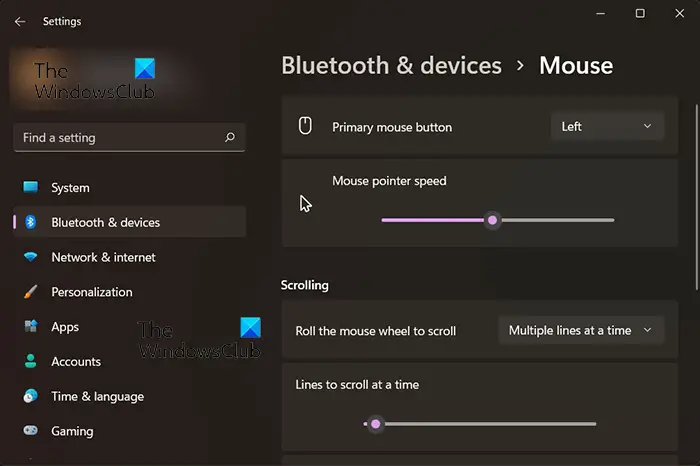
Primary mouse button
Have you ever had a situation where the left mouse button, which is the primary mouse button, fails? It may refuse to respond, or it may double-click when you want a single click. If you can’t change the mouse immediately, you can make the right mouse button the Primary mouse button. Click the down arrow where it says Left and choose Right.
Mouse pointer speed
You can change the mouse pointer speed by moving the slider to the left for slower and to the right for faster.
Scrolling
The scrolling can be changed to fit your need. You can choose how the scroll works when you roll the mouse wheel. The default scroll is Multiple lines at a time. Click the down arrow and the other scroll option which is One screen at a time will show. You can choose this other option if you want.
You can choose how many lines to scroll at a time by moving the slide bar to the right or the left.
3] Change Text cursor indicator
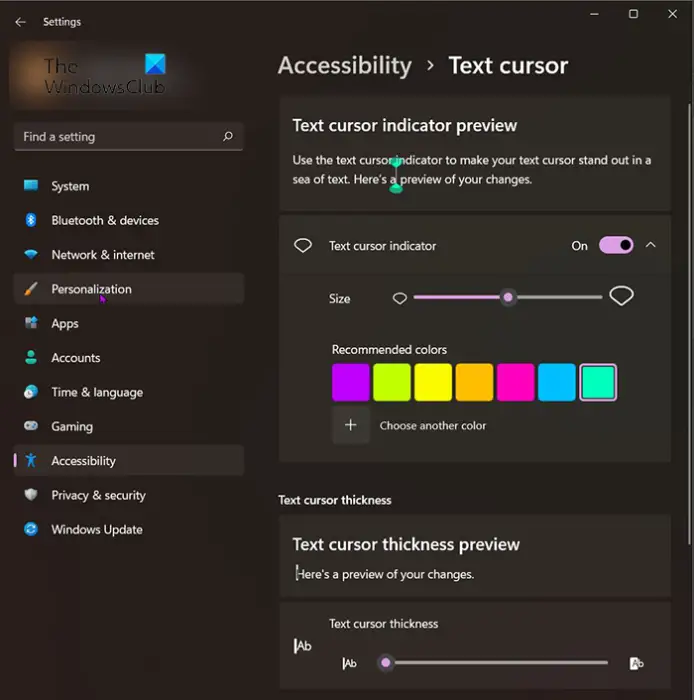
You can also personalize the text cursor for custom or accessibility purposes. Turning on the Text cursor indicator will put two-colored indicators above and below the Text cursor so that it is easy to find on the page in text.
You can choose the color of the text cursor indicators. You can use the recommended colors or click Choose another color to make custom colors.
Text cursor thickness
The thickness of the Text cursor can be changed. To make the text cursor thicker or thinner, move the slider to the right or the left.
Read: Change the Text Cursor Indicator size, color, and thickness in Windows
Related reads:
How do I change the mouse color in Windows 11?
To change Mouse color & scheme, click Start and search or go to the search icon on the taskbar and type Mouse Settings, and click on it. You will be taken to the Bluetooth & Devices – Mouse window. Go to the bottom of the window and click Mouse pointer. You will be taken to the Accessibility – Mouse pointer and touch. Look under Mouse pointer then Mouse pointer style. You will see four color options, white, black, inverted, and custom. Choose one of these color options to change the mouse color.
Related: Change Mouse Pointer color to red, solid black, etc, in Windows for better visibility.
How do I get a crosshair cursor?
To get a crosshair cursor & pointer for Windows 11, follow these steps:
- Press Win+I to open Windows Settings.
- Go to Bluetooth & devices > Mouse.
- Click on Additional mouse settings.
- Switch to the Pointers tab.
- Select Normal Select > Browse.
- Choose the crosshair mouse pointer and click on Open.
- Click the OK button.
How do I add custom cursors to Windows 11?
To add custom cursors in Windows 11, first open the Windows Settings panel. Then, go to Accessibility > Mouse pointer and touch setting. Next, you can choose a cursor as per your requirements. However, to install a new cursor, open Control Panel. You can download a free custom cursor & pointer from a trusted source.
Read: Mouse cursor change won’t stay permanent in Windows 11.
