
In this post, we will show you how to change the Touch Keyboard, Emoji Panel and Voice Typing Theme in Windows 11.
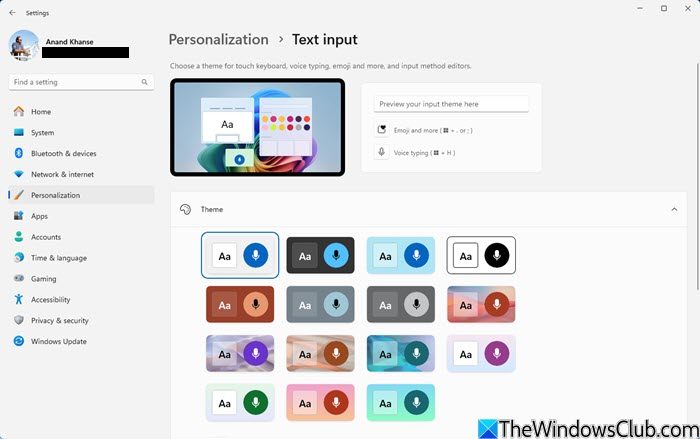
Change Touch Keyboard, Emoji Panel, Voice Typing Theme in Windows 11
To change the Touch Keyboard, Emoji Panel, Input method editors and Voice Typing Theme in Windows 11:
- Press Win+I to open Windows Settings
- From the left, open Personalization settings
- On the right side, click open Text Input
- Under the Theme section, you will see several themes
- Select the one you want.
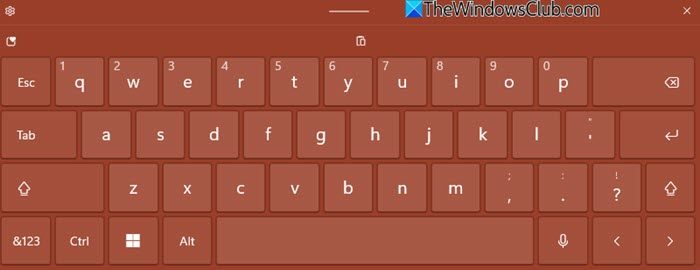
No, you will see the Keyboard theme changed.
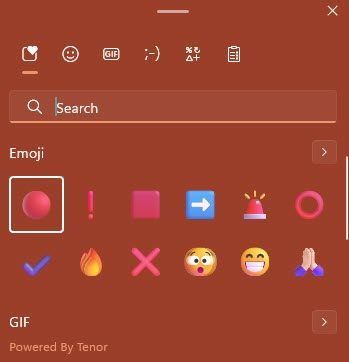
You will also see the change in the Emoji panel.
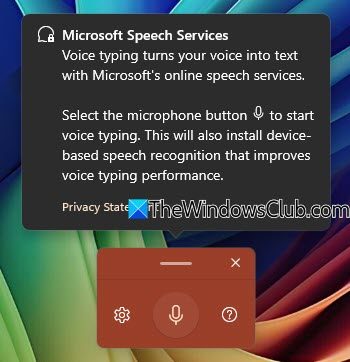
The Voice typing panel will aslo reflect the change.
In Windows Settings there, you can also see additional customization options:
- You can resize the Touch Keyboard
- You can add a custom background image for a more personalized look.
- You can adjust how opaque or transparent the keys appear.
You can thus also create a custom theme by choosing background images, colors, and key transparency.
Now read: Touch Keyboard Settings, Tips and Tricks for Windows 11.
