
If you are considering creating a newsletter and distributing it via Outlook 365, this guide is for you. In this post, we will discuss two methods for creating a newsletter in Outlook 365.
Create a Newsletter in Outlook 365
Creating custom newsletters in Outlook can be challenging, as there’s no simple “Create Newsletter” button. The features may differ between web and desktop versions, and the process isn’t always intuitive. However, with some creative solutions and knowledge of Outlook’s tools, you can create and distribute a professional newsletter from your inbox. This guide focuses on Outlook for desktop (including Mac) and highlights the new Outlook Newsletters feature that is beneficial for some users.
If you want to create a newsletter in Outlook 365, you can follow either of the two methods.
- For MS Outlook
- For Outlook app or Outlook for Mac
Let us discuss them in detail.
1] For MS Outlook
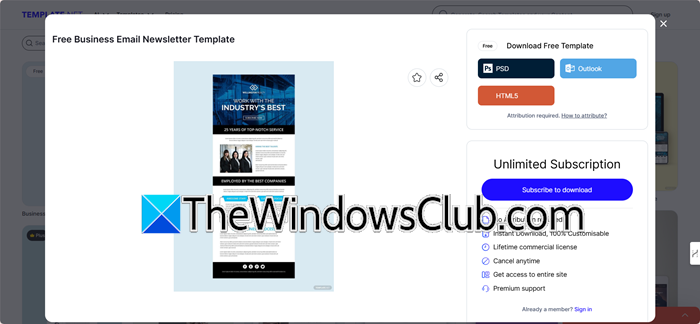
We need to start with a solid template. Services like Stripo.email, Template.net, Mailchimp.com, or Publicate offer modern newsletter templates that you can easily export to Outlook. These usually come as an .oft file for Windows or an .emltpl file for Mac.
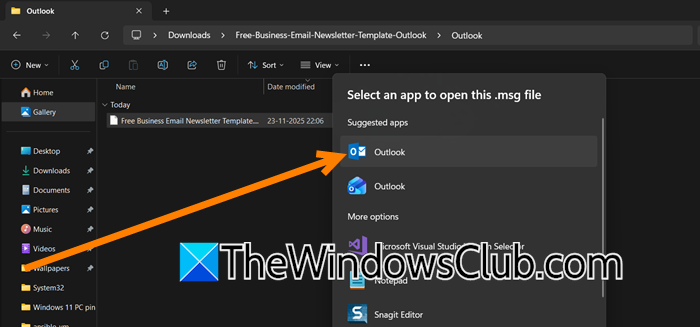
After downloading, right-click the file, select Open With > Microsoft Outlook, and you’ll have a ready-made template for your content and images.
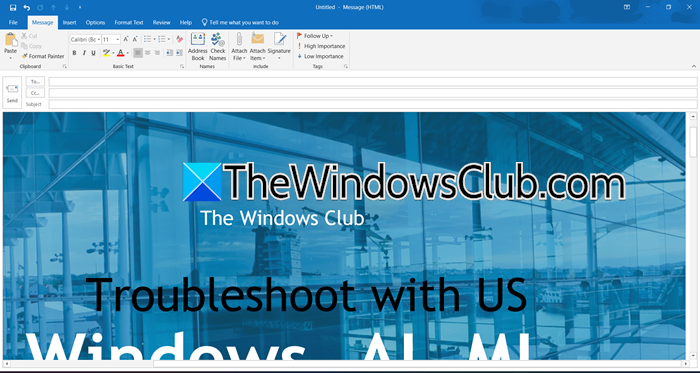
Once your template is open, customize it using Outlook’s formatting options for fonts, colors, and alignments. For more design work, use Microsoft Publisher, but in the new Outlook, Copilot is a great tool that can generate draft text, refine your tone, and suggest improvements, combining design and content creation seamlessly.
A newsletter without visuals can feel flat, so enhance it with images or GIFs. Go to the Insert tab > Pictures, select your file, and place it in your message. Resize and adjust text wrapping to create a more dynamic feel. Visuals not only decorate but also grab attention and make your message memorable.
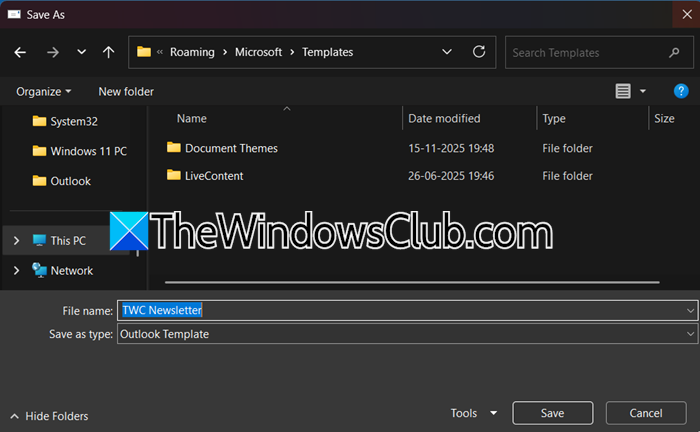
Once you finish your newsletter, save it as a template by going to File > Save As > Outlook Template. This way, you’ll have a polished design ready for future editions, making it easy to maintain brand consistency and save time.
2] For Outlook app or Outlook for Mac
If you are using the latest version of Outlook, you can leverage Outlook’s built-in Newsletter feature. Follow the steps mentioned below to do the same.
- Outlook now includes a built‑in Newsletters feature for work or school accounts, offering a smoother way to design and share internal updates directly inside the app.
- To begin, look for the Newsletters icon in the navigation pane of your Outlook window and confirm that the option is available.
- When creating a newsletter, you can select from preset designs or start fresh with a blank layout, depending on your preference.
- Collaboration is simple: you can invite colleagues to contribute using the Add Authors option, making it easy to edit and finalize content together.
- Before sending, use the Preview button to check the design, then add your recipient group to the BCC field to protect privacy, and click Send.
- This approach is easier and more streamlined than traditional template methods, though it depends on your organization’s Microsoft 365 plan and administrator settings.
If the feature is not available to you, wait for Microsoft to roll it out.
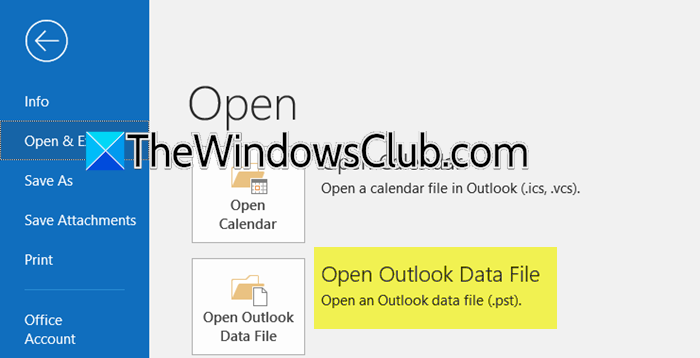
To prepare your newsletter in Outlook, reuse your saved design by opening the application, creating a new email from a template, and selecting your saved file. This gives you a formatted message ready for content updates, saving time and ensuring consistency. In order to reuse the template, you need to go to File > New > Email From Template (the exact path may vary slightly by version), File > Open & Export > Open Outlook Data File, or File > Open & Export > Files > Outlook Data Files > Add file. Finally, add the file.
To streamline distribution, create a mailing list in the Contacts view. Name it clearly, like “Newsletter Subscribers,” and add the necessary email addresses. You can use this list to quickly send out newsletters by typing the group name instead of individual addresses.
When sending, prioritize subscriber privacy by using the BCC field for your contact group. This prevents recipients from seeing each other’s addresses and keeps your communication professional and secure.
That’s it!
Read: Outlook Error: OST File Is Inaccessible – Causes and Fixes
How to create a newsletter in Outlook 365?
To create a newsletter in Outlook 365, you can utilize its built-in template functionality by designing your content, including text, images, and branding, in a new email, then saving it as an Outlook Template (.oft) file for future reuse; alternatively, if available for your work or school account, use the dedicated Outlook Newsletters feature which provides structured templates and a streamlined workflow for collaborative creation and distribution directly within the application.
Read: Masking email address vs. Using temporary email addresses
