
In this article, we are going to learn how to connect LM Studio to VS Code. Connecting LM Studio to VS Code allows developers to use locally hosted AI models directly inside their coding workflow.
How to connect LM Studio Models to VS Code?
LM Studio is an application that lets users run AI models on their devices without an Internet connection, with no monthly fees or per-use charges. This way, nothing leaves their devices, ensuring privacy, security, and accessibility. VS Code is a free, lightweight source code editor that helps users write and manage their code. It works with almost every programming language and includes features such as IntelliSense, semantic code understanding, and easy code refactoring to make coding more efficient. But to make the task more efficient, we are going to connect LM Studio to VS Code to bring a private AI assistant directly into the coding workspace.
Set up the LM Studio API Server
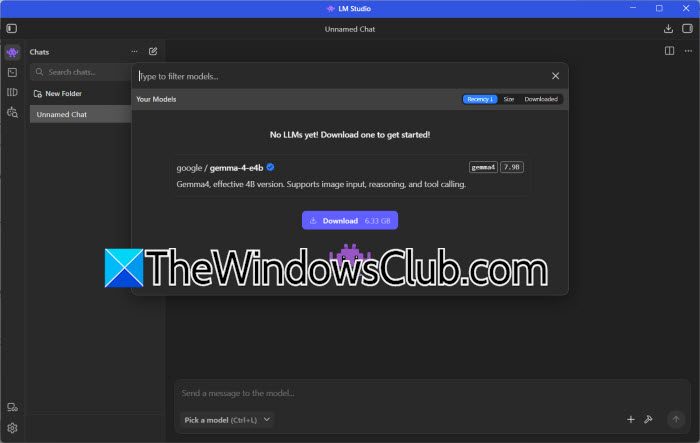
To connect VS Code to the local model, we need to connect LM Studio to the model through its built-in API Server. This server creates a local endpoint that other apps can connect to. Follow the steps given below to do the same.
- Open LM Studio and download or load the AI model by clicking on the Pick a Model button, like Code Llama, Qwen 2.5 Coder, DeepSeek Coder, or Gemma 4E4B.
- In LM Studio, navigate to the Developer or Server section, and click on the Start Server to enable the local API server.
- Next, verify that the server is running at http://localhost:1234/v1 and keep LM Studio running in the background while using VS Code.
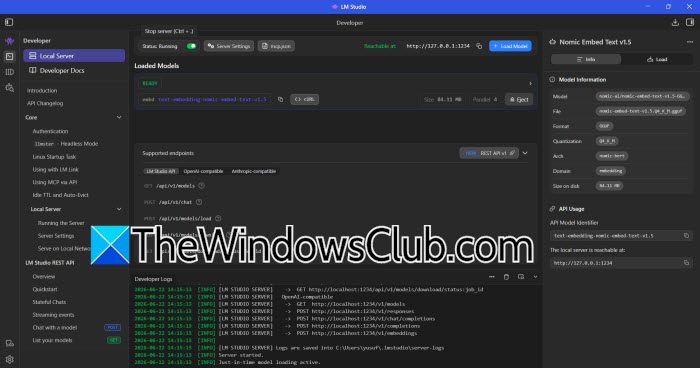
That’s how we can prepare LM Studio for external connections.
Connect LM Studio using the Continue Extension
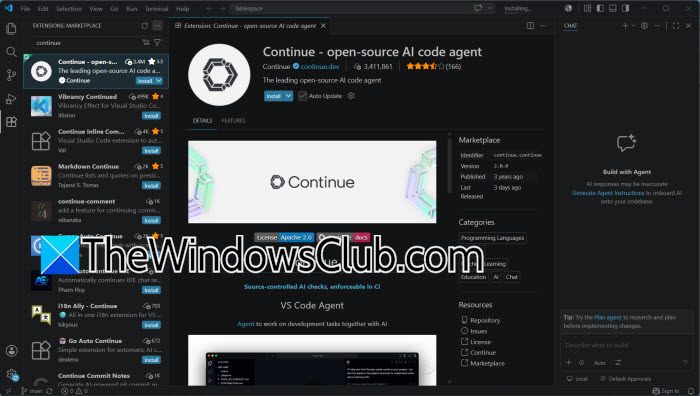
Continue is one of the most popular VS Code extensions for working with local AI models. It supports OpenAI-compatible providers and makes it easy to connect to LM Studio without lengthy procedures. To do the same, follow the steps given below.
- Launch VS Code, navigate to the Extensions bar, and search for Continue.
- Install the Continue extension from the VS Code Marketplace, then open it from the sidebar.
- In the Models Add-on window, go to the Select model dropdown menu, click on the Add chat model option, and click on the Provider dropdown list.
- Select LM Studio, leave the Model option at Autodetect, which will detect the already running local server in LM Studio, and select the Connect option.
- Save the configuration and reload VS Code.
Once connected, users cannot use chat, code generation or editing features directly in the editor. That’s how we can easily integrate LM Studio using the Continue extension. After configuration, we need to confirm that VS Code is successfully communicating with LM Studio. Here’s how to do the same:
- To experience the same interface as Copilot, click on the Toggle secondary side bar to open the Copilot chat window, and then drag and drop the Continue icon to the chat box.
- Now, ask a simple coding question such as Create a Python function to check if a number is prime or Write a C++ program.
- To check if the model responds correctly, go to the LM Studio and check how the prompt has been processed. If no response is received, confirm that the LM Studio server is still running and that the endpoint URL matches the address displayed in LM Studio.
That’s how easy it is to verify the connection.
Troubleshoot VS Code LM Studio Connection Issues
Sometimes VS Code may fail to connect even when LM Studio is running. In such cases, issues are mostly caused by incorrect endpoint settings, inactive models, or extensions pointing to the wrong provider. To fix it, check some of the pointers.
- Check that the LM Studio server is running on port 1234. Navigate to the Developer tab to confirm.
- Verify that a model is actually loaded inside LM Studio.
- Ensure that the extension is configured to use the local endpoint and not a cloud address.
- If the extension requires an API key, use a placeholder like none or dummy.
- Restart both LM Studio and VS Code after making any changes.
That’s it! Users now have a private offline AI coding assistant running inside VS Code, and it is connected to LM Studio.
Read: Free tools to run LLM locally on Windows 11 PC
Can I use LM Studio for coding?
Yes, absolutely. LM Studio can run code-specialised AI models like Code Llama, Qwen 2.5 Coder, or DeepSeek Coder entirely offline. When users connect it to VS Code, it provides free AI assistance for code generation, debugging, explanations, and auto-completion without sending the code to the cloud, thus ensuring privacy and security.
Read: How to install Qwen AI Locally on Windows 11
How to use LLM in VS Code?
To use an LLM in VS Code, install the Continue extension. Then set up a local LLM server like Ollama or LM Studio. Finally, configure Continue to connect to the local server for chat and code completions. To get a better framework, check out the article above on how to connect LM Studio to VS Code.
Also Read: Configure LM Studio to use multiple AI’s on Offline PC.
