
Qwen AI is known for its impressive reasoning, coding, and natural language understanding. Its quantized models allow efficient local deployment, making it accessible for developers and researchers to run on their own hardware using platforms like Ollama, LM Studio, or vLLM. In this post, we are going to install Qwen AI Locally on Windows 11/10.
Qwen AI Quantized models
Qwen3 is optimized for high-performance tasks, including coding, mathematics, and reasoning. Its quantized formats – BF16, FP8, GGUF, AWQ, and GPTQ – minimize computational and memory demands, allowing efficient deployment on consumer-grade hardware.
The Qwen3 family features both Mixture-of-Experts (MoE) and dense models. MoE variants include Qwen3-235B-A22B and Qwen3-30B-A3B, available in BF16, FP8, GGUF, and GPTQ-int4 formats. The dense models span multiple sizes, from Qwen3-32B down to Qwen3-0.6B, supporting BF16, FP8, GGUF, AWQ, and GPTQ-int8 formats.
Following Qwen3, the Qwen team has released updated versions (such as the 2507 release of Qwen3-4B) and models optimized for specific tasks. These newer models feature significant improvements in reasoning, multi-language support, and context lengths of up to 256K.
Since then, the family has expanded with 256K-context “2507” updates, the coding-focused Qwen3-Coder-Next (Feb 2026), and the Qwen3.5 series featuring 122B-A10B, 35B-A3B, and 27B dense models.
While we have considered Qwen3 in this post, a similar procedure applies to all later versions of Qwen AI.
Before we go ahead and install Qwen3, you need to make sure that your machine matches the following system requirements.
- CPU/GPU: Modern processor or NVIDIA GPU (recommended for vLLM).
- RAM: Minimum 16GB for smaller models (Qwen3-4B); 32 GB+ for larger ones (Qwen3-32B).
- Storage: Ensure sufficient space (e.g., Qwen3-235B-A22B GGUF may require ~150GB).
- Operating System: Windows, macOS, or Linux.
- Python: Version 3.8+ (for vLLM and API interactions).
- Docker: Optional, useful for vLLM environments.
- Git: Required for cloning repositories.
- Dependencies: Install essential libraries such as torch, transformers, and vllm (for vLLM).
How to install Qwen AI Locally on Windows 11/10
If you want to install Qwen AI Locally on Windows, follow the methods mentioned below.
- Install Qwen using HuggingFace
- Use Qwen using ModelSpace
- Install Qwen using LM Studio
- Use Qwen using vLLM
Let us talk about them in detail.
1] Install Qwen using HuggingFace
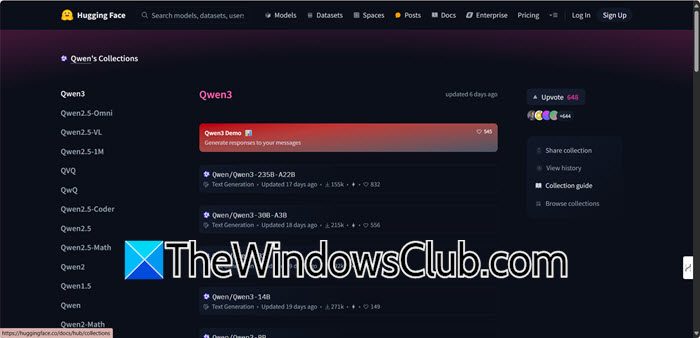
Hugging Face provides tools for building, sharing, and deploying models and data. Its most popular feature is the Transformers library, which helps with tasks like natural language processing and computer vision. We can install Qwen3 using HuggingFace. You need to go to huggingface.co and then look for the model you want to use. Click on Use this model and then download it.
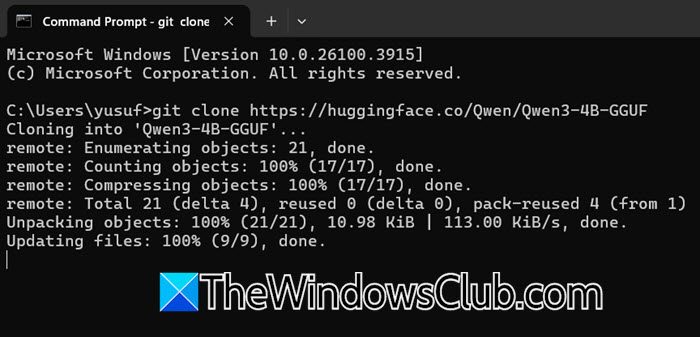
You can also run the following command to close the Git repository using HuggingFace.
git clone https://huggingface.co/Qwen/Qwen3-4B-GGUF
Wait for a few minutes and let it download.
2] Use Qwen using ModelScape
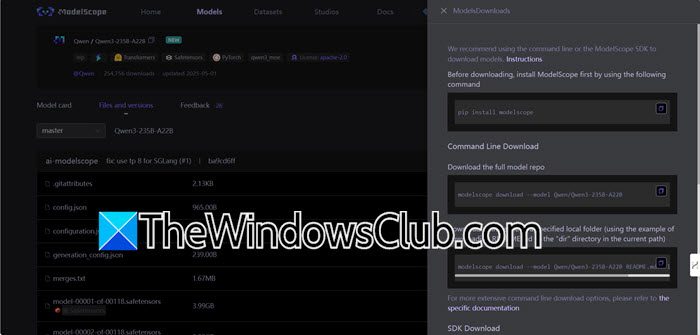
Next, we will use another online platform to download Qwen3, but this time, we will use ModelScape. To do so, all you have to do is go to modelspace.cn and look for the Qwen3 Model you would like to install. Then, go to the Files and Versions tabs and click on Download model. It will give you the command-line method to download Qwen3. You will have two methods to do so – command-line or the ModelScope SDK.
The best part is, you will get all the commands that you can just run in PowerShell or Command Prompt to install the model.
3] Install Qwen using LMStudio
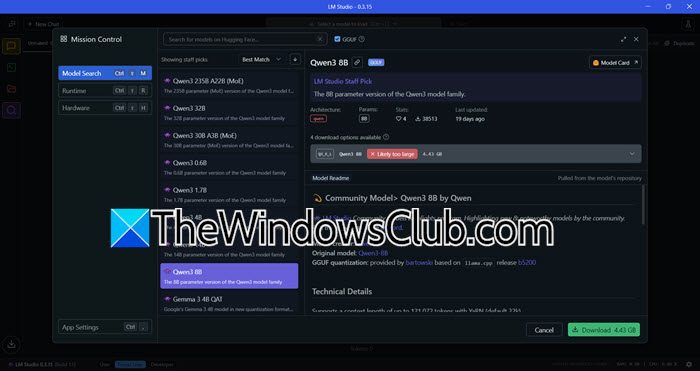
If you think the methods mentioned earlier are boring, we have a GUI method to install and interact with Qwen3. LM Studio is a local AI toolkit that lets users discover, download, and run open-source LLMs like Llama, DeepSeek, and Qwen directly on their computers.
First of all, you need to install LMStudio from lmstudio.ai. Then, click on Download LM Studio for Windows. Since it is a large application, you need to wait for a few minutes. Once the LM Studio is downloaded, run the installation media and follow the on-screen instructions to install the application. After installing, follow the steps mentioned below to set up Qwen3.
- In LM Studio, click on the Magnifying glass icon called Discover.
- Search for Qwen3.
- Then, click on the Download icon and let it download on your computer.
- Set the model parameters to Temperature: 0.6, Top-P: 0.95, and Top-K: 20, which align with Qwen3’s recommended thinking mode settings.
- Then, start the model server by clicking “Start Server”, and LM Studio will generate a local API endpoint (e.g., http://localhost:1234).
Once done, you can pretty easily use the LM Studio chat interface to test the model.
4] Use Qwen using vLLM
vLLM is a high-efficiency serving framework designed for large language models (LLMs), offering seamless support for Qwen3’s FP8 and AWQ quantized models. It provides optimized inference performance, making it an excellent choice for developers creating scalable and robust AI-powered applications. If you are looking to install one of the higher-end Qwen3 Models, you can use vLLM. To do so, first download and install the latest version of Python. Now, to install and use Qwen3, run the commands given below.
pip install vllm
python -c "import vllm; print(vllm,_version_)"
To load the model, run the following command.
vllm server "Qwen/Qwen3-235B-A22B"
Hopefully, with the help of the methods mentioned in this post, you will be able to install Qwen3 on your computer.
Read: Best Microsoft Copilot alternative for Windows PC
Is Podman Desktop free?
Podman Desktop is a free and open-source tool for developers. It allows you to manage containers and Kubernetes easily using a simple graphical interface. Since it is vendor-neutral, you won’t face any restrictions or licensing fees, making it available for everyone. Podman Desktop works on Windows, macOS, and Linux, providing a flexible environment for your containerized applications.
Read: How to install Gemma LLM on Windows 11 PC?
How to install npm locally?
Node Package Manager (NPM) comes with Node.js. You can download and run the Node.js installer to install npm on your computer. We recommend you go through the guide on how to install NPM to know more.
Also Read: Use Qwen AI API for free.
