
Microsoft Defender is Windows’ built-in antivirus that provides decent protection for most home users. However, some users install third-party security software for additional features or protection options that Defender may not offer. Antivirus may also come bundled with another application and install unintentionally when users rush through setup.
Knowing what antivirus you have on your Windows 11 PC helps you identify additional security programs, check which antivirus is actively protecting your device, and whether any traces of a previously uninstalled antivirus remain on your PC.
How to check what antivirus I have on Windows 11
You can check what antivirus you have on your Windows PC using any of the following methods:
- Use Windows Security
- Check the Context Menu
- Check installed apps
- Check Task Manager for startup apps
- Look for antivirus icons in the system tray
- Use File Explorer
- Use Windows Services Manager
- Use Registry Editor
- Use PowerShell commands
- Use a third-party utility to list installed software
Let’s have a look at these methods in detail.
1] Use Windows Security
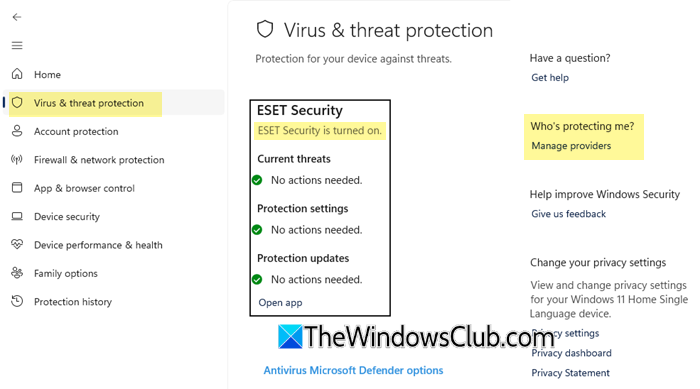
Windows Security is a built-in Windows 11 app that provides a central place to view and manage your PC’s security features, including antivirus protection, firewall settings, and app and browser protection. It works with Microsoft Defender Antivirus and other compatible security products to display your device’s protection status.
You can use Windows Security to check which antivirus provider Windows recognizes as protecting your device.
Press Win + S, type Windows Security, and open the app. Select Virus & threat protection.
On this screen, Windows Security displays the antivirus provider it recognizes. In our case, it shows ESET Security and confirms that it is turned on. The page also displays the status of current threats, protection settings, and protection updates.
To view the registered security providers, click Manage providers under Who’s protecting me?.
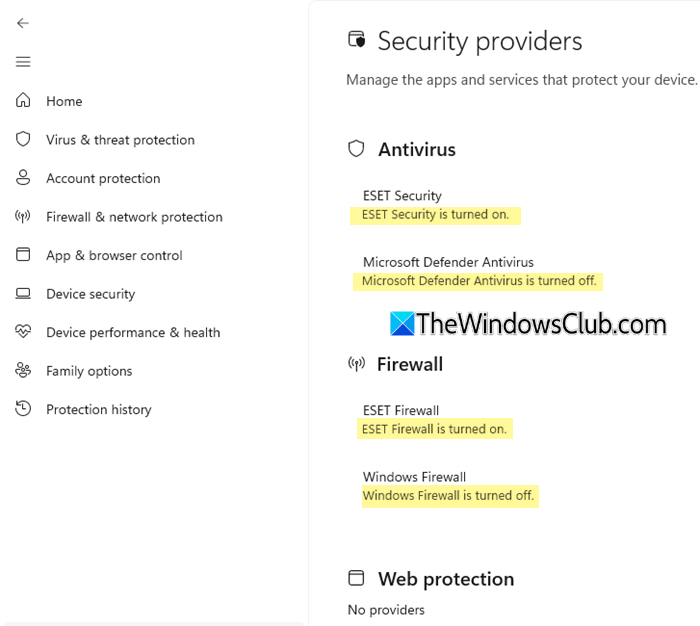
Under Antivirus, you can see which security products Windows recognizes and their current status. In our case, ESET Security is turned on, while Microsoft Defender Antivirus is turned off. This is expected when a compatible third-party antivirus takes over as the primary antivirus provider. The page also displays the status of firewall providers and web protection, where supported.
Note: This method does not provide a complete list of every antivirus application installed on your PC. An inactive or unregistered application may not appear here.
2] Check the Context Menu
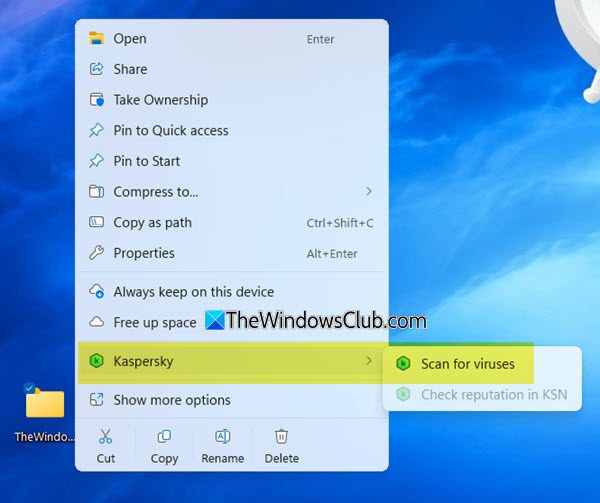
Right-click on any file or folder on the desktop or in Explorer. Here, you will see the active antivirus display its scanning shortcut here – like “Scan for viruses“.
You may need to click on Show more options on Windows 11 in some cases.
3] Check installed apps
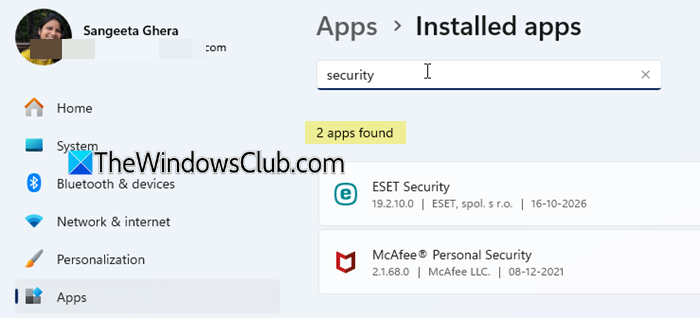
Installed apps is a section in Windows Settings that lists the applications installed on your PC. You may use it to find antivirus software, including third-party security products that may be inactive, expired, or no longer registered with Windows Security. In some cases, an incomplete uninstallation may also leave behind a stale entry.
Press Win + I to open Settings. Select Apps > Installed apps and look for antivirus or security applications in the list. You can also use the search box to search for specific products by name, such as ESET, Kaspersky, Norton, McAfee, Avast, AVG, or Bitdefender.
If you are unsure whether an entry is an antivirus, check its publisher and application details. Some security suites may use a product name that does not explicitly include the word antivirus.
You can also check the installed security software in Control Panel > Programs and Features > Uninstall a program.
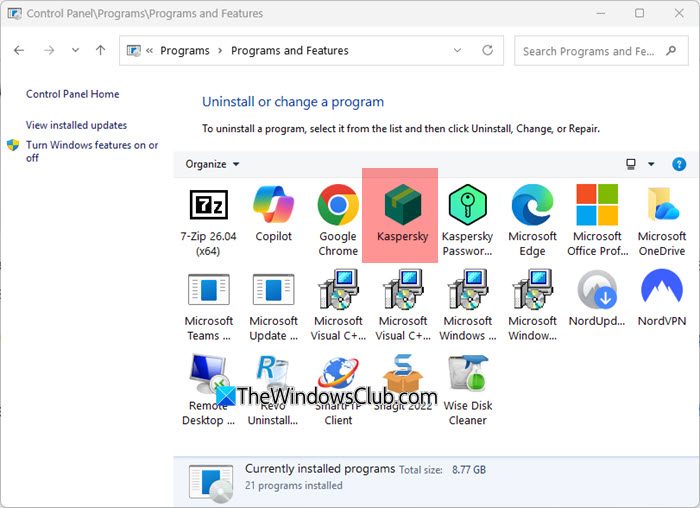
Here you can see Kspersky.
4] Check Task Manager for startup apps
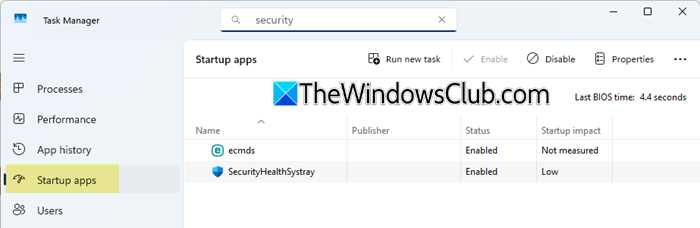
The Startup apps section in Windows 11 Task Manager lists applications configured to launch automatically when you sign in to your PC. You can check this list to identify antivirus or security software that starts with Windows. However, some antivirus products run through Windows services or other background components and may not appear here.
Press Ctrl + Shift + Esc to open Task Manager. Select Startup apps in the left pane and look for antivirus or security-related applications in the list. Check the app’s name and publisher to identify the software.
If you find an unfamiliar entry, search for its name online or check its publisher to determine whether it belongs to an antivirus program.
5] Look for antivirus icons in the system tray
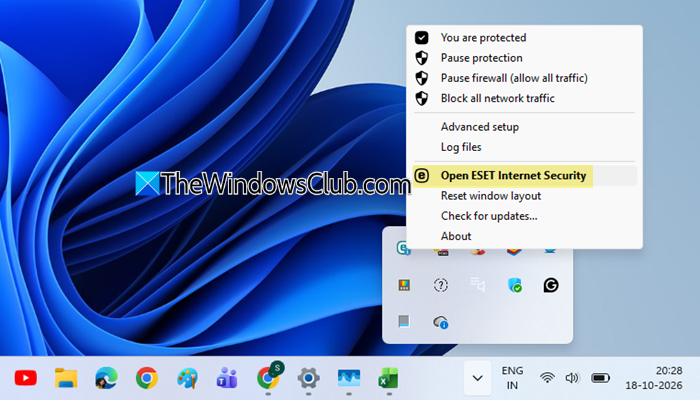
The system tray, located on the right side of the Windows 11 taskbar, displays icons for some applications running in the background. You can check this area to identify antivirus software that may be running on your PC. If you cannot see them, click the Show hidden icons arrow to view additional icons. Hover over an unfamiliar icon to see its name, or right-click it to access the available options.
You can also open the associated application, where available, to confirm the product name and check its protection status.
6] Use File Explorer
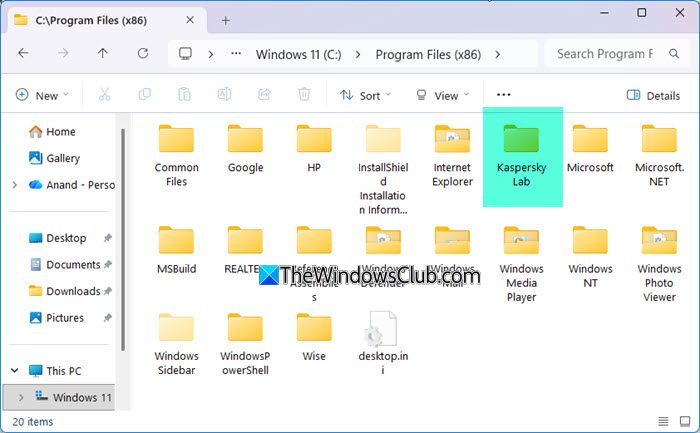
Antivirus programs often create Program folders under:
- C:\Program Files\ or
- C:\Program Files (x86)\
So open these folders and look for AV names like Norton, McAfee, Kaspersky, Bitdefender, Avast, AVG, Avira, Malwarebytes, Panda, Eset, Trend Micro, etc.
7] Use Windows Services Manager
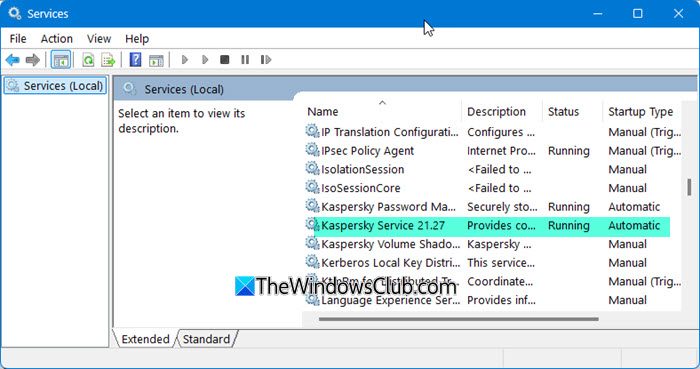
Open Services Manager and through the list to check the status of security services:
If Microsoft Defender Antivirus Service (WinDefend) is running, Defender is handling protection.
Look for services belonging to third-party providers (e.g., Kaspersky, McAfeeCore, Norton Security, Bitdefender Desktop Update Service App, etc). If these are set to “Running,” they are actively protecting your PC.
8] Use Registry Editor
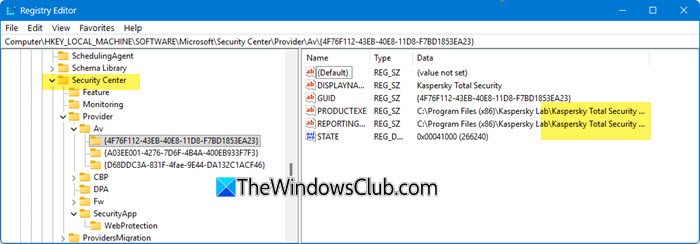
Open Registry Editor and go to the following path:
HKEY_LOCAL_MACHINE\SOFTWARE\Microsoft\Security Center\Provider\Av
Look in the subkeys inside this folder.
Each key corresponds to an antivirus product that has registered itself with the Windows Security Center.
In this image, you can see Kaspersky.
9] Use PowerShell commands
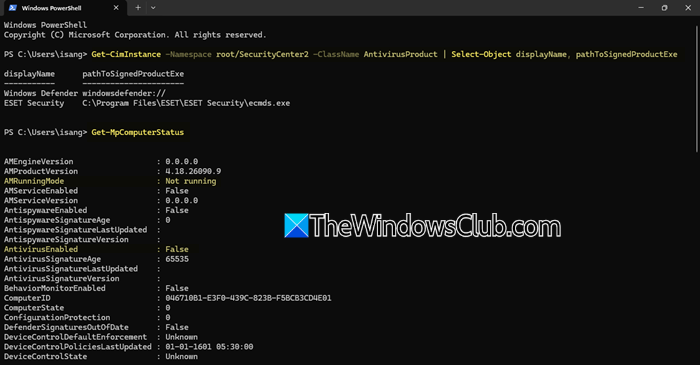
Advanced users may also use PowerShell to list registered antivirus products on their PC.
Press Win + X, select Terminal, and open it. Run the following command:
Get-CimInstance -Namespace root/SecurityCenter2 -ClassName AntivirusProduct | Select-Object displayName, pathToSignedProductExe
Press Enter to view the results. The displayName field displays the names of antivirus products registered with Windows Security Center, while pathToSignedProductExe shows the associated executable path, where available. If multiple products are registered, their names may appear in the output.
If you want to check Microsoft Defender Antivirus’s status, run the following command:
Get-MpComputerStatus
Look for fields such as AMRunningMode, AntivirusEnabled, and RealTimeProtectionEnabled to review Defender’s operating mode and protection status. In our case, these fields show Not running, False, and False, respectively, since ESET has taken over antivirus protection.
10] Use a third-party utility to list installed software
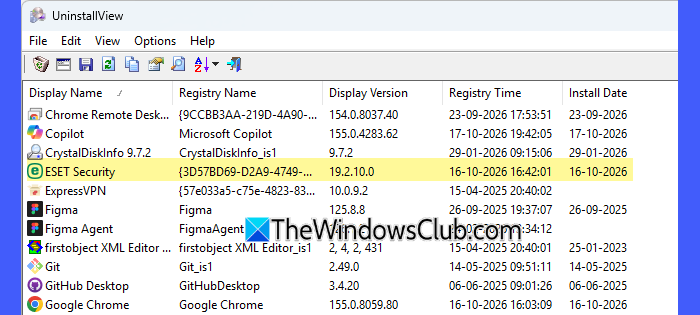
Several third-party utilities can display information about installed programs on a Windows PC, including their names, publishers, versions, and installation details. For example, NirSoft UninstallView is a free portable utility that lists installed programs and helps you uninstall the ones you no longer require. However, such utilities rely on Windows’ uninstall records and may not list portable security tools or applications without corresponding uninstall entries. They may also display leftover entries from software that has already been removed.
Download UninstallView from NirSoft’s official website. Extract the ZIP file and run UninstallView.exe. Wait for it to scan your system and display the installed programs. You can check the Display Name, Publisher, and Install Location columns to identify the corresponding applications or use the Quick Filter field to search for antivirus or security software by name.
By default, UninstallView lists programs for the current user. To include software registered for other user accounts on the PC, select Advanced Options > Local system – all users under Load From, and apply the setting. You may need to run the utility with administrator privileges to access other user profiles.
I hope you find this useful.
Read: How to find Windows Defender Antivirus Signature Version.
How to check if you have a Virus on your PC Windows 11?
To check if you have a virus on your Windows 11 PC, open Windows Security and go to Virus & threat protection. Select Quick scan to scan folders where threats are commonly found. For a more thorough check, select Scan options > Full scan or Microsoft Defender Offline scan.
Does Windows 11 have inbuilt antivirus?
Yes, Windows 11 includes Microsoft Defender Antivirus, which provides built-in protection against viruses and other malware. It is generally the active antivirus by default unless a compatible third-party antivirus takes over protection.
Read Next: How to check if antivirus is working properly or not on Windows PC.
