
In this post, we will show you how to find the Windows Defender Antivirus signature version in Windows 11. Microsoft Defender is Windows’ built-in antivirus that helps protect your PC from viruses, malware, and other threats. To detect these threats, it relies on a database of malware fingerprints (unique patterns or identifiers used to recognize known malicious files). Microsoft continuously updates this database to include the latest threats, a process commonly referred to as security intelligence or signature updates.
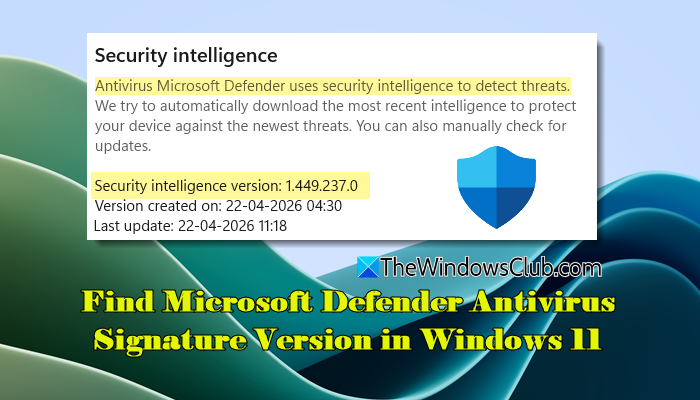
These updates are delivered through Windows Update, and each update carries a specific version number, known as the signature version. Checking this version helps ensure your system is using the latest threat definitions and remains protected against newly discovered malware.
How to find Windows Defender Antivirus Signature Version in Windows 11
To find Microsoft Defender Antivirus signature version on a Windows 11 PC, follow these methods:
- Use Windows Security
- Use PowerShell
- Use Command Prompt
- Use Registry
- Use Microsoft Intune admin center
Let us see these methods in detail.
1] Use Windows Security
The easiest way to check the Microsoft Defender Antivirus signature version is through the Windows Security app.
Press Win + I to open Settings. Go to Privacy & security > Windows Security.
Click Open Windows Security in the top-right corner.
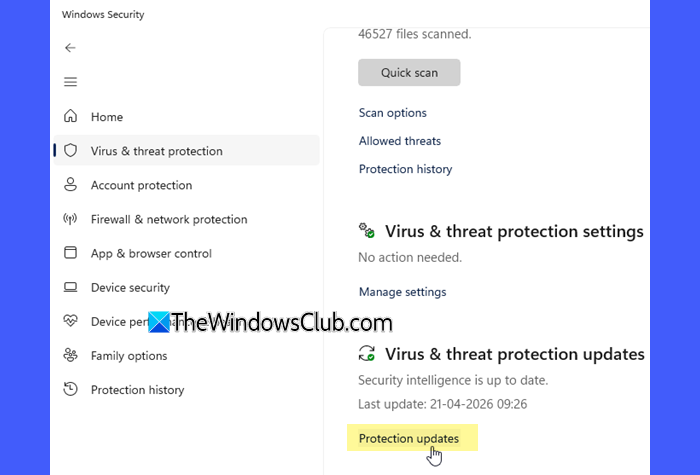
In the Windows Security window, select Virus & threat protection. Scroll down and click on Protection updates under Virus & threat protection updates.
You will see the Security intelligence version, which is the current Microsoft Defender Antivirus signature version installed on your system.
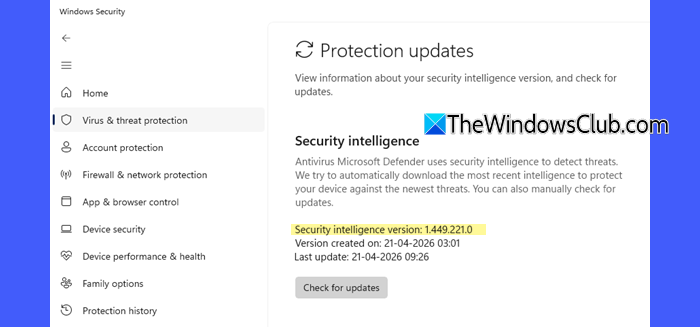
Click Check for updates on the same page to download the latest security intelligence updates.
2] Use PowerShell
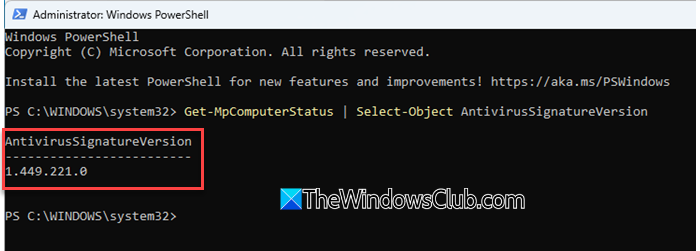
You can also check the Microsoft Defender Antivirus signature version using command-line tools like PowerShell or Command Prompt.
Press Win + S and type ‘powershell’ in the search bar. Windows PowerShell will appear in the search results. Click Run as Administrator in the right pane to open it with elevated privileges.
In the PowerShell window, type the following command and press Enter:
Get-MpComputerStatus | Select-Object AntivirusSignatureVersion
The output will display the AntivirusSignatureVersion, which is the current Microsoft Defender signature version installed on your system.
3] Use Command Prompt
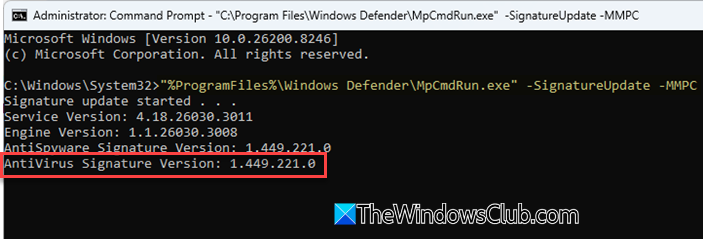
If you prefer Command Prompt, open Command Prompt as administrator and run the following command:
"%ProgramFiles%\Windows Defender\MpCmdRun.exe" -SignatureUpdate -MMPC
This will display information about the current signature version and update status.
4] Use Registry
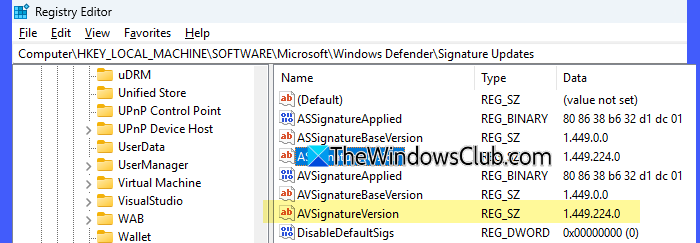
You can also find the Microsoft Defender Antivirus signature version through the Windows Registry. This method is recommended for advanced users.
Note: Do not modify any values in the Registry, as incorrect changes can cause system issues. It is recommended to create a System Restore point before proceeding.
Press Win + R to open the Run dialog box. Type regedit and press Enter. In the Registry Editor window, navigate to the following path:
HKEY_LOCAL_MACHINE\SOFTWARE\Microsoft\Windows Defender\Signature Updates
In the right pane, look for the value named AVSignatureVersion. The data associated with this value shows the current version of the Microsoft Defender Antivirus signature installed on your system.
5] Use Microsoft Intune admin center
If your organization manages devices through Microsoft Intune and you are an administrator, you can check Defender Antivirus signature version across devices using the Intune admin center.
Open a web browser and sign in to your Microsoft Intune admin center. Select Reports in the left pane.
In the right pane, expand Endpoint security, and then select Microsoft Defender Antivirus.
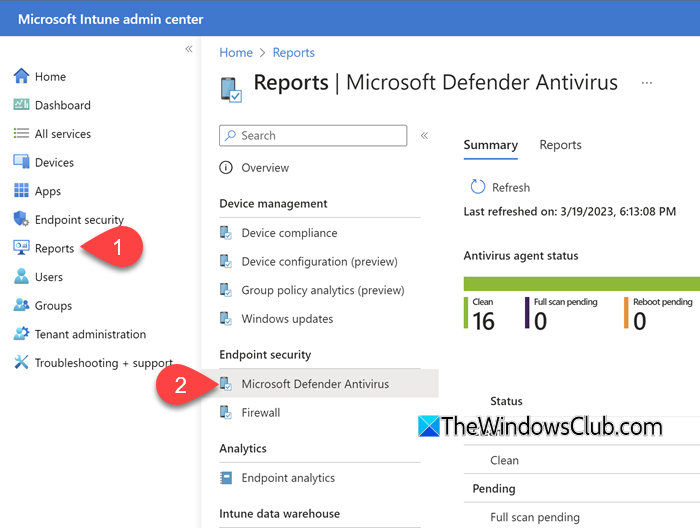
On the right, you will see the Summary and Reports tabs. These tabs show data from tenant-attached devices.
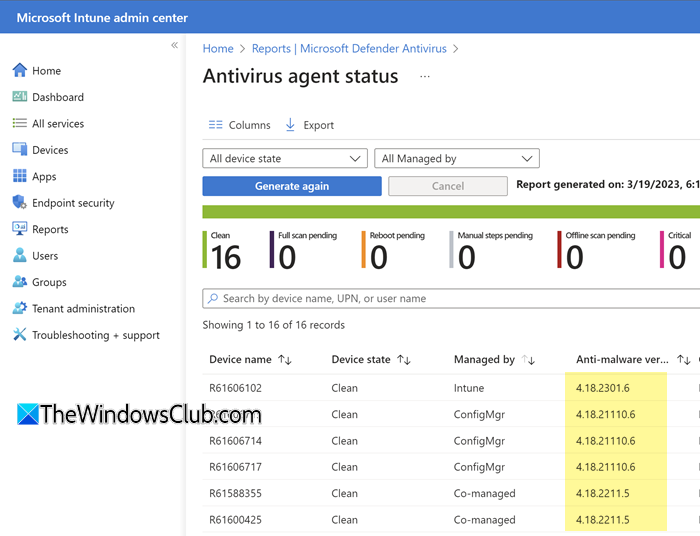
Switch to the Reports tab. You will see links to two existing organizational reports. Click Antivirus agent status. Select Generate report to retrieve current data.
Once the report is available, locate the Signature Version column to view the Defender Antivirus signature version for each device.
Note:
- This option is available only for devices enrolled in Microsoft Intune and may not be accessible on personal or unmanaged systems.
- The data in the report remains in the admin center for up to 3 days before you need to generate it again.
To learn more about the latest signatures released for Microsoft Defender, visit Microsoft.
Read: Run Windows Defender from CMD in Windows 11.
Is Windows Defender signature based?
Yes, Windows Defender primarily uses signature-based detection. It relies on a database of known malware patterns to identify threats. However, it also uses advanced technologies such as behavioral monitoring, cloud protection, and machine learning to detect new and unknown threats.
How can I tell what version of Defender I have?
You can check your Windows Defender version through the Windows Security app by going to Virus & threat protection > Protection updates. Here, you’ll find details such as the Security intelligence version (signature version) and engine version. You can also use a command-line tool to view this information, as described in this post
Read Next: How to manually update Windows Defender.
