
In this guide, we’ll walk you through different ways to check SSD and HDD temperatures on a Windows 11/10 PC. Most of us rarely think about checking the temperature of our SSD or hard drive. As long as Windows boots without any issues and files open normally, we assume everything’s working fine. However, storage drives, especially modern SSDs, can silently overheat in the background.
When drive temperatures rise above safe limits (ideally 30°C to 50°C), it can lead to performance throttling, reduced drive lifespan, and unexpected system issues. That’s why it’s a good idea to periodically check your SSD or HDD temperature and ensure it’s within a safe range.
How to check SSD and HDD temperatures on Windows 11
To check SSD and HDD temperatures on your Windows 11/10 PC, you may use one of these methods:
- Use Settings
- Use PowerShell
- Use third-party tools
Let us see this in detail.
1] Use Settings
Windows 11 now includes a native option to view storage drive temperatures. This was first introduced in Windows 10 Insider builds (starting with Build 20226) as part of the Manage Disks and Volumes experience. Over time, Microsoft integrated it into the modern Storage settings.
Note: This feature only works for NVMe SSDs supported by Microsoft’s drivers. Many SATA SSDs and traditional HDDs won’t show temperature in this interface.
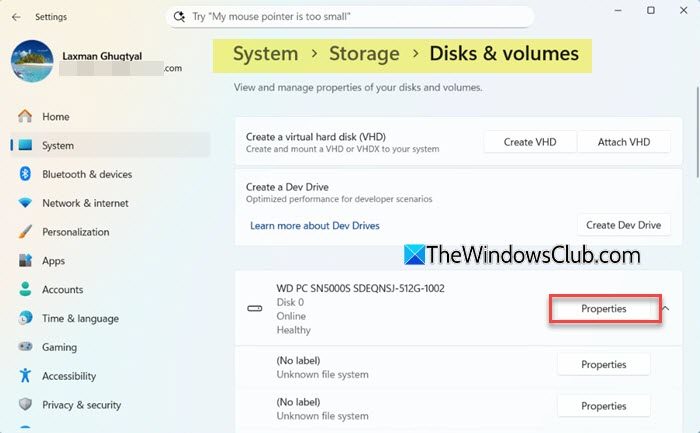
Press Win + I to open Settings. Navigate to System > Storage. Scroll down and expand Advanced storage settings.
Select Disks & volumes from the options that appear. Then, click the Properties button next to the drive you’d like to check.
Under Drive health, you’ll see the current temperature of your drive. The temperature is displayed in degrees Celsius (°C) by default, which is the standard unit used by Windows and most drive monitoring tools.
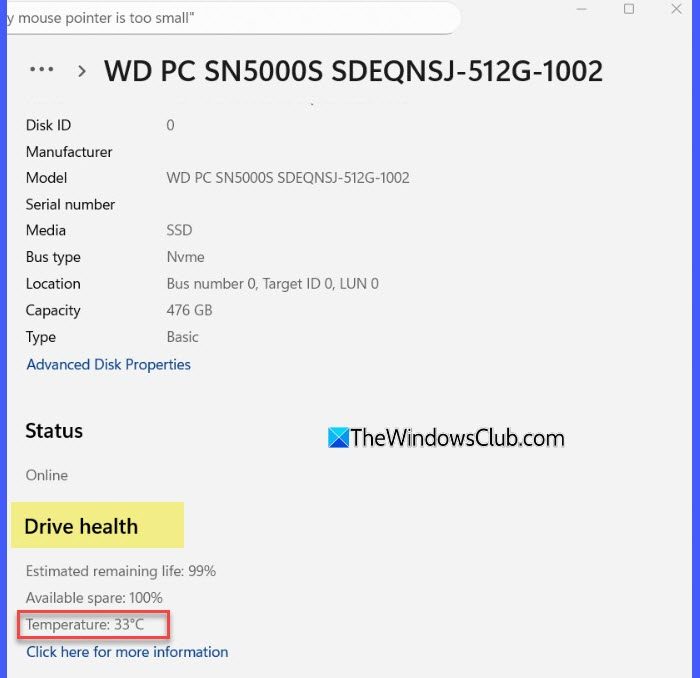
Additionally, useful information, such as the drive’s estimated life and capacity, will be displayed.
2] Use PowerShell
If you’re comfortable with command-line tools, PowerShell can pull temperature data from all NVMe SSDs installed in your PC. This is especially useful if you have multiple drives and want a consolidated readout.
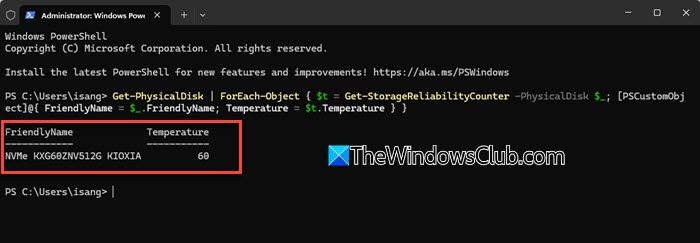
Click the Start button and search for PowerShell or Windows Terminal. Right-click the app and select Run as administrator.
In the PowerShell window, enter (or paste) the following command:
Get-PhysicalDisk | ForEach-Object { $t = Get-StorageReliabilityCounter -PhysicalDisk $_; [PSCustomObject]@{ FriendlyName = $_.FriendlyName; Temperature = $t.Temperature } }
Press the Enter key.
The output will list each NVMe SSD and its current temperature.
Note:
- The above command reads data from Windows Storage Reliability Counters (a built-in Windows feature that reads telemetry and SMART-like information directly from the drive). At present, this interface exposes temperature sensors only for NVMe drives with compatible drivers.
- In many cases, PowerShell may show the SSD temperature while the Settings app shows nothing. This is completely normal. Windows Settings only displays temperature for NVMe drives that fully support Microsoft’s drive health interface. But since PowerShell reads the data directly from the drive, it may work even when the Settings page shows nothing.
3] Use third-party tools
If built-in Windows tools do not display your drive temperature, a third-party monitoring tool may help. These tools read data directly from the drive’s SMART sensors and work with NVMe SSDs, SATA SSDs, HDDs, and even some external drives.
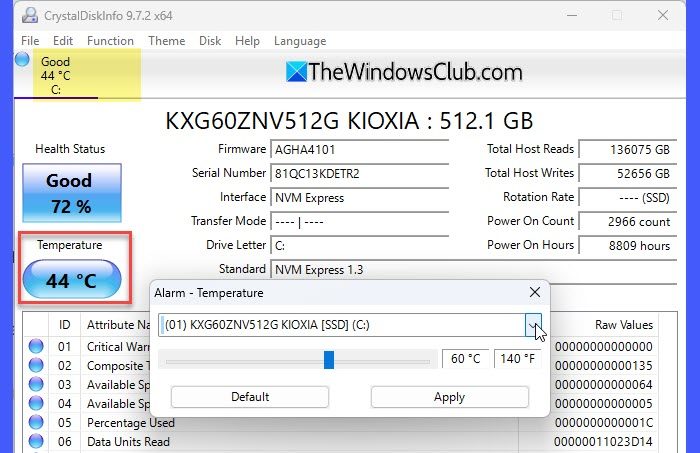
For example, CrystalDiskInfo is one of the most popular free tools for checking drive health and temperature. Once installed, it automatically detects all connected drives and displays their current temperature, health status, and SMART information in real time. It is lightweight, easy to use, and suitable for beginners. Here’s how to use it:
Download and install CrystalDiskInfo from the official website here. Then run the app. It will automatically detect all connected drives.
CrystalDiskInfo doesn’t just show temperature, it also reports attributes like power-on hours, error counts, and overall health, delivering a fuller picture of your drive’s condition. It also lets you set temperature alerts, so you are notified when your SSD or HDD crosses a safe limit.
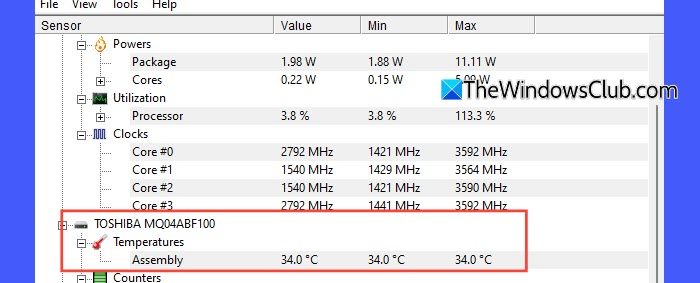
Apart from CrystalDiskInfo, other free tools like HWMonitor, HWiNFO, and Speccy can also display drive temperatures on Windows 11.
I hope you find this useful.
Read: How to test Hard Drive speed on a Windows PC.
Is 70 Celsius hot for SSD?
Yes, 70°C is considered hot for an SSD. When temperatures approach this limit, the SSD may throttle performance to protect itself. If it stays near or above 70°C for long periods, it can reduce the drive’s lifespan and increase the risk of errors. Improving cooling and airflow around your system can help bring the temperature down and prevent long-term damage.
How do I check if my SSD is overheating?
You can check if your SSD is overheating by viewing its temperature in Windows Settings, PowerShell, or a third-party tool like CrystalDiskInfo. If the temperature is consistently above 70°C, the SSD is running too hot. Keeping the drive within the 30°C to 50°C range helps ensure safe and stable system performance.
Read Next: How to check SMART Failure Predict Status of Drives in Windows.
