
If you want to insert or add a Table in Gmail and Outlook messages, here is how you can do that. It is quite straightforward since you can use Google Sheets or Excel Online to fetch the table from. Here is everything you need to know about inserting tables in Gmail and Outlook on Windows 11/10.

Let’s assume you want to send a list containing product names and their corresponding prices. Adding a table is likely the most efficient way to accomplish the task. The problem arises when you attempt to add the table, as Gmail doesn’t allow this. On the other hand, Outlook for the web lets you insert a table, but it doesn’t have any option to customize it. That is why you need to check out this article to learn more about various methods to insert a table in your emails.
How to add a Table in Gmail and Outlook using Copy-Paste
Follow these steps to add a Table in Gmail and Outlook using Copy-Paste:
- Open Google Sheets on your browser.
- Create the table you want to insert in the email.
- Copy the entire table to your clipboard.
- Open Gmail or Outlook and compose a message.
- Press Ctrl+V to paste the table
To learn more about these steps, continue reading.
It is the most common method when you are using Gmail. You can create a table in any spreadsheet maker, such as Excel Online, Google Sheets, or Excel for desktop. For this example, we will show you screenshots of Google Sheets and Gmail. However, you can do the same with any other spreadsheet maker and Outlook also.
To get started, open the official website of Google Sheets, docs.google.com, and create a black spreadsheet. Next, create a table according to your requirements and copy the entire table to your clipboard.
Next, open Gmail and start composing an email. Select a position where you want to display the table and press Ctrl+V to paste the copied table.
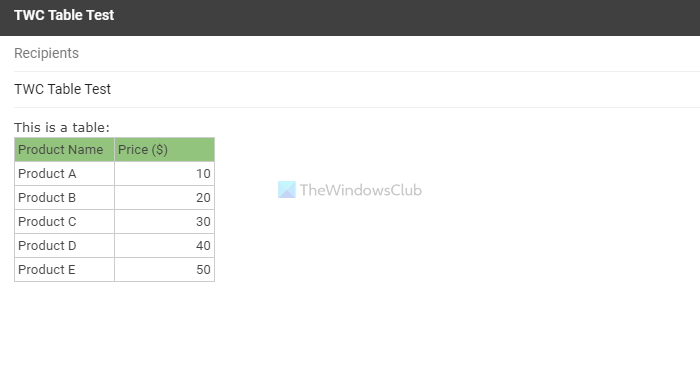
You can now view the table in your email.
There is a more efficient way to insert a table when you are using Outlook.com. The web version of Outlook allows you to insert a table using the in-built option it includes.
Disadvantage: Outlook lets you edit the table, change the column width, insert or remove rows/columns, etc. However, Gmail doesn’t have any such option.
How to insert a Table in Outlook for web
To insert a table in Outlook.com, follow these steps:
- Log in to your account on outlook.com.
- Click on the New message button to start composing an email.
- Click on the Insert table icon in the toolbar.
- Select the number of rows and columns.
Let’s check out these steps in detail.
To get started, log in to your user account on the Outlook.com website and click the New message button to start composing a new email.
Following that, find out the Insert table icon in the toolbar and click on it.
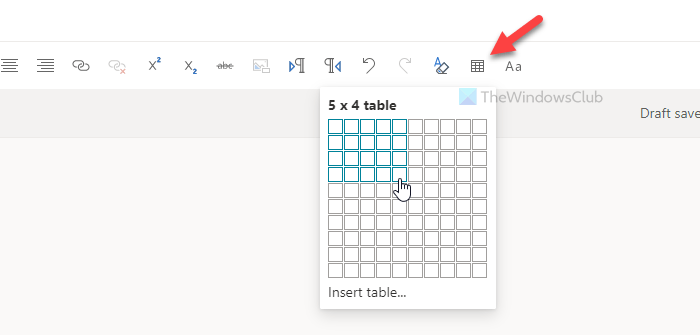
Now, you need to select the number of rows and columns of your table.
Following that, you can start entering the values in each cell as per your wish.
Disadvantage: You cannot edit the first row or heading of a table if you insert it using the in-built option in Outlook.
How to add a Table in Outlook on Windows 11/10
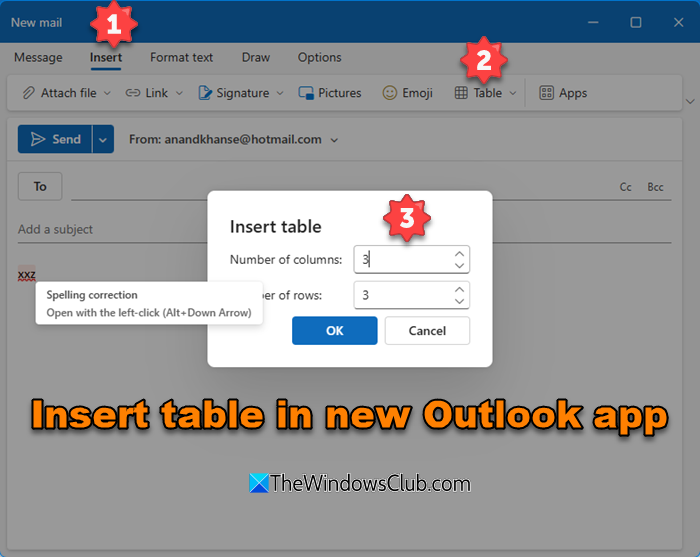
To add or insert a table in Outlook on Windows 11/10, follow these steps:
- Open MS Outlook or Outlook (new) on your computer.
- Start composing a message.
- Switch to the Insert tab.
- Click on the Table option
- Select Insert Table.
- Set the Rows and Columns andclikOK
To get started, open MS Outlook or the Outlook (new) app on your computer and begin composing a message. When you open the panel to start writing an email, it shows a toolbar on the top. You need to switch to the Insert tab and click on the Table option.
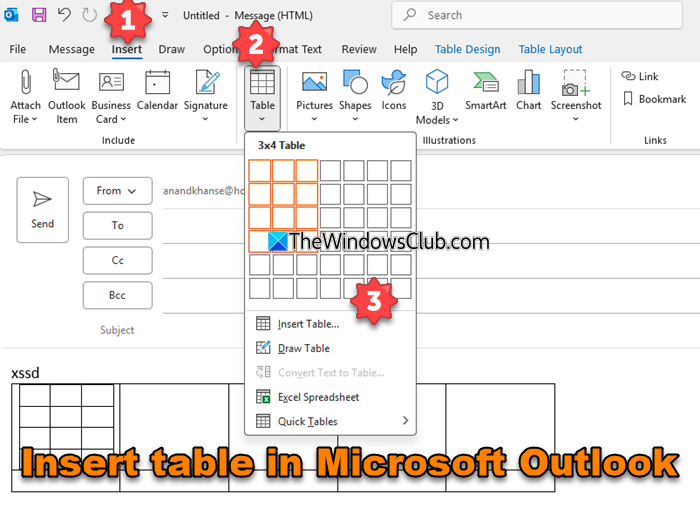
By default, it adds a 5×2 table. If you want to insert more columns or rows, click on the Insert button and choose the option accordingly.
The best thing about this option is that you can customize the table as you want. There is almost no limitation in editing the table in Outlook if you use the in-built option. The second advantage is that you also get the same options for Gmail accounts.
This is how you can add or insert a table in Gmail and Outlook.
How do I insert a Table into the body of an email?
To insert a table into the body of an email, you have three options – use the Copy-Paste method, use the in-built Insert table option, and use the Mail app on Windows 11/10. The Copy-Paste method works when you have a dedicated spreadsheet maker.
How do I add Rows to a Table in Gmail?
You cannot add rows to a table in Gmail once it is inserted already. You need to change the table before pasting it in the email body.
How do I edit a Table in Gmail?
It is not possible to edit the header color, insert more rows/columns, etc. However, you can change the value of cells in a table in Gmail. For that, click on the text you want to edit, remove it, and add the new one.
Read: How to insert a checkbox in Outlook email.
