
Using an external hard drive has been a common practice for a long time. Now, with the advancements in storage technology and multiple ways to store data, the usage of hard drives is gradually decreasing. Most of them are being replaced with SSDs or cloud storage, which offer greater data security and usage benefits. We have to handle hard drives carefully to avoid damaging or losing them due to corruption. If you find your external hard drive spinning but not detected by your Windows PC when it is connected, follow this guide to fix it.
Hard Drive spinning but not detected on Windows PC
We need to handle hard drives carefully. Even the slightest fall can damage them internally and stop working. If you see your hard drive spinning but can’t see it on your Windows 11/10 PC, use the methods below to fix it.
- Verify the cable and ports
- Listen to the sounds carefully
- Check listings on Disk Management
- Check BIOS/UEFI settings
- Run Chkdsk scan
- Get professional help
Let’s get into each method and fix the hard drive.
1] Verify the cable and ports
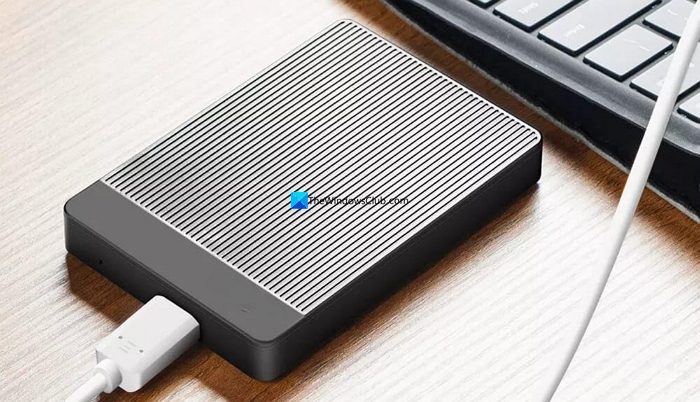
We connect hard drives to a Windows PC using a cable and a port. It involves a cable and two ports, one on the Hard disk and the other on the PC. If any of these three have damage or fail to work as expected, you face this issue. Physically verify the cable and check for any visible damage. Similarly, inspect the ports on the hard disk and the PC for any damage or obstructions.
If you have another PC or a device, you can connect your hard drive and check if it works well on it. Try connecting using a different cable and a different port. Any of these could work and let you access the data.
2] Listen to the sounds carefully

When you hear the hard drive spinning but cannot see it on your Windows PC, listen carefully for the sound. Usually, the sound is not audible in a normal environment. If the sound is easily audible, that raises a question about the health of your hard drive. Listen carefully to the sounds from the hard drive, and if you find anything out of place, or some screeching or damaging sounds, get it to a service center or data recovery services.
3] Check listings on Disk Management
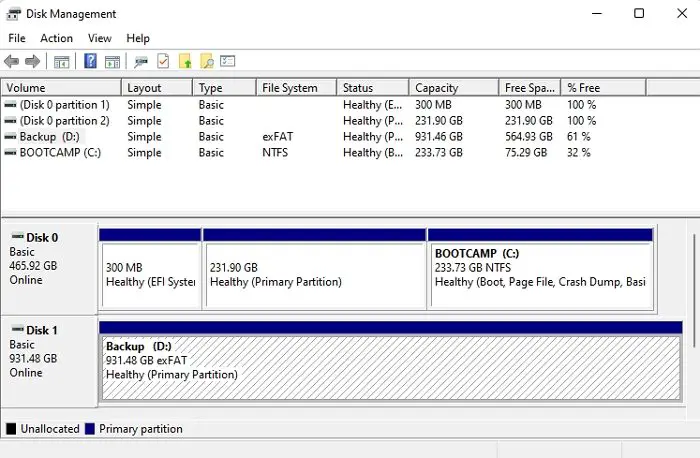
Disk Management utility on a Windows PC lets you check all the assigned and unassigned drives on your PC. A Windows PC may have detected your drive, but it is not assigned any drive letter and may not be showing it. Click the Start menu and search for Disk Management. Then, open the Create and format hard disk partitions from the results. It opens the Disk Management utility. Check the Disk Management listings and see if any unassigned drives match the external hard disk you have connected. Also, check if any drives are marked as “Not Initialized”. If you find such, right-click on them and assign a drive letter or click Initialize Disk.
Read: How to check what Hard Drive you have on Windows 11
4] Check BIOS/UEFI settings
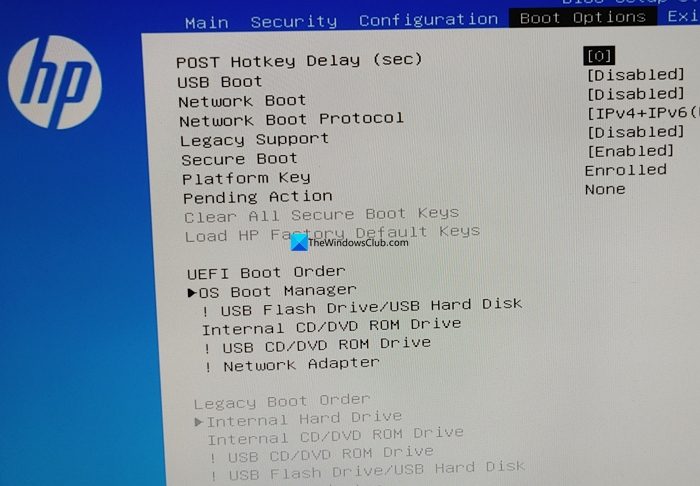
The BIOS/UEFI settings on a PC list all connected storage devices that can be booted from. If your hard disk is shown in the BIOS/UEFI settings, your hard drive is working fine, and there must be issues with your Windows installation and its drivers. While the hard drive is connected, restart your PC and press Del, F2, F10, or F12 keys on your keyboard when you see your manufacturer’s logo to enter the BIOS menu. Navigate to Boot options using the arrow keys on your keyboard and see if your external drive is listed there. If the drive is not listed there, there is an issue with the drive.
If the drive is listed there and you cannot find it on Windows, check for optional updates on your PC, roll back the previous update, or reset your PC without losing your personal files.
5] Run Chkdsk scan
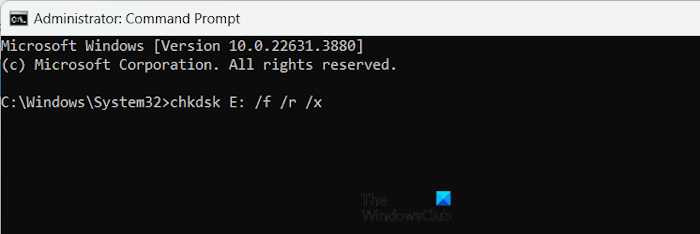
If you have found your drive in BIOS/UEFI settings, initialized the drive, and assigned a letter to it, but you are still unable to find it on your Windows PC, there must be an issue with your hard drive. You need to run chkdsk scans to find the issues and fix them. Open Command Prompt as an administrator. Then, enter the following command by replacing the partition letter with the drive letter you have assigned to the external drive and press Enter.
chkdsk <partitionletter>: /f /r /x
Do not use < > while entering the command, and do not miss “:” beside the partition letter to run the command successfully. Follow the on-screen suggestions or commands to fix the issues after running the command.
6] Get professional help
If none of the above methods helped you fix the issue, it must mean that the hard drive has failed due to damage. Take it to a professional who specializes in data recovery to get your data back. They can see the real issue and help you fix it, or at least recover your data from the drive.
Also read: Hard Drive Disappeared in Windows 11
How to fix HDD not detected in Windows 11?
When you see an HDD not detected in Windows, verify the physical connections, including cables and ports. Then check the listings in Disk Management and BIOS/UEFI, and also check if it works well on other PCs. Initializing or assigning a drive letter using the Disk Management utility can help.
How to diagnose a dead HDD?
Connecting a HDD to multiple PCs using multiple working cables and ports should be enough to diagnose a dead HDD. Connecting to various OS environments, such as Windows, Mac, or Linux, can help you determine whether it is dead or not. When you connect an HDD to a PC, you can feel something running inside it when you touch it. If you cannot feel anything, you can understand it is dead. Then, please take it to a professional to confirm it or to help recover the data.
Related read: Hard Disk Partition not showing up in Windows 11.
