
Is Google Meet Grid View is not working on the system? If yes, continue with the troubleshooting guide to fix the problem. Google Meet is a popular video conferencing application available for all platforms. Its services are very similar to Zoom and Microsoft Teams. The platform is free to use, and at most, 100 participants can join an hour-long meeting. Like any other platform, Google Meet has its share of problems. This post covers different solutions you can try if Google Meet Grid View is not working.
What is the Google Meet Grid View
Google Meet Grid View is a Google Chrome extension. It basically adds a section to the top-right bar that can be used as a grid layout in the application. The extension forcefully turns on the camera of every participant. It is mainly useful for teachers who want their students to pay attention to online classes. Additionally, you can use the grid layout to keep an eye on 49 participants at once. If the participant has turned off their camera, the extension will automatically change the feature image to the profile picture. Now, let’s see what you can do if the grid view isn’t appearing in a Google Meet meeting.
Google Meet Grid View not working
Here’s a list of effective solutions you can try if the Google Meet Grid View isn’t working.
- Restart Google Meet
- Manage the extension
- Turn on Grid view
- Unpin a participant
Now, let’s check out all these solutions in detail.
1] Restart Google Meet
Before getting into anything technical, restart Google Meet. As it turns out, there may be a temporary bug affecting the appearance of the grid view. And the best way to fight such bugs is to restart the program. So, restart Google Meet and check if it makes any difference. If yes, you are good to go. But if the problem continues, try the technical fixes mentioned below.
2] Manage the extension
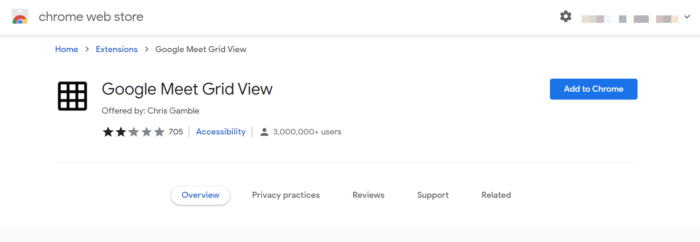
The next thing you should do is to is manage the extensions. As you must know, you need to install the Google Meet grid view extension to use it in the program. But if there was an issue during the installation process, you will encounter the mentioned problem. Thus, make sure the extension is installed successfully. You can check it by following the steps below.
- Launch Google Chrome on your system.
- Click on the three dots present at the top right corner.
- From the context menu, hover the cursor to Move tools and select Extensions.
- You will find a list of all the installed extensions on Google Chrome.
- Check if you can see Google Meet grid view options or not.
- If not, visit Google Chrome Web Store and download Google Meet Grid View.
Once you have installed the extension, launch Google Meet and check if the problem continues.
Read: How to use Google Meet with third-party video-conferencing solutions
3] Turn on Grid view
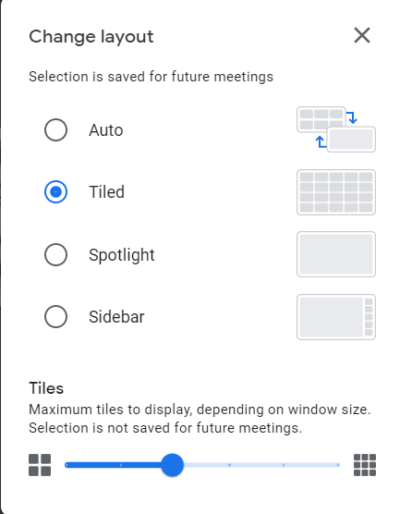
Grid view is designed in such a way that it automatically decide whether it should be enabled or not. If there are a certain number of participants in a meeting, the grid view will automatically turn on. But if it thinks there aren’t enough participants, it will remain disabled until you manually enable it. So, allow the grid view whenever you feel it’s needed. To do so, follow the below steps.
- To begin with, join the Google Meet meeting.
- Click on the three-dots present at the bottom of the screen.
- From the context menu, choose the Change layout option.
- Click on Titled.
That’s it. You have manually created the grid view in the world. Check if the problem is fixed or not.
Read: Google Meet microphone not working on Windows PC
4] Unpin a participant
Like any other video conferencing application, Google Meet lets the host pin any participant. The pinned participant will always be visible to the host. But at the same time, it can also abstract the grid view. You need to make sure that the number of participants is in respect to the grid size. If this isn’t the case, you will encounter the problem mentioned. To fix it, you’ll have to unpin a participant. Here are the steps you need to follow.
- Click the Participant icon in the bottom-right corner.
- Click on the three dots next to the pinned participant.
- From the contact window, choose the Unpin option.
That’s it. Now, check if it makes any difference.
Why is Google Meet Grid View not working?
There can be multiple reasons why the Google Meet Grid View is not working on your system. But among all, the primary culprit can be the extension itself. If the extension isn’t installed correctly, the grid view will struggle to function properly in Google Meet.
How do you see everyone on Google Meet?
By default, Google Meet allows you to see only four people at once on a single screen. But you can view other participants by scrolling through the meeting screen. Additionally, you can choose the Titled layout to view 49 participants at once.
Read Next: Google Meet camera failed or not working in Windows.
