
If you want to change the display name in Google Meet, this guide will help you. At times, you might need to modify your name on Google Meet for some reason. In such situations, you can follow this step-by-step guide to change the name within moments.
Let’s assume that your kid uses your email ID to attend online classes. Often, the teacher might be confused to see your name instead of the student’s. It is a common issue these days, and many institutions have asked parents to use their kids’ names instead of their own when attending Google Meet classes. If so, you can follow this guide to get the job done.
However, the problem is that you cannot use a name on Google Meet and a different name on other Google services. You need to change the name of your Google account or Gmail ID to update the display name in Google Meet. However, that might create problems for you. For example:
- If you use the same email address for other purposes, it will create a mess for your recipients.
- It takes some time for your name to update on your Google account.
If you are fine with these two problems, you can follow the following guide. Here, we have shown the process on a PC and an Android mobile. However, if you use an iPhone or any other iPadOS device, you can use the same method.
How to change display name in Google Meet
To change the display name in Google Meet, follow these steps:
- Open the myaccount.google.com website on the browser.
- Go to the Personal info section.
- Click on the NAME option.
- Enter the new name.
- Click the Save button.
To learn more about these aforementioned steps, continue reading.
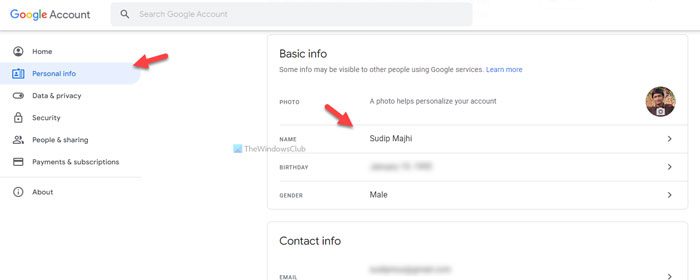
First, you need to open the myaccount.google.com website on your browser and log in to your Google account. Then, switch to the Personal info section on the left-hand side and click the NAME option.
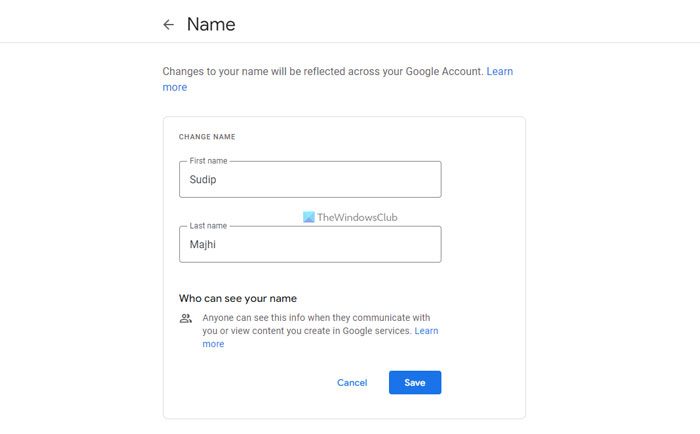
After that, you can enter the new desired name and click the Save button.
Once done, you can attend any Google Meet class with the new name.
How to change display name in Google Meet on mobile
To change display name in Google Meet on mobile, follow these steps:
- Open the Google app and tap on your profile picture.
- Tap the Manage your Google Account option.
- Switch to the Personal info section.
- Tap on your name.
- Enter the new name.
- Tap the Save button.
Let’s check out these steps in detail.
To get started, you need to open the Google app on your mobile and tap on the profile picture visible in the top-right corner. Then, select the Manage your Google Account button.
Following that, switch to the Personal info section and tap on your name.
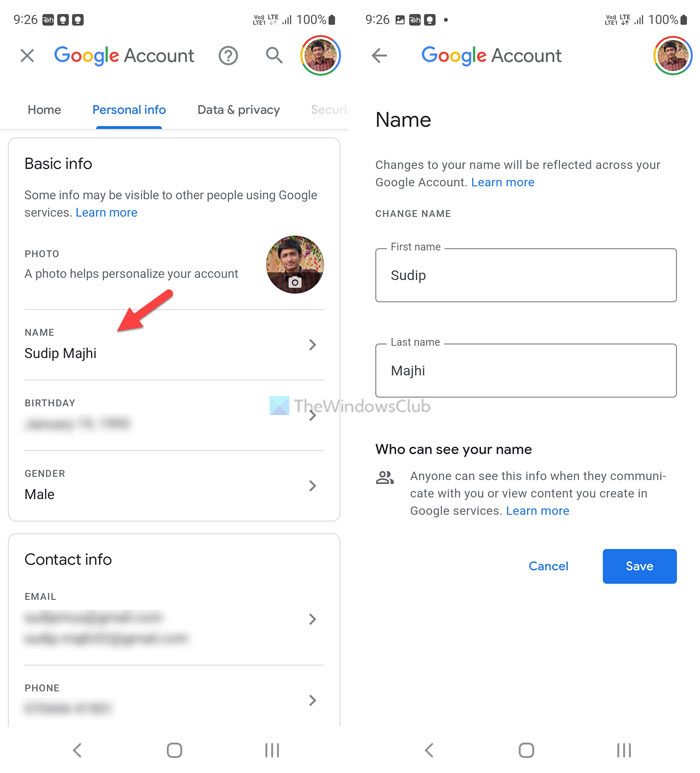
Now you can enter the new name you like. Once done, tap on the Save button.
That’s all! Hope this guide helped.
How to change your name in Google Meet on a PC?
To change your name in Google Meet on a PC, follow the first guide in this article. First, open myaccount.google.com and log in to your Google account. Then, switch to the Personal info section and tap on the NAME button. Following that, enter your new desired name and tap on the Save button.
How to change your name on Google Meet as a student?
To change your name in Google Meet as a student, follow the aforementioned guides. It is possible to modify the name on a computer as well as on a mobile device. However, if the administrator or the organization doesn’t allow users to change their name, you won’t be able to modify or replace it in any way.
Read next:
