
This post covers what to do if the Google Drive for Desktop is not syncing on Windows 11/10. Without any second thought, it’s almost impossible to find a competitor for Google Drive. From a good amount of free storage, robust security to the cheap paid plans, everything is just unbelievable about Google Drive. But above all, what makes the cloud service the king of the market is its availability on almost all platforms. Google Drive has a dedicated application for Android, iOS, and desktop. However, like any other application, it has its share of problems as well. Many users have complaints about the desktop app of Google Drive. To be very precise, users are facing difficulty syncing Google Drive with a Windows PC. So, if you are also struggling with the same problem, follow the guide to resolve it.
Google Drive for Desktop not syncing on Windows PC
If Google Drive for Desktop is not syncing data on Windows PC, here’s what to do. Before you proceed, make sure that you are using the correct Google account to sync your data.
- Pause Google Drive Syncing
- Try different network
- Restart Google Drive
- Clear Google Drive Cache files
- Change Google Drive Proxy settings
- Change Bandwidth Limitation
- Disconnect and reconnect Google Drive for Desktop
- Whitelist Google Drive from Windows Firewall settings
- Check the storage status
Now, let’s check out all these solutions in detail.
1] Pause Google Drive Syncing
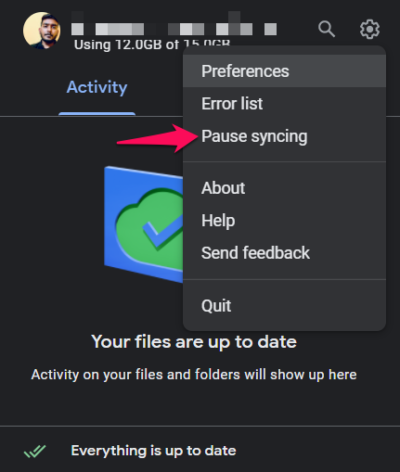
The very first step is to pause the syncing process temporarily. It is a simple yet effective workaround to resolve the issue. You can do so by following the steps below.
- Click on the Google Drive icon present in the system tray.
- Tap on the gear icon present at the window’s top right corner.
- From the context menu, choose the Pause syncing option.
- Now, restart your PC > click on the Google Drive icon from the system tray area > Gear icon > Resume Syncing.
Check if the problem is solved or not.
2] Try a different network
Switching to a different connection is another simple solution to fix the problem. As it turns out, if you are connected to a weak internet connection, Google Drive will face difficulty in syncing data on your Windows PC. To fix this issue, switch your network connection, and check if it makes any difference.
Read: How to move a file from OneDrive to Google Drive
3] Restart Google Drive
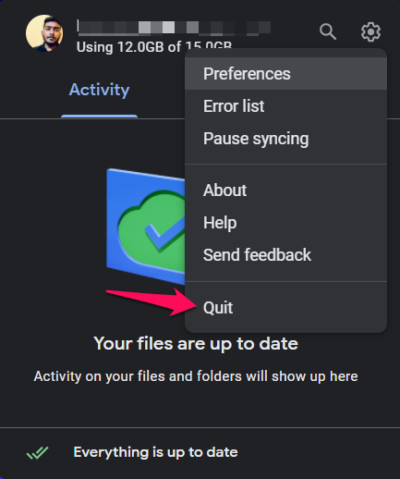
The next thing you can do is quit Google Drive from the system tray area. According to many users, restarting Google Drive has solved the backup issue. Thus, you can go through the same process and see if it helps. Here are the steps you need to follow to get the work done.
- Click on the system tray area present on the taskbar.
- Tap on Google Drive.
- Click on the gear icon and choose the Quit option from the context menu.
- Wait for a few minutes.
- Open the start menu and search for Google Drive. It will be automatically reflected in the system tray area within a few seconds.
Now, check if it has started to sync the data or not.
4] Clear Google Drive Cache files
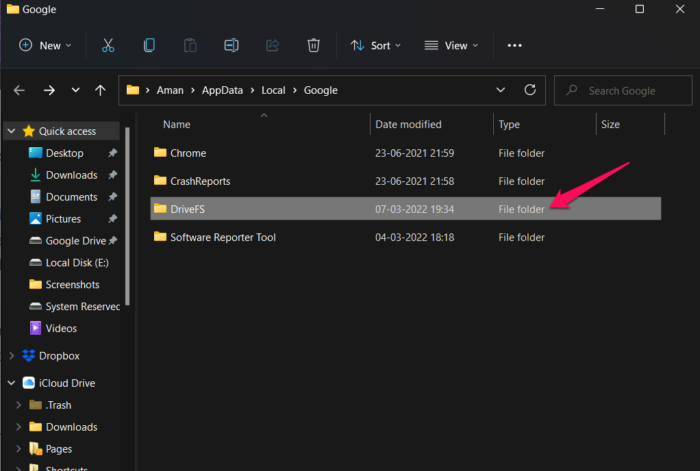
Like any other Windows application, Google Drive also creates and stores cache data. These files help provide a faster, smoother user experience. But at the same time, if these data get corrupted for some reason, they will throw different issues, including the syncing problem. In this situation, the best thing you can try is to delete all these cache files. To do so, follow the steps below.
- Press the Windows + R shortcut key to open the Run dialogue box.
- Copy-paste the below-mentioned code and press enter.
%LOCALAPPDATA%\Google
- Right-click only the DriverFS folder and choose the Delete option.
That’s it. Now, restart your system, and check whether Google Drive has started to sync your Windows files or not.
See: How to Block someone on Google Drive
5] Change Google Drive Proxy settings
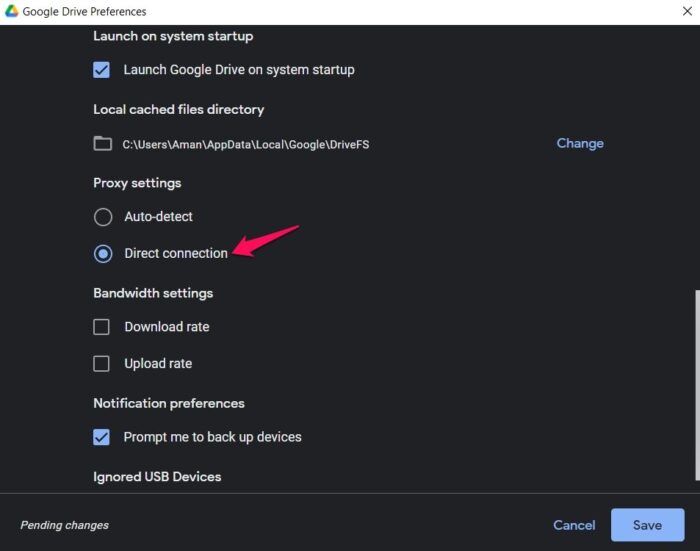
Misconfigured proxy settings is another primary reason behind the mentioned issue. To fix the problem, follow the below steps.
- Tap on the Google Drive icon present at the system tray.
- Click on the gear icon and choose the Preferences option.
- Click on the gear icon again present before your profile picture.
- Click on the Direct connection option present under Proxy settings.
- Tap on Save to apply the made changes.
6] Change Bandwidth Limitation
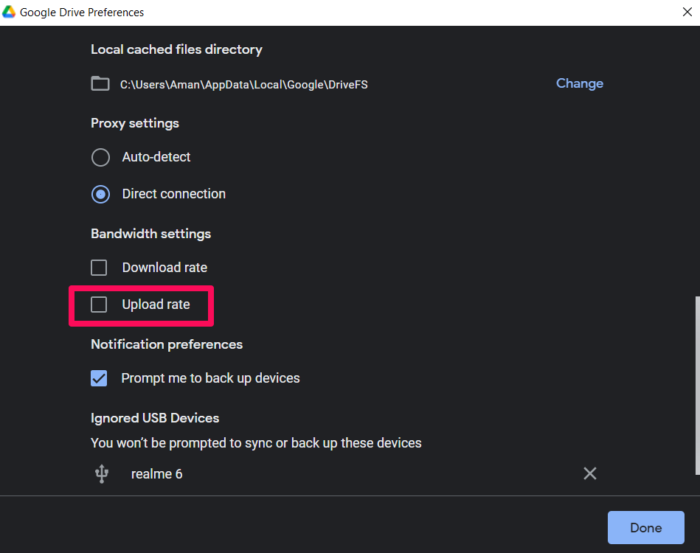
Google Drive offers the option to restrict upload and download bandwidth. Although it is an impressive feature, it can also have adverse effects. As soon as Google Drive reaches the upload bandwidth limit, it will automatically stop the syncing process. To fix the problem, you have to lift the upload bandwidth limitation. Here are the steps you need to follow.
- Navigate to Google Drive > Gear icon > Preferences > Gear icon.
- Under the Bandwidth settings, uncheck the Upload rate option.
- Tap on Save to apply the made changes.
Check if the problem continues.
Read: How to fix file upload problems in Google Drive
7] Disconnect and reconnect Google Drive for Desktop
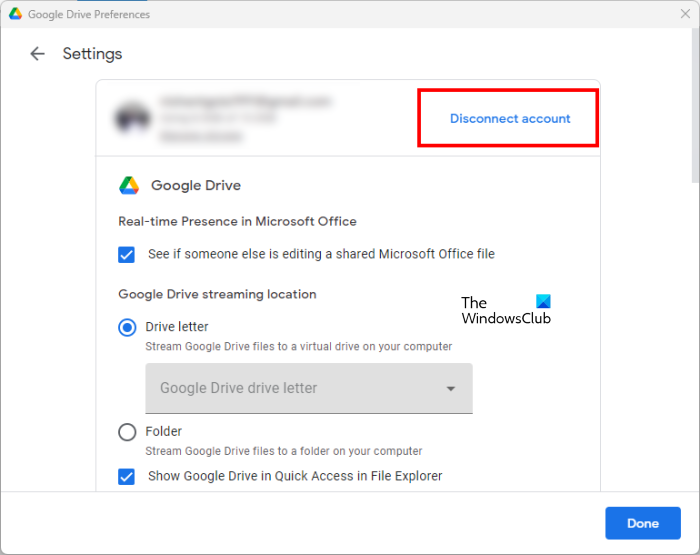
Google Drive syncing issues can also be addressed by disconnecting and reconnecting Google Drive for Desktop application. If the issue still persists, try this and see if it helps. The following steps will guide you on this:
- Click on your System Tray.
- Click on the Google Drive icon and then click on the gear-shaped icon on the top right side.
- Select Preferences.
- Now, click on the gear-shaped icon on the top right side to open its settings.
- Click on the Disconnect account link.
- Click Disconnect in the confirmation box.
After disconnecting Google Drive from your PC, click on the System Tray and then click on the Google Drive icon. Now, click Sign in. This will open the Google sign-in page on your default web browser. Now, select the google account which you want to use to sign in.
8] Whitelist Google Drive from Windows Firewall settings
If Google Drive is blocked in Windows Firewall settings, you will encounter a syncing issue on your Windows PC. You will need to allow Google Drive in Windows Firewall settings to fix the problem. Here is how it’s done.
- Open the start menu and search for Windows Defender Firewall.
- Click on the Allow an app or feature through Windows Defender Firewall option present at the left panel of the screen.
- Click on the Change settings option.
- Click on Allow another app.
- Tap on Browse in the context menu that pops up.
- Navigate where you have installed Google Drive and select the DriveFS.exe file.
- Click on Add, and then OK.
Launch Google Drive and check if the problem is fixed or not.
9] Check the storage status
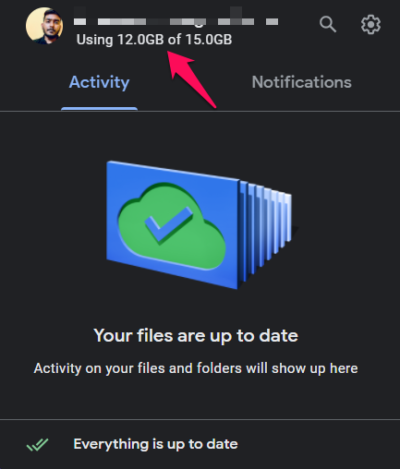
If you have the free Google Drive plan, you will receive 15 GB of storage. And we all know how easy it is nowadays to fill up 15 GB quickly. So, if you have exceeded the storage limit, Google Drive will stop syncing any more files from Windows. In that case, the best thing you can try is to free up some space or go for a paid plan.
Hopefully, the fixes provided in this article helped you resolve the problem.
Related: Fix Google Backup and Sync errors
Why is my Google Drive not syncing to my desktop?
There can be multiple reasons Google Drive isn’t syncing on your Windows PC. But above all, the main reason can be a lack of storage. If you have already exceeded the storage limit, Google Drive will stop syncing data. Along with this, misconfigured proxy settings, restricted bandwidth, and corrupted cache files can all be responsible for the mentioned issue.
Does Google Drive automatically sync on PC?
Google Drive for Desktop automatically syncs all your files available on the cloud and makes them accessible from your PC. You just have to sync your Google account with the Google Drive for Desktop application. After that, you will be able to view and access all the files stored on the cloud from your computer.
Read next: How to fix the “You are not signed in loop error” on Google Drive.
