
Are you locked out of your Google account? Probably yes; that’s why you are here today! A Google account is as important as our Gmail account, Google Docs, Google Photos, Google Drive, etc., so we panic when we can’t log in. It can actually be frustrating when you have no access to any of your documents or data stored.
Google Account Recovery
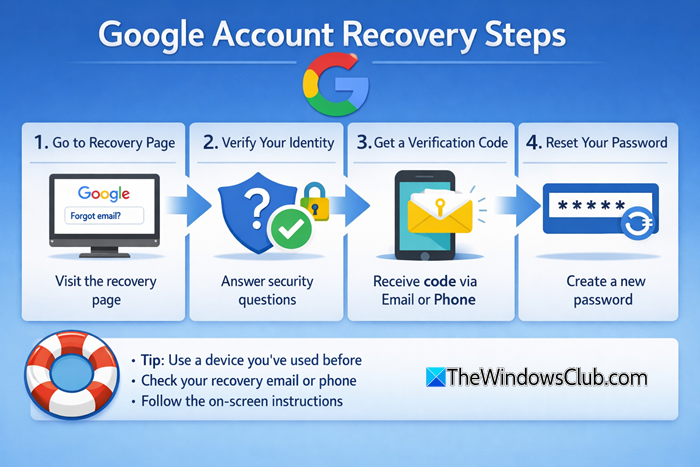
Google locks your account if it detects any suspicious activity; it is mostly a suspicious account recovery attempt. So, if you forget your Google account password and try to recover it, and you enter the wrong details, Google will lock your account. Also, multiple account recovery attempts will lead to a locked Google account. Google normally locks your account for a week. It also happens when your Google Account is hacked.
It is always suggested to use a good password manager to store all your passwords and avoid such situations. Well, in this post, we will learn what you can do if you are locked out of your Google account.
Google Account Locked, Too many attempts
As mentioned above, it starts with your Google account recovery attempt with “Forgot Password”. This takes you to Google’s account recovery page at accounts.google.com/signin/recovery, where you can reset your password and recover your account by answering some questions you set up when creating the account.
If your answers don’t match your originally posted answers, Google finds it suspicious and locks your account. So basically, with these answers, you have to prove your ownership of your account or else it will get locked.
If you enter all the correct answers, Google will send a verification email to your recovery email address or to the phone number you provided when setting up this account. So, if you don’t have a recovery email or phone number configured or don’t have access to them, you might not be able to prove ownership and may not be able to recover your Google account.
What to do if you are locked out of Google Account?
Let’s go through the account recovery process.
You could be the luckiest person if you are logged in to your recovery email address on that same device. Google will prompt you to set a new password, and you can access your account in a minute. Also, a very important point to remember is that account recovery will be easier if done on a device recently used to access the locked account. Avoid mobile devices and use a PC or laptop for the recovery process.
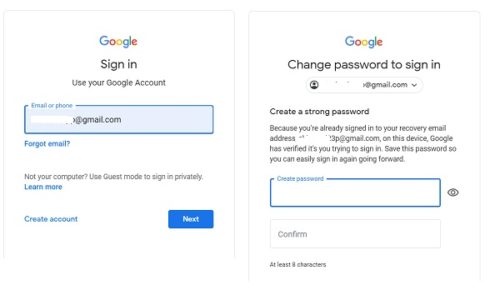
Let’s check the other scenario where you are not logged in to your recovery email address. Go to the Google sign-in page, enter your email address and click Next.
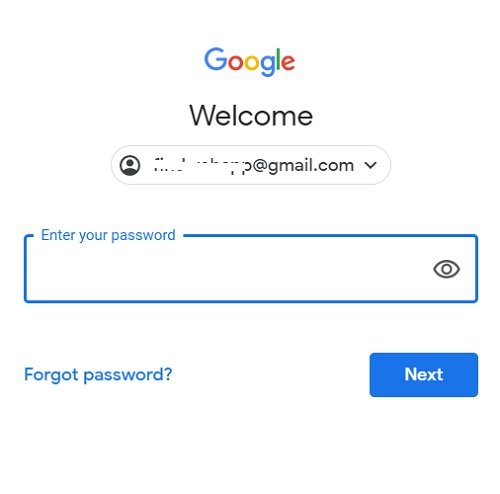
Click on Forgot Password
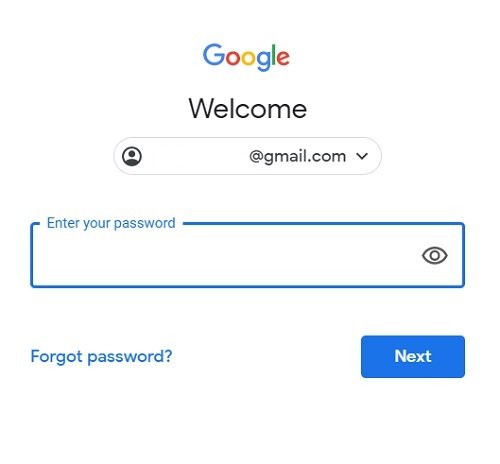
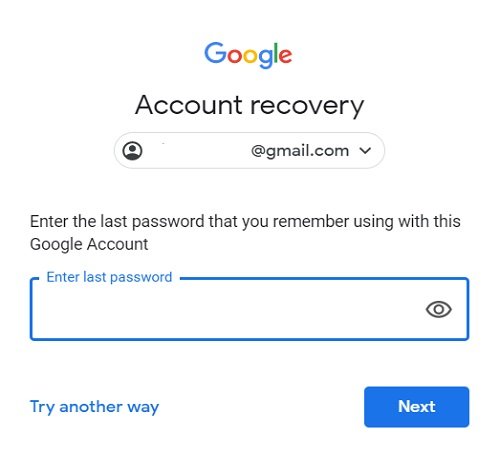
If you remember your last password, enter it or click on Try Another Way.
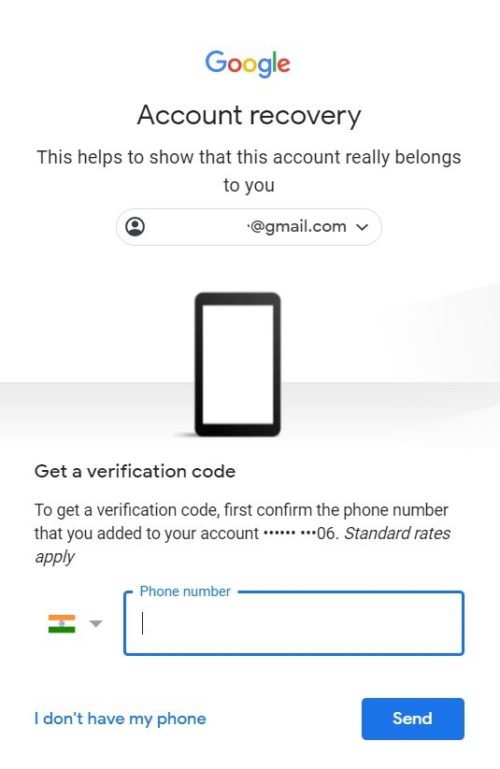
This will take you to the next step where we need the phone number added while creating this Google account. Put in your phone number to get the verification code and prove your ownership. Click on I don’t have my phone, if you do not have access to this phone number anymore.
Confirm your recovery email address, which you set when creating your Google account. If you do not have access to your recovery email address, click on Try another way.
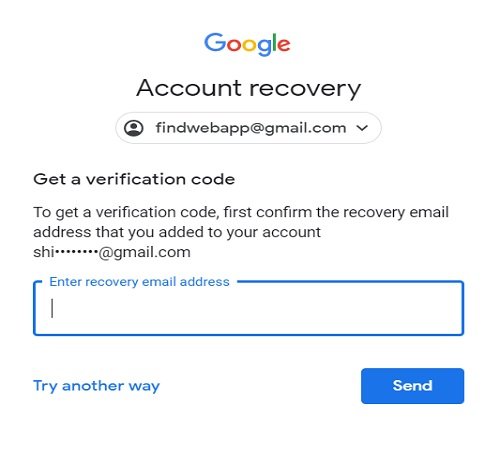
Google sends the verification code to your recovery email address, and when you enter it, you get a link to change your password. In case your first recovery attempt fails, you can try it again and then your recovery request is sent to the support specialist, and you can expect a response in 3-5 working days.
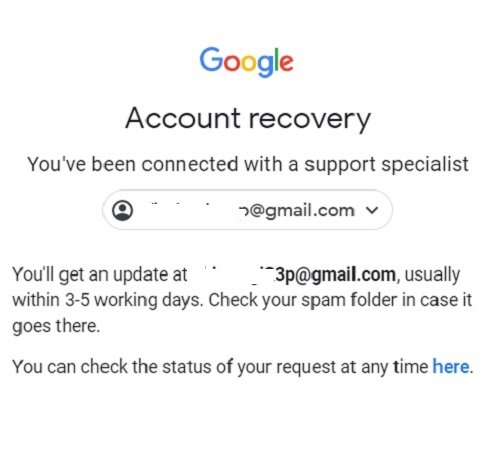
This might resolve your issue, but if you are still locked out of your Google account, you can fill out this form for further assistance. Google Account Recovery reviews your form and contacts in a day or two.
It is recommended to create backup codes to avoid such situations. Backup codes help you recover your account even if you don’t have access to your recovery phone or email address.
How to create a set of Google Backup Codes?
Go to your Google Account and click on Security from the left navigation panel.
Scroll down and click on 2-Step Verification.
Sign in to verify, and on the 2 Step Verification page, click on Backup Codes and click on SET UP.
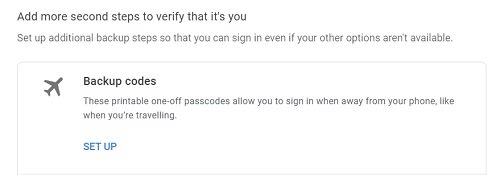
Once you click SET UP, you get a few numeric codes that you can use to sign in if you forget your account password. These backup codes are for one-time use, and you have to create a new set if you use them. Keep these codes safe and accessible somewhere for emergency situations. 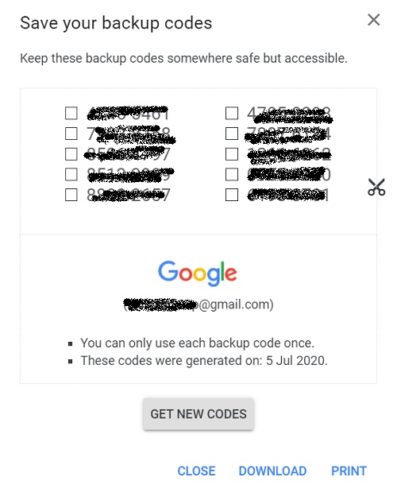
2-Step verification is very important to keep your account safe. Also, it is highly recommended to follow the recovery process carefully, as Google will not restore your account unless you prove ownership.
We hope this post helps you recover your Google account back!
