
Google Chrome is among the most popular web browsers. If you are a Chrome user, you may have encountered some warning messages. Google Chrome displays these warning messages to alert the user that the website he is going to visit may be harmful or a security threat. In this article, we will explain some Google Chrome warnings in the browser. In some cases, these warning messages are false alarms that occur due to the expiration of the SSL certificate. But most of the time, these alert messages are genuine and you should not avoid such warnings unless you are sure that the message is a false positive flag.
What does a Google warning mean?
On the internet, there are a lot of phishing websites. By viewing the URL, one cannot identify whether the particular website is safe or malicious. That’s why Google displays different warning messages when you click on a suspicious URL accidentally in order to protect you from phishing scams and other security threats.
What happens if you get a Google warning?
It depends on the warning you have received in your browser. Different warnings indicate different things. Here we have consolidated some of the most common warnings that many Google Chrome users have gotten over the past few years. You can check them all to know which warning defines what.
Google Chrome warnings in browser explained
When we surf on the internet, we come across a number of websites indexed on Google and other search engines. While most of these websites are trustworthy, some are also malicious. Malicious websites on the internet can harm users and their devices in many different ways. When a user lands on such malicious websites or downloads any content from these websites, there is a high possibility of virus or malware infection.
Some websites also trick users by displaying a message that their system is infected with a virus and offer them a free antivirus scan by installing a program on their computers. These are harmful programs that contain viruses or malware. If you install these programs, there is a high possibility that your computer will be hacked. Therefore, it is advised not to install such programs on your computer.
By default, phishing and malware detection is turned on in Google Chrome. Due to this, you may see the following messages while browsing on the internet in Chrome web browser:
- The site ahead contains malware.
- Deceptive site ahead.
- Suspicious site.
- The site ahead contains harmful programs.
- The page is trying to load scripts from unauthenticated sources.
- This site may harm your computer.
- This site may be hacked.
- This site has been reported unsafe.
Let’s see what these Google Chrome warning messages mean.
1] The site ahead contains malware
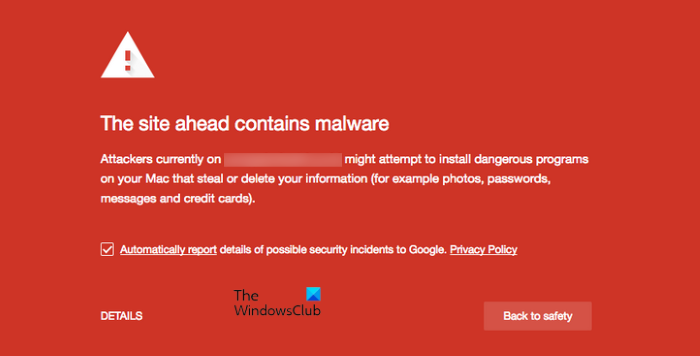
This is one of the warning messages that users see in Google Chrome. This message warns users when they accidentally click on a website URL that contains malware or virus. On such sites, there is a significant risk of security issues. That’s why visiting these types of websites is not recommended by Google. If you ignore the message, the site may install malware on your computer, which could compromise your system and steal your personal information.
Related: Top 10 Cybersecurity threats.
2] Deceptive site ahead

Chrome displays this message when you accidentally click on the URL of phishing or a social engineering website. The primary aim of hackers in designing phishing or social engineering websites is to steal users’ sensitive information, such as credit card details, usernames, and passwords. The design of such websites resembles that of genuine websites, making it difficult for a normal user to distinguish them.
Phishing websites can also install a malicious program, like ransomware on the computer of the visitor. Google Chrome alerts users by displaying a warning message to protect their information from being stolen by hackers and to prevent the installation of malicious programs on their computers.
Related: Free Anti-Ransomware software for Windows computers.
3] Suspicious site
This alert message is similar to the Deceptive site ahead message. This message clearly indicates that the site that you are going to visit may not be safe. Chrome displays this message for untrusted websites.
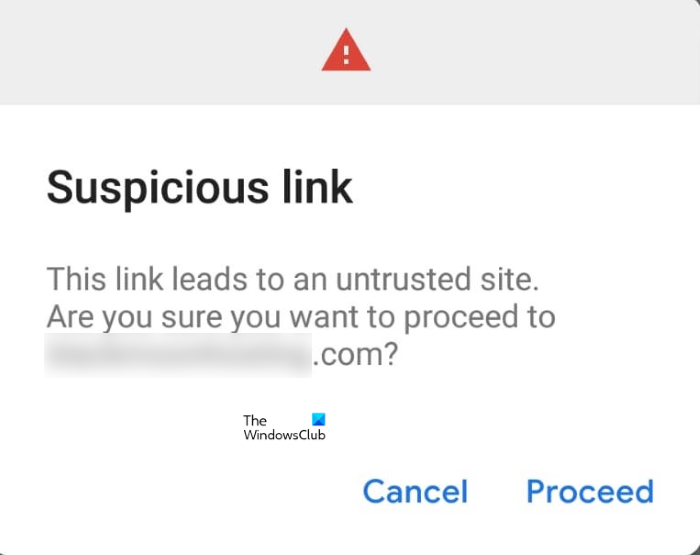
You might have seen a similar type of alert message in Gmail when you click on the URL of an untrusted website. The message looks like this:
Suspicious Link
This link leads to an untrusted site. Are you sure you want to proceed to xyz.com?
Read: List of free Ransomware Decryption Tools to unlock files.
4] The site ahead contains harmful programs
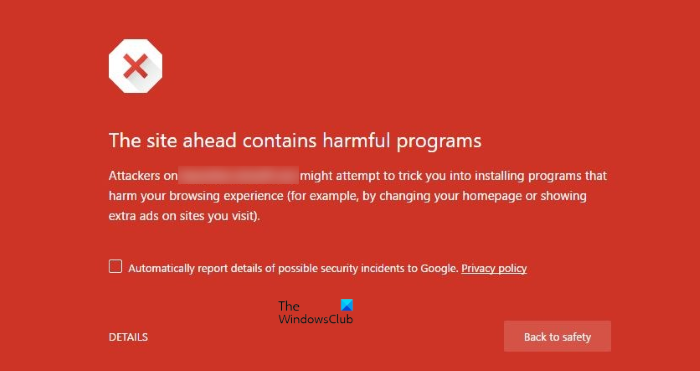
When a website is launched, Google indexes it, allowing it to appear in search results. While indexing the website, if Google detects any malicious code, it marks the website as one of the harmful ones. When a user visits such websites, Google alerts him about the website by displaying the message “The site ahead contains harmful programs.” The message clearly indicates that the website you are going to visit may contain malware. The aim of displaying such messages is to prevent malware from being installed on users’ systems.
5] The page is trying to load scripts from unauthenticated sources
When you click on a link to visit a website, the web page loads scripts from its server to display the content available on the website. You might have seen a green padlock sign on the left side of the address bar of a website. This padlock icon indicates that the website is on an HTTPS server and has an SSL certificate. The websites with an HTTP server or without an SSL certificate are generally considered unsafe to visit. If a website loads scripts from an insecure HTTP server, Google Chrome displays an alert to users, showing this message.
6] This site may harm your computer
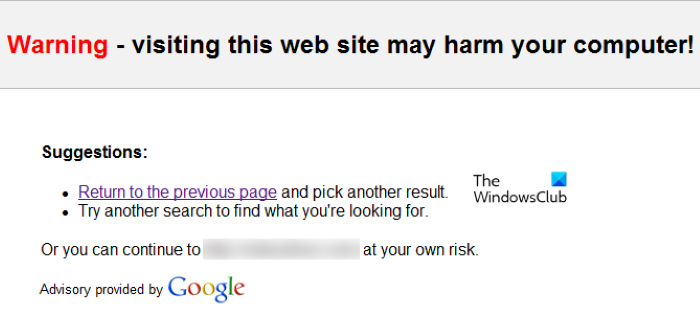
This message is displayed on Chrome when Google identifies malicious code in a website. The message clearly indicates that the website you are about to visit may harm your computer. Therefore, if you come across such types of websites while surfing on the internet, it is better not to proceed further by accepting the risk. Visiting such websites may install malware on users’ computers without their knowledge. Hackers are controlling these malware programs. Once malware is installed on your computer, the hacker may have complete control over your system. He can steal your sensitive data.
7] This site may be hacked
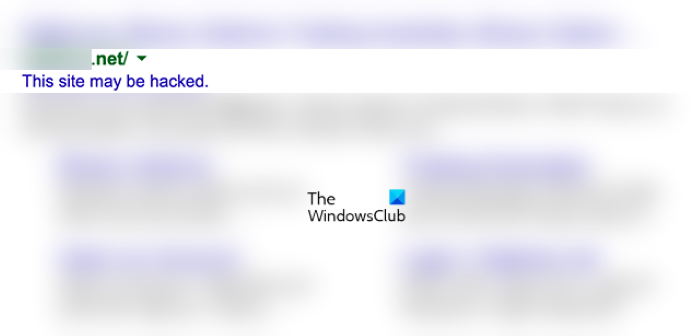
Google Chrome displays a warning message for websites that have already been hacked. This message is usually displayed between the website URL and the snippet (see the screenshot). When a hacker hacks a website, they alter its code and insert malicious code into it. Therefore, visiting such hacked websites is not safe. If you visit such websites, there is a high possibility that you will be redirected to a malicious page where the hacker might steal your personal information by tricking your mind.
Related: How Attackers can Bypass Two-factor Authentication.
8] This site has been reported unsafe
This warning message is also similar to the Deceptive site ahead message that we have described above. The message warns users that the website they are going to visit is not safe. Because the website has been reported unsafe, it might contain malware or adware. In most cases, such types of websites use logos of legitimate companies in order to trick users and steal their financial and personal data. If you ignore such warning messages and visit these websites at your own risk, you may compromise your personal and sensitive information.
Read next: Windows SmartScreen filter warning messages explained.
Why is there a security warning on Chrome?
Whenever you click on a suspicious link on the internet to open a website, you will see a security warning message on Chrome. This is to protect you from various online security threats.
Closing words
Google Chrome stops harmful or suspicious websites from loading and displays users the warning message. For different types of security threats, Chrome displays different warning messages. Such types of warning messages should not be taken lightly, as these unsafe websites can steal your personal and sensitive information. But if you are sure that the warning message is a false positive flag by Chrome, you can ignore the message and visit the website by clicking on the Details option.
