
If you are a developer trying to access Google AI Studio only to be immediately redirected to the Available Regions page, you are not alone. This is a frustratingly common issue that interrupts workflows and halts development projects. Even if you live in a supported country and have a valid Google account, this redirect often appears without warning, leaving users confused about how to fix it. In this post, we will see what you can do if Google AI Studio redirects to available regions page.
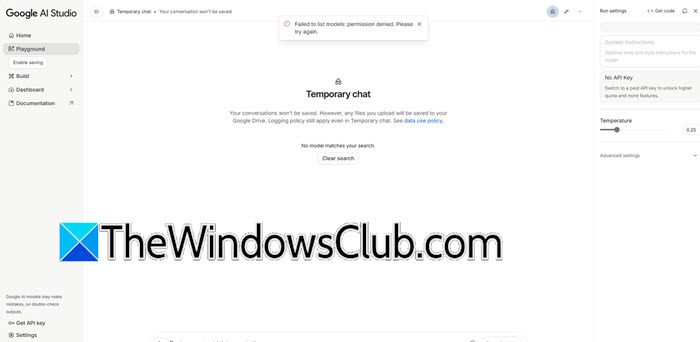
Why does Google AI Studio keep redirecting me?
You are redirected because Google AI Studio has strict rules for where users can access it. This usually happens because your current IP address is not in a supported region. Even if you are in a country that is supported, your IP address might be wrong, or you could be using a VPN that connects through an unsupported location. Google also checks for risks. If the region setting on your Google Account (in the Play Store or Payments profile) does not match your IP address, or if your account does not confirm that you are over 18, the system will redirect you. In rare cases, a bug may mistakenly mark a user in a supported region, such as the US or Italy, as ineligible.
Google AI Studio redirects to available regions page
If Google AI Studio redirects to available regions page, follow the solutions mentioned below.
- Verify your Account Age and Region
- Disable VPN and Proxy
- Cleaer browser data
- Try API Relay Service
Let us talk about them in detail.
1] Verify your Account Age and Region
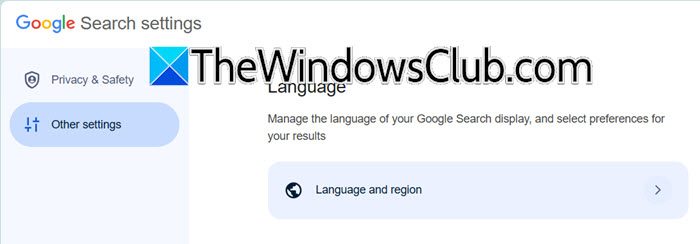
Often, the fix lies in your Google account settings. Ensure your account has a verified birth date indicating that you are over 18. Additionally, check your Country/Region in your Google Account settings and your Payment Profile. If these are set to a restricted location, you must change them to a supported country (like the US). To do so, click on your Google profile picture, then go to More Settings > Other settings, and click on Language and Region.
2] Disable VPN and Proxy
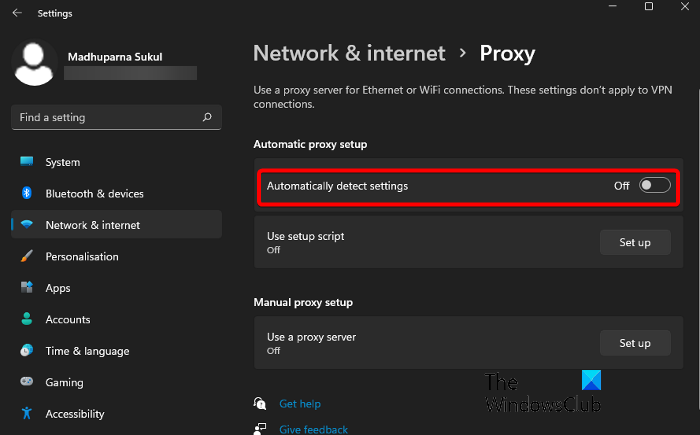
If you are using a VPN or proxy service, disable it. Google AI Studio requires a clean, residential IP address. Using datacenter IPs or shared VPN nodes often triggers the security system. If you must use a proxy for access, ensure you use a static residential IP (not a data center IP) located in a supported region, such as the US or Japan, to maintain a high reputation score. If you are connected to a VPN, disable it, and disable the proxy as well.
3] Clear browser data
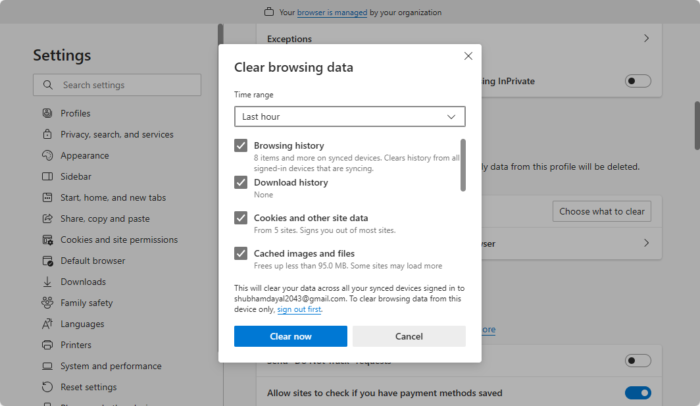
Outdated cookies or cached login credentials can cause session mismatches that trigger the redirect. Clear your browser’s cache (Google and Edge) and cookies entirely, specifically for ai.google.dev and aistudio.google.com. Alternatively, try accessing the site in an Incognito/Private window to ensure no old data is interfering.
You should also try switching to a different network, maybe your Mobile Hotspot and see if that helps, as this would be evading network cache.
Read: Create AI agents using LLMs Claude, Copilot, ChatGPT, Gemini
4] Try API Relay Service
If you are in a genuinely unsupported region (like China or Russia) or the above steps fail, you cannot access the UI directly. In this case, consider using an API relay service or setting up a Cloudflare Worker to act as a proxy. This allows you to call the Gemini API through a server located in a supported region, bypassing the front-end access restriction entirely.
That’s it!
Read: How to install Gemma 3 LLM on Windows 11 PC?
How to run Google AI Studio locally?
Google AI Studio is a web-based platform that cannot be fully operated offline on your local machine. However, you can install it as a Progressive Web App (PWA), which allows you to create a dedicated launcher for desktop or mobile. Alternatively, to get a dedicated desktop app for Google AI Studio on Windows, you can use a third-party tool like WebCatalog Desktop, which wraps the web platform into a standalone application.
