
Google AI Studio is an AI Playground that you can use for various AI tasks, such as generating images, creating videos, music, etc. This article shows Google AI Studio complete tutorial for beginners. Whether you want to create images, generate videos, or explore other AI features, Google AI Studio provides a simple environment to use all these features in one place.
Google AI Studio complete tutorial for beginners
This article provides a comprehensive tutorial for Google AI Studio, ideal for beginners. It has the following features:
- Chat with Google AI Studio
- Stream Realtime
- Build apps
- Generate images, videos, audio, and music.
Let’s see all these features in detail.
How to use Google AI Studio
1] Chat with Google AI Studio
The Chat feature of Google AI Studio allows users to interact with Gemini models in a conversational format. This feature can make everyday tasks easier, such as planning a trip itinerary, drafting an email, summarizing class notes, etc. You can also upload files to get a summary. The supported file formats are Word, Excel, PDF, Text, and more. This feature can be used for research, as you do not need to read lengthy documents.
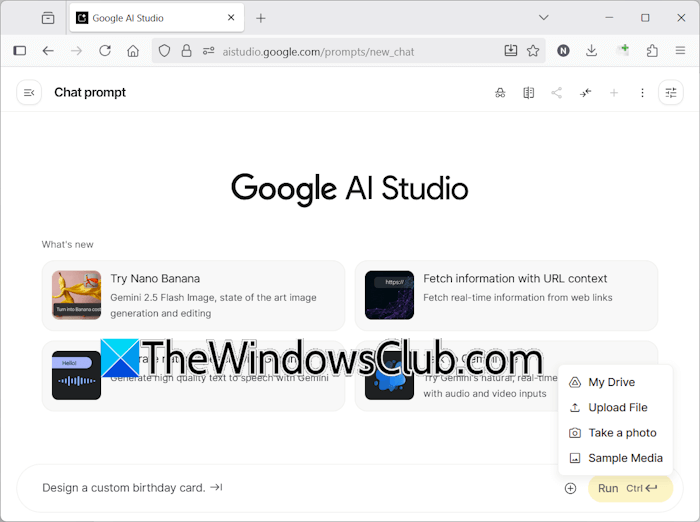
To use Google AI Studio’s chat feature, select Chat from the left pane and type your prompt in the required field. To upload files, click the Plus icon in the prompt box and select a file from your computer or Google Drive. You can adjust the Temperature setting to control the creativity in responses.
2] Stream Realtime
The Stream Realtime feature enables you to chat with Gemini in real-time. Here, you can speak with Gemini and share your screen and webcam. This feature can be particularly helpful if you are learning online, conducting research, or analyzing data.
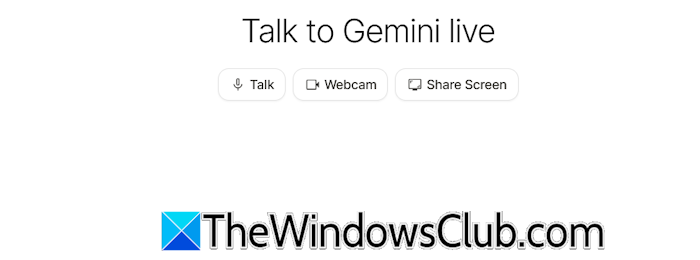
You can talk to Gemini in your native language just like you talk to your friend. The webcam feature allows you to ask Gemini a real-life problem. Click the webcam button and allow Gemini to access your camera. Now, you can show your world to Gemini and ask it problems. For example, if you want to identify a flower or an insect species, show it to Gemini and it will tell you its name.
You can also share your screen with Gemini and ask for solutions to your problems. For example, you can ask Gemini how to use a particular tool or software, such as Canva. You can also ask Gemini about your system settings or issues by sharing your screen. Apart from that, Gemini can also help you while playing games. Suppose you are stuck on a tough level in a game, you can share your screen with Gemini and get real-time help to clear it.
3] Build apps
The Build tab allows you to build apps with Gemini. You just have to type a prompt and click Run. I created an AI Photo Studio app by typing the following prompt:
Create an AI photo editor app.
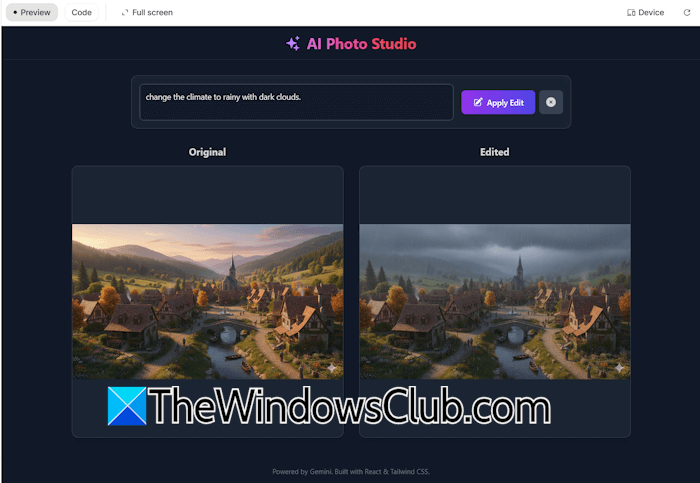
It will write the entire code and show you preview of the app. You can test the app and if you want Gemini to make some changes, input the prompt. After creating the app, you can download it and deploy it on your website. You can also deploy the app directly to Google Cloud. However, it requires you to setup a billing system. An option to save the app to your GitHub repository is also available.
4] Generate images, videos, audio, and music
Generate Media allows you to generate images, videos, audio, and music. Currently, Google AI Studio has the following models for Generative Media:
- Nano Banana
- Imagen
- Gemini TTS
- Lyria RealTime
- Veo
Google Nano Banana
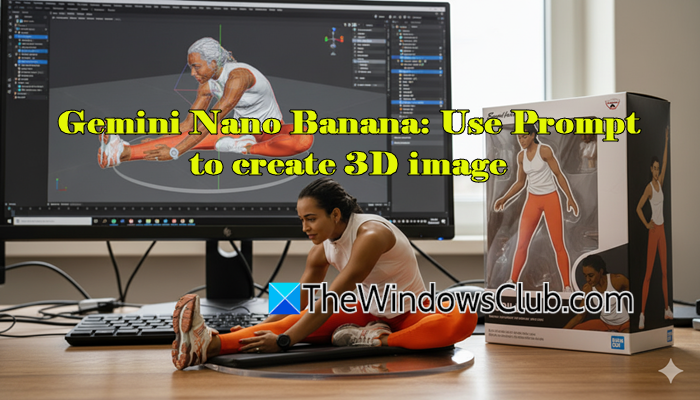
Nano Banana is the latest image generation model launched by Google. Gemini 2.5 Flash Image is the official name of Nano Banana. Apart from simple image generation, you can also use it to create 3D Figurine images.
Imagen
Imagen is a powerful text-to-image generation model integrated into Google AI Studio. You can generate any image with a prompt. To access and use it, select Generate Media > Imagen. On the right side, you can select the Imagen model, the number of image generation results (from 1 to 4), the aspect ratio of the image, and the output resolution (1K or 2K).
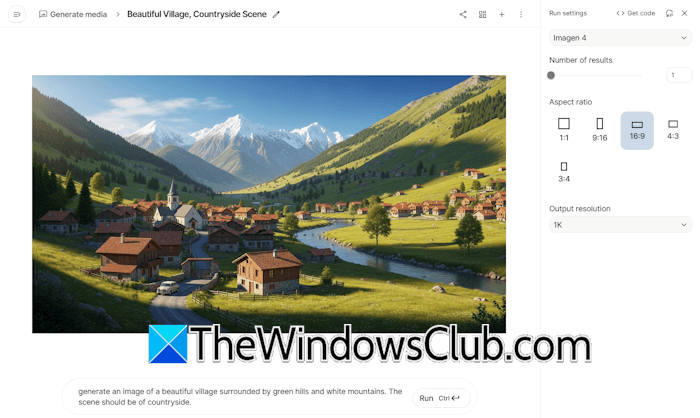
You can copy the generated image, download it locally on your computer, or upload it to Google Drive. Previously, the generated images were not saved automatically, but now Google AI Studio automatically saves all the generated images to the Google Drive. Therefore, you do not need to worry about losing the generated images. You will see all the generated images in your Google Drive when you open it.
Gemini TTS (text-to-speech)
Text-to-speech (TTS) is an AI-powered system that converts text into audio. With Gemini TTS, you can convert any text into audio. It has the following two modes:
- Single speaker audio
- Multi-speaker audio
The single-speaker audio mode uses one consistent voice for the entire text input. It is useful for creating audiobooks, single-person podcasts, narrative stories, voiceovers, etc. The multi-speaker audio allows you to create audio for conversational topics, like interviews, two-person debates, podcasts, etc. Currently, it is limited to 2 persons.
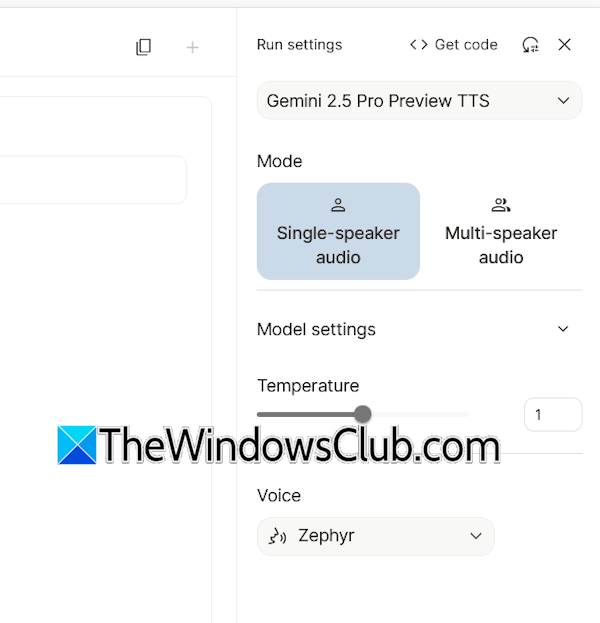
To use this feature, select Generate media > Gemini speech generation. All the settings, including the AI model for speech generation, the AI TTS mode, model settings, and AI voice, are available on the right side.
To generate audio from text, type a prompt to define your desired tone and style, and then type the text to convert into speech. After that, click Run or press Ctrl + Enter.
One drawback of generating speech using Google AI Studio is that no download option is available. However, you can still download the TTS output using alternate methods, like recording your screen.
Lyria RealTime
With Lyria RealTime, you can create music from text input. The default MIDI music remains generated. You can make changes to it and add new features by typing the required prompts. I created relaxing music with Lyria RealTime.
You cannot download the generated music. This is a limitation of the Lyria RealTime music generator. However, you can use alternative ways to download the generated music, such as screen recording. To access and use Lyria RealTime, select Generate media > Lyria RealTime.
Veo
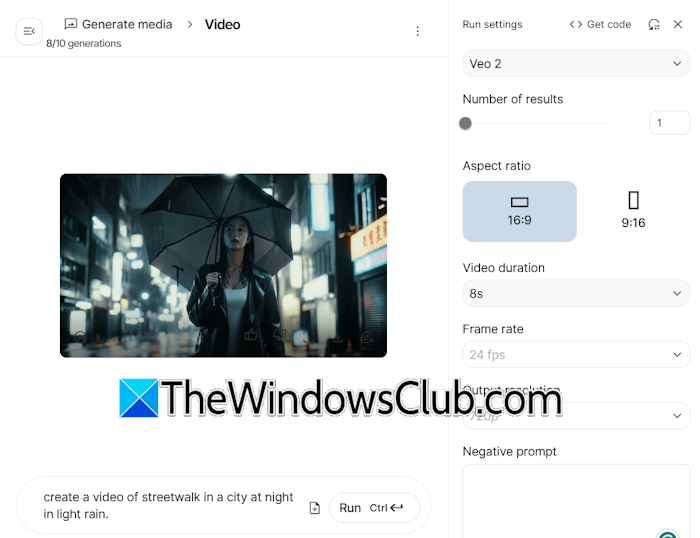
Google Veo 2 is a powerful video generation AI model integrated into Google AI Studio. You can use it for text-to-video and image-to-video generation. On the right side, you can select settings, like number of results,aspect ratio, and video duration. You can also type a negative prompt.
Google Veo 2 allows you to generate up to 10 videos for free. You can download the generated video and upload it to Google Drive.
Generate images on Google AI Studio without a watermark
Whenever we generate an image on Google AI Studio, a tiny Gemini watermark is added to it by default. We can generate images without a watermark with a small trick.
Open Google AI Studio and select the image generation model.
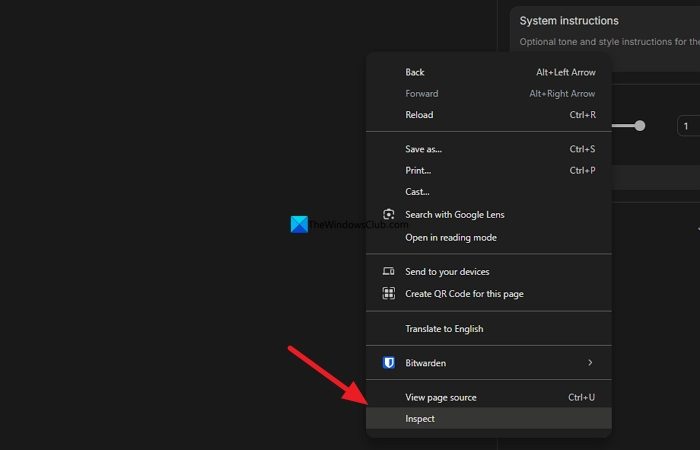
Right-click on the page and select Inspect. It opens a console. Select the Network tab and All in the network tab. Then, type a prompt to generate an image and press Enter while the console is open on the browser.
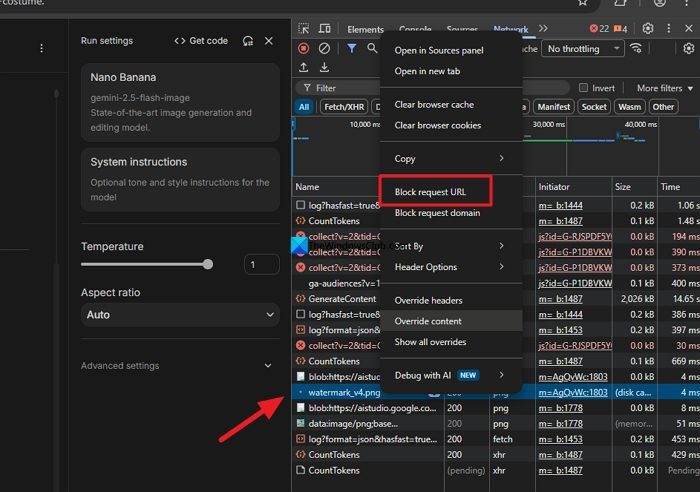
While the image is being generated, find watermark_v4.png and right-click on it. Now, click Block request URL. That’s it. You can now generate images without a watermark on Google AI Studio.
Is Google AI Studio free?
Some features of Google AI Studio are free. You can generate images and music for free. However, video generation with Veo 2 allows you to generate up to 10 videos for free. You can also create apps with Google AI Studio for free, but its deployment on Google Cloud is paid.
Is Google Studio easy to learn?
Yes, Google AI Studio is easy to learn. Its simple user interface makes it easy to understand and use, even for beginners. It is a complete suite for generative AI tasks, including image generation, music generation, video generation, and speech generation.
Read next: How to use AI features in Edge browser.
