
A computer public IP address is an IP address that is used to identify the system network. Sometimes, you might need to know the existing public IP address to fix connectivity issues.
By the way, there are multiple IP address locator services available on the internet that you can use to find out the IP address. But do you know that the system’s IP address can be identified with a single command?
In this guide, you will learn an easy approach to get the Public IP address, including details about the Internet Service Provider, using PowerShell in Windows 11/10.
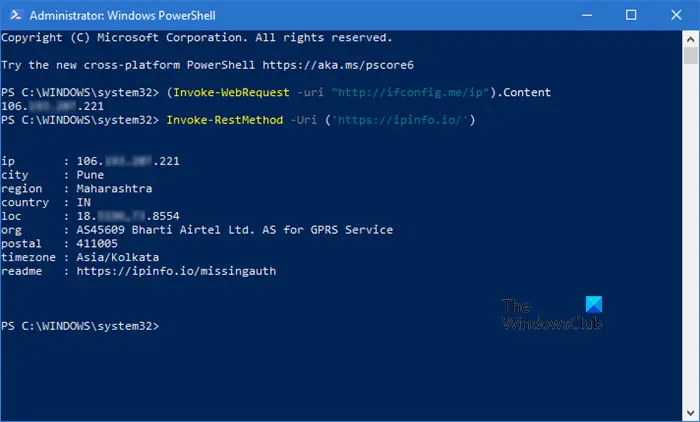
Get Public IP address using PowerShell in Windows 11
To get the Public IP address using PowerShell in Windows 11/10 OS, do the following:
In the PowerShell Console, type the following command –
(Invoke-WebRequest -uri "http://ifconfig.me/ip").Content
Press the Enter key to run the command.
After completing the above steps, you will get the IP address to your internet service connection.
Get more details about the Internet Service Provider
Along with the Public IP address, you can also get more details about the Internet Service Provider. In order to know the way to find it, follow the steps below:
In the open PowerShell windows, type the following command –
Invoke-RestMethod -Uri ('https://ipinfo.io/')
Press the Enter key and it will show all the details like city, region, country, and others.
In the above snapshot, you can see all the details corresponding to your internet connection, such as city, region, timezone, org, and others.
I hope this tutorial will help you find the IP address with other details as well. If you are still in doubt, you can put down your comments relevant to this article.
Related reads:
- How to find out IP address in Windows natively
- How to find out, renew, change the IP address in Windows.
