
Some Windows users are reporting they cannot access their Bluetooth devices because they cannot locate the Generic Bluetooth driver. The issue has been reported by various users, including those running Windows 11 and Windows 10. If you are facing this issue, then you are at the right place. In this article, we will explore how to resolve this issue using simple solutions.
Why is the Generic Bluetooth driver missing on my computer?
Generic Bluetooth driver can go missing from your computer if you have intentionally or accidentally uninstalled it. If that’s the case, then reinstalling should resolve the issue. However, according to many victims, the issue persists even after multiple restarts. Sometimes, the issue is simply that the driver is hidden. If that’s the case, then there is nothing to worry about; you will see why.
Generic Bluetooth driver missing error in Windows 11/10
If the Generic Bluetooth driver went missing and you want to troubleshoot the issue then start by checking for Optional updates. Sometimes, the new update will automatically download the missing driver and hence will resolve the issue. If the issue persists, consider the following steps to resolve it.
- Check if the Bluetooth driver is hidden
- Try Bluetooth Troubleshooter
- Install the Bluetooth driver manually
Let us talk about them in detail.
1] Check if the Bluetooth driver is hidden
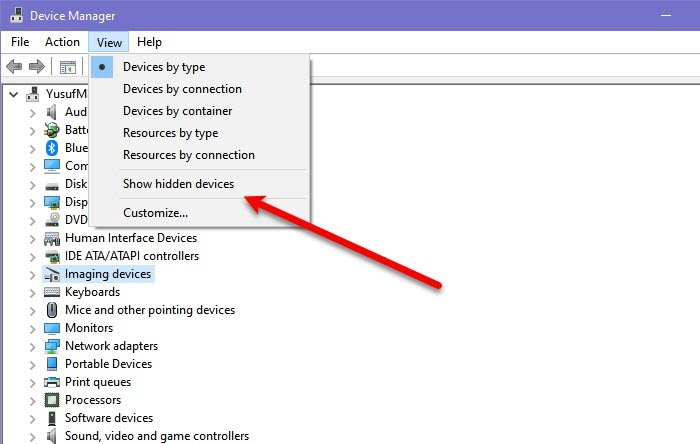
First of all, we need to check if the driver in question is hidden. To do that, you can follow the given steps.
- Open Device Manager by Win + X > Device Manager.
- Click View > Show hidden devices.
If you cannot see the Bluetooth driver, proceed to the next solution. If the driver is present, there is no need to further investigate this issue. You can try connecting your Bluetooth, if you fail to do so, fix the Bluetooth issue.
2] Try Bluetooth Troubleshooter
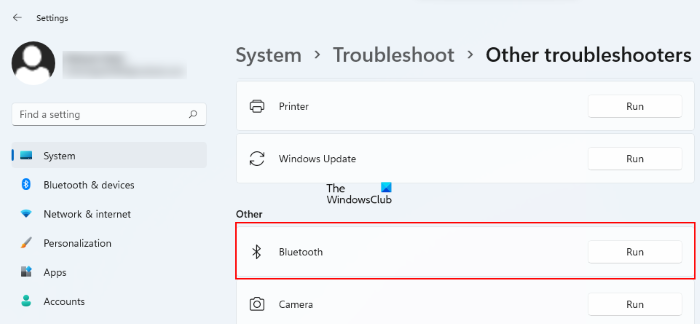
To troubleshoot this issue, we are going to use Windows Bluetooth Troubleshooter. It is available in both Windows 11 and Windows 10, hence, we have included steps for the versions.
Run Bluetooth Troubleshooter in Windows 11
- Open Settings.
- Go to System > Troubleshoot.
- Click Other troubleshooters.
- Then click the Run button placed next to Bluetooth.
Run Bluetooth Troubleshooter in Windows 10
- Open Settings.
- Go to Update & Security.
- Click Troubleshoot > Additional troubleshooters.
- Finally, select Printer and click Run the troubleshooter.
It will take some time to complete the process and hopefully, the issue will be resolved.
3] Install the Bluetooth driver manually
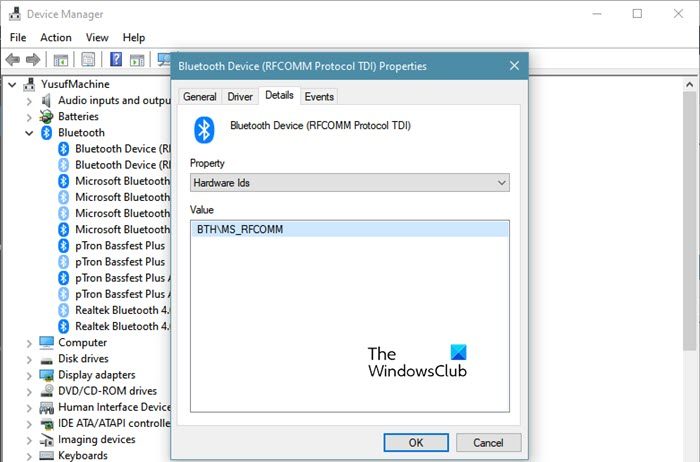
If the issue persists, you will need to install the Bluetooth driver manually. If you know your hardware ID, you can easily search for your driver online. If you can’t, we’ll search for an appropriate browser for you.
To do that, follow the given steps.
- Open Device Manager by Win + X > Device Manager.
- Go to your Bluetooth Driver, it will be either under Other devices or Bluetooth.
- Right-click on it and select Properties.
- Go to the Details tab, and select Hardware Ids from the drop-down menu of Properties.
- Look for Hardware ID from the Value section.
Now that, you know your Hardware ID, look for a suitable driver online and install it on your computer.
Hopefully, you are able to resolve the issue with the given solutions.
How do I reinstall Bluetooth Driver?
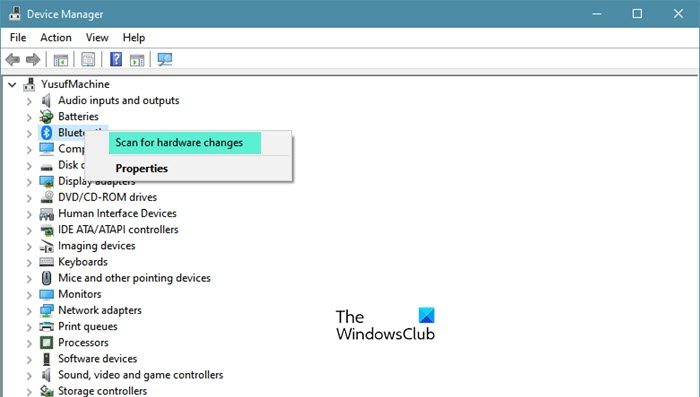
To reinstall the Bluetooth Driver, you need to follow the given steps.
- Open Device Manager.
- Go to Bluetooth.
- Right-click on your Bluetooth driver and select Uninstall device.
- It will ask you to confirm the action. So, click Uninstall when prompted.
- Restart your computer
- Now, to reinstall it, open Devices Manager, right-click on Bluetooth and select Scan for hardware changes.
How do I fix my generic Bluetooth adapter in Windows 11?
To resolve the Generic Bluetooth adapter issue in Windows 11, reinstall the adapter and its driver. For that, you can unplug the device and re-plug in. Alternatively, you can download the driver from the Bluetooth adapter manufacturer’s official website and initiate installation.
Read Next: Fix Bluetooth not working after waking from Sleep.
