
Most people and businesses will use photo editing software at some point in their lives in order to create graphics and modify photos to their liking. Photoshop has long been the go-to tool for photo editing because of its extensive feature set and broad appeal among editors. However, some users are becoming dissatisfied with Photoshop’s high price tag and how difficult it is to use for basic photo editing. Furthermore, a Photoshop subscription is not a one-time purchase, and for these and other reasons, people look for the best free Photoshop alternatives.
Adobe Photoshop is a great graphic software and there are several reasons why you should learn Photoshop – but not many can afford its price and so are looking for free alternatives. These free apps may not be as professional as Photoshop, but they can handle most of Photoshop’s functions. You’ll also appreciate them because most are simple and don’t take up much RAM to run on devices. Even though Adobe provides a free version of Photoshop called Photoshop Express for basic photo editing, it falls short of specific Photoshop competitors. Fortunately, this article covers the six best free Photoshop replacements, along with a detailed description of what each can do.
Best Free Photoshop Alternatives
Looking for the best free real alternatives for Photoshop? We’ve got a number of them covered here:
- GIMP
- Krita
- Photopea
- Pixlr Editor
- PhotoScape X.
Let us take a look at them in detail.
1] GIMP
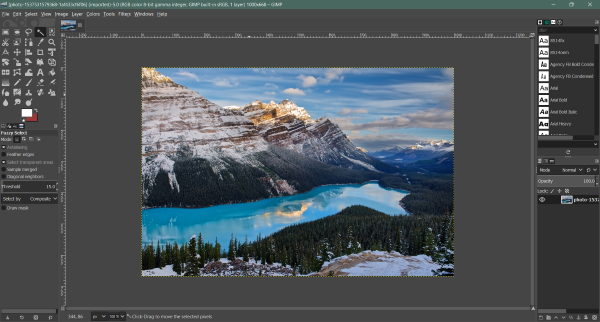
The best free Photoshop alternative you can ever use is GNU Image Manipulation Program (GIMP). GIMP is an open-source image editor with advanced editing features and tools. These tools include painting tools, gradient retouching, custom brushes, patterns, and much more. You should also know that open-source applications like this one are always getting constant upgrades and bug fixes, so you’ll hardly have issues with them
In my experience, the software includes nearly all the photo-editing tools you’ll need. Furthermore, they design the application to enable Plugins with excellent capabilities, and high-ranking developers and artists create these plugins. You’re lucky; over 100 plugins are already compatible with the software. You can also undo/redo many times, which sounds like Photoshop.
Also, GIMP is a raster photo editor featuring foreground extraction tools, QuickMask for painting a selection, and transformational tools. The program supports GIF, JPEG, PSD, BMP, PNG, PS, pm, TIFF, and many other image file formats for free. There are no limitations with GIMP as it’s compatible with Windows, Mac OS, and Linux. These are only a few perks of trying out the image editor, but a trial will impress you.
2] Krita
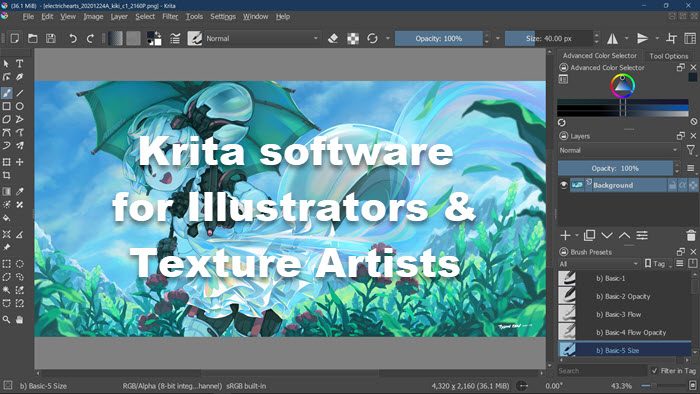
Krita is a professional photo editor and another of the best to use in place of Photoshop. The image editing software has an intuitive layout and covers a lot of ground in terms of features. You can customize the app’s interface to access tools in the way you want. Many users have tested and trusted the forum’s tools for delivery.
In addition, the software offers incredible animation tools and extensive paint brushes for image design. The user interface is a major factor for editors when choosing a tool, and Krita nails it. Krita is also a very stable application; it may be complex at first, but it gets easier the more you use it.
You get a complete photo editor in the software, since you can use it for 3D texturing, pixel art, digital painting, and a few other things. Krista also has a pop-up menu that lets you choose your color rings quickly. More specifically, this software includes all the functions you need for image manipulation, and it offers all of them for free. Still, this open-source software is incredibly light and runs without memory issues on your computer.
3] Photopea
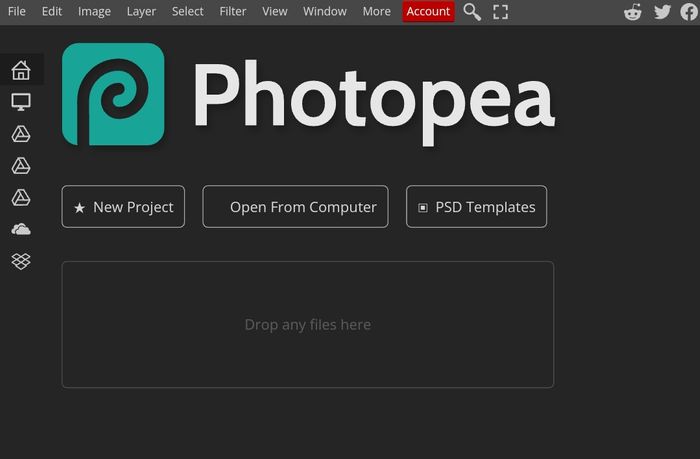
With Photopea, a web picture editor, you can take your image editing to the next level. Photopea is a one-of-a-kind program that, from the standpoint of interface design, performs just like Photoshop and can do nearly everything Photoshop can. So, if you’re used to Photoshop, getting used to Photopea won’t be a problem. You can use it as a web editor on any device, regardless of the operating system.
The program offers an extensive catalog of photo-editing tools, which matters not only for image editing but also for advanced graphic design and converting image formats. Photopea works with both raster and vector graphics, which makes it stand out among some of the other best free Photoshop alternatives. Its USP also includes compatibility with more file formats than its competitors.
Besides, Photopea doesn’t require a download and therefore won’t affect your device memory, as it only runs as a web app. Nonetheless, it requires an internet connection to access, but you can disconnect while editing. It works on all browsers, including Chrome, Edge, Mozilla, and others but contains some ads, which isn’t really a problem but can be removed by paying a small subscription fee.
4] Pixlr Editor
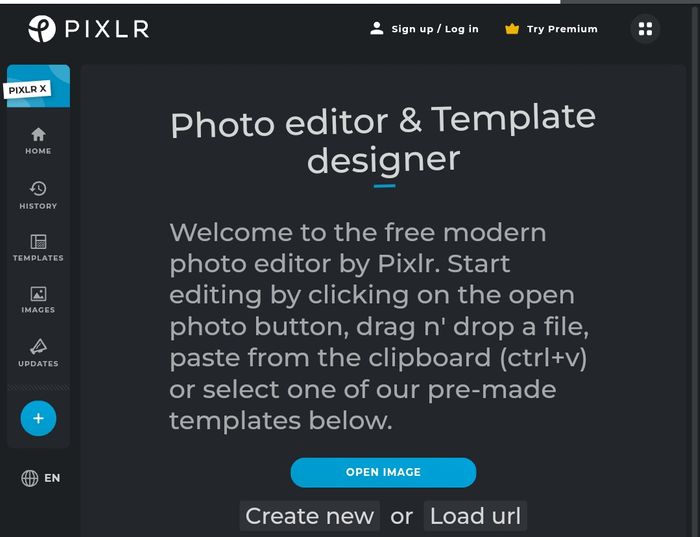
Pixlr is a free, cloud-based photo editor that lets anyone create, manipulate and enhance images. The program is a three-suite editor, which is pretty uncommon but is well suited for anyone looking for the best free Photoshop alternative. Like Photopea, Pixlr is a web-based editor with an interface very similar to Photoshop.
Even though it’s new, the software is feature-rich, and you can use it for all types of design. You can use brushes, illustrations, and shapes to create beautiful designs. In addition, Pixlr offers advanced features such as a background remover and animation tools. All of these are easy to use, and design templates make them even easier.
Pixlr Editor also saves time, making it a strong choice for quick image design. It also renders high-quality edits and is accessible on mobile phones. Additionally, Pixlr is free to use, and you don’t need to create an account before using it. A trial will convince you with this photo editor.
Access Pixlr at pixlr.com.
5] PhotoScape X
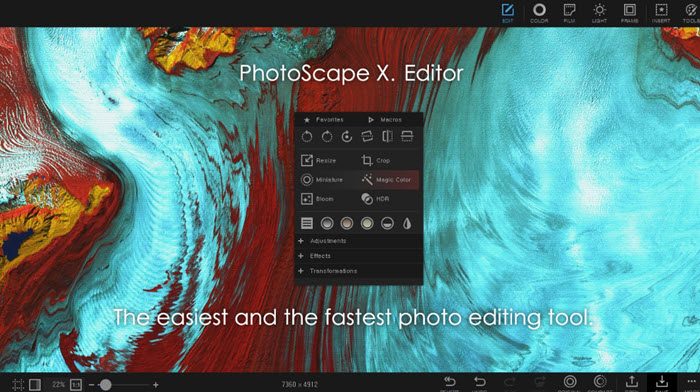
If you’re looking for a free Photoshop alternative that works on both Mac and Windows, PhotoScape is a good choice. Although the editor is geared toward intermediate designers, you can use it for professional photo manipulation and improvement. Still, it’s straightforward to use and doesn’t require prior knowledge.
With PhotoScape’s suite of basic tools, you can fully customize photos on your desktop. The app’s minimalist style makes it a popular choice for anyone who needs quick, straightforward photo editing. You can create animated GIFs and convert RAW photographs with this application.
It includes auto-adjustment features and delivers a very decent image finish. In PhotoScape, you can paste image files from the clipboard, making it easy to import files. The application also includes built-in screen capture tools. A paid version, PhotoScape X Pro, is available for more advanced editing, but you can still make the free version work for as long as you need.
Download PhotoScapeX from the Microsoft Store.
Apart from these, there are several others like GIMPHOTO, MediBang Paint and PictBear that you may want to take a look at.
Do professionals use GIMP?
Yes, professional editors use GIMP for photo editing instead of Photoshop. As discussed in the article, GIMP can handle a lot of image work thanks to its many features.
Is GIMP the best Photoshop Alternative?
Among the best free Photoshop alternatives, GIMP comes out on top. Essential and professional features are available in the photo editing software, which might assist those unable to use Photoshop. Photoshop, on the other hand, is far superior in every regard. Still, it is unsuitable for people who only want basic editing because of its high cost.
Is Pixlr as good as Photoshop?
Even though Pixlr isn’t as good as Photoshop, it still offers strong editing tools. Also, the application is a free alternative, so it can’t be placed alongside Photoshop, which charges a substantial amount per year. Yet, you can always use Pixlr for photo editing.
Read next: Free alternatives to paid software for Windows.
