
A lot of Xbox users are not able to run games on Xbox. Some of them are unable to install a game, some are unable to launch one, whereas, some are failing to launch the Xbox app. When they try to do the same, they see the following error message.
Something went wrong, Give it another try. If this happens again, visit www.xbox.com/errorhelp and enter the following code: 0x8007013d
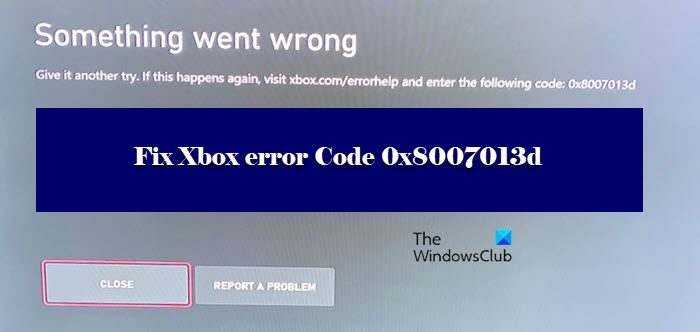
When you try to get help from the mentioned link, you may not find a thing. That’s why, in this article, we are going to resolve the issue with some simple solutions. So, if you are seeing Xbox error code 0x8007013d then this is the post you need.
Why am I seeing Xbox Error Code 0x8007013d?
More often than not, you may see error code 0x8007013d in Xbox when trying to update or launch a game. However, this is happening due to a glitch. It could be a glitch in your network that’s preventing the game from updating and launching.
Or it can be a bug that entered your console via an update. This update can be manual or automatic; the path doesn’t matter, but what matters is that it can only be resolved by an update, and for that, you have to wait a bit. Keeping in mind that there are some ways to resolve this issue, we are going to show them to you.
Fix Xbox error Code 0x8007013d
If you want to fix the error code in question, check the solutions in this article. However, before that, there are some prerequisites you can take to resolve this issue.
First of all, check whether your Internet connection is stable. To do that, you can use any of the online services to check your Internet speed. If it’s slow, you should restart your router (follow the steps mentioned hereinafter) and if that’s to no avail, contact your ISP. However, poor connectivity is not the only network issue that one can face. There are some other glitches as well that we will discuss later in this article. So, without wasting any time, let us hop into it.
If you are seeing Xbox error Code 0x8007013d, then use the solutions mentioned below to resolve the issue.
- Soft Reset your Xbox
- Restart your Router
- Reset MAC Address
- Use Alternate DNS
- Reinstall the game
Let us talk about them in detail. Make sure to follow them in the given order.
1] Soft Reset your Xbox
Let us start with the most basic solution that you may have already tried. But we were hoping you could try resetting the Xbox with the given steps.
- Switch off your Xbox console
- Remove all the plugs and detach the console completely from the Power source.
- Wait for half a minute and then connect the console to the power source.
- Press and hold the BIND button and EJECT button.
- Then click the Xbox button.
- Once, you listen to the two power-up sounds you can release the BIND and EJECT buttons that we ask you to hold.
- You will be redirected to the troubleshooting menu. There, click Reset and select Keep my games and apps
Check if the issue persists.
2] Restart your Router
Your console is not the only device that needs a restart, your router needs one too. So, follow the given steps to do the same.
- Turn off your Router
- Plug out all the network devices and detach them from the power source, then wait for a minute.
- Attack them and turn the devices back on.
Finally, connect your console and computer to the router and check if the issue persists.
3] Reset MAC Address
A glitch in MAC Address can also cause the issue. So, we are going to reset it to resolve the issue. Follow these steps to do the same.
- Launch the Xbox application.
- Go to Settings > Network Settings.
- Click on Advanced Settings.
- Go to Alternative MAC Address.
- Click on Clear.
- Finally, select Restart.
Please wait for some time as the console does its job and restart the setup. Finally, try updating the game, hopefully, it will work this time.
4] Use Alternate DNS
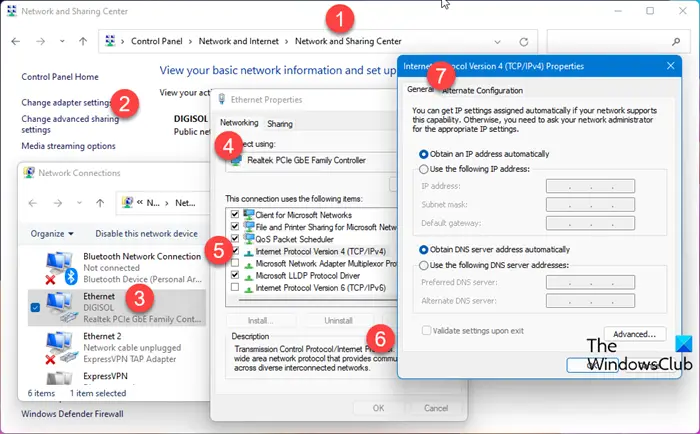
It is recommended to use an alternative DNS if you are stuck on an error code and unable to update your game. Changing your DNS is very simple; follow the steps, and you will be golden.
- Launch the Xbox application.
- Go to Settings > Network Settings > Manual.
- Set, Primary DNS to 8.8.8.8 and Secondary DNS to 8.8.4.4
Hopefully, it will resolve the issue for you.
5] Reinstall the game
If there is just one that’s giving you the trouble then chances are that game is corrupted. Therefore, you have to reinstall it to resolve the issue. However, we would recommend you go offline before uninstalling and reinstalling the game. This means that you should install the game from a disc.
Hopefully, you can resolve the issue using the solutions mentioned in this article.
How do I fix my Xbox error code 0x87e00013?
You may see the Xbox error code 0x87e00013 while updating or launching a game. To fix this error code, you can use some solutions, like uninstalling and reinstalling the Gaming Services, resetting the Xbox app, resetting Microsoft Store, etc. If nothing helps, uninstalling and reinstalling the game can help.
Also Check:
