
Recently we’ve come to understand that several Xbox One and Windows PC users have been coming face-to-face with error 0x80070490 or 80070490. Now, these are not very common errors people tend to come across on a regular basis, but that doesn’t mean the issue here is not fixable. From what we’ve gathered, error 0x80070490 or 80070490 will show up when the user turns on or try to use their Xbox One video game console. They may also pop up whenever folks attempt to open a game or an app via their Windows computer.
What is 0x80070003 error?
Error 0x80070003 typically indicates a problem with Windows Update on a Windows 11 or Windows 10 computer. This error typically appears when Windows Update is unable to install a pending update.
How do I fix error 0x8007003?
Fixing error 0x8007003 will not take a lot of effort. Since this error code is linked to Windows Update mostly, then repairing that aspect of Windows 11/10 is the best route to take. This article explains everything nicely.
What is error code 0x80070490?
When we see this error code, it represents a corrupted file or process from within the system component. It can affect both Xbox One and Windows 11/10 computers, but that doesn’t mean it’s difficult to manage. When it comes to the Windows 11/10 operating systems, this error can occur due to conflicts created by a third-party anti-virus tool. Additionally, it is possible that Component-Based Servicing (CBS) or the System, Component Store contains corrupted files.
How do I fix error code 0x80070490?
To resolve this error code, you may need to take a few steps. For example, restart or reset your Xbox One. If you’re running Windows 11, disable any third-party anti-virus tools or repair Windows Update.
Fix Error 0x80070490 or 80070490 on Xbox or PC
Solving the problem will take a few minutes of your time, but worry not because once you’re done, everything should return to normal.
First, we will examine how to resolve this issue with the Xbox One video game console.
- Turn off the Xbox One
- Unplug the Xbox One
- Turn on the Xbox One
- Reset the Xbox One
1] Turn off the Xbox One
We believe that a simple power cycle can restore things to normal, and the first step in such a situation is to turn off the Xbox One.
To get this done, please press the Xbox button on the front of the console for up to 10 seconds until the console shuts down completely.
2] Unplug the Xbox One
The next step is to unplug the Xbox One from the power source. After doing that, we suggest waiting 10 seconds before plugging the power cable back to its rightful place.
3] Turn on the Xbox One
Finally, press the Xbox button on the console or on the controller to have the device up and running again. Go ahead and check if error 0x80070490 or 80070490 is still appearing.
4] Reset the Xbox One
If the above actions have failed, then we believe it’s time to reset the Xbox One to its default settings.
Fix 0x80070490 or 80070490 on Windows 11
As we have stated above, this problem can also affect Windows 11/10 computers, so, what can we do in a situation like this? Let us take a look.
- Disable third-party anti-virus tool
- Run Windows Update Troubleshooter on PC
- Reset Windows Update components
1] Disable third-party anti-virus tool
If you are not using Microsoft Defender to protect your Windows 11 computer, then we suggest disabling the third-party anti-virus suite. Such tools, when active, can cause Windows Update to act improperly.
2] Run Windows Update Troubleshooter on PC
Run the Windows Update Troubleshooter on your Windows computer and from there, go back and check if the error codes are gone.
3] Reset Windows Update components
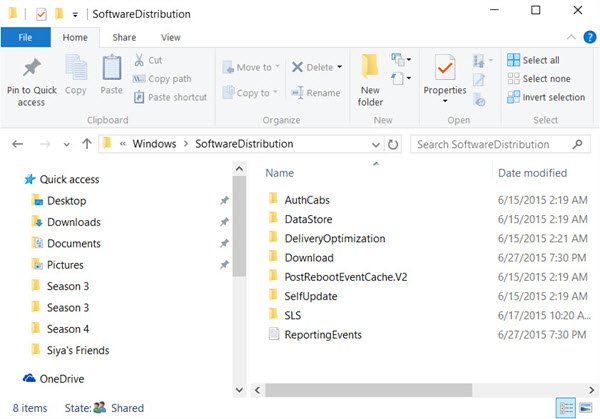
The final act to take here is to reset the Windows Update components to their default state.
Let us know if this post helped.
