
Windows Update Error 0x800703f9 may occur when you are trying to install an update for your Windows 11/10 computer and the operation fails. If you encounter this issue, the following suggestions will help.
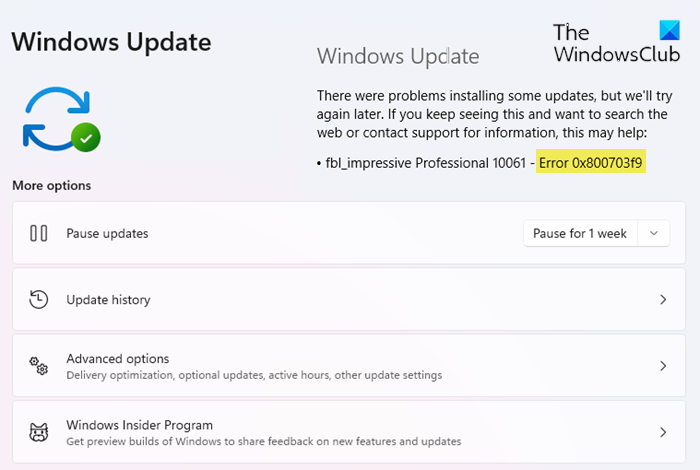
Fix Windows Update Error 0x800703f9
Since the Windows Update Error 0x800703f9 error is mostly associated with the failure to download and install Windows updates, here are some steps you need to take:
- Run Windows Troubleshooter
- Reset Windows Update Components
- Make changes to the Registry Editor
- Delete $WINDOWS.~BT & $Windows.~WS folder contents
- Disable antivirus settings temporarily
Let’s explore the above solutions in a bit more detail now!
1] Run Windows Troubleshooter
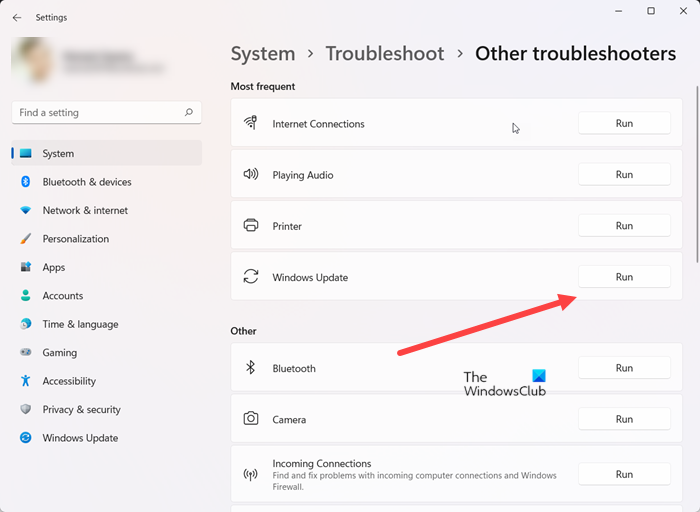
The first step you can take to fix the problem automatically is to run the Troubleshooter. For this, go to Settings > System > Troubleshoot > Other troubleshooters.
Next, scroll down to the Windows Update entry and hit the Run button next to it. You will need to wait a minute for the troubleshooter to fix the issue. If it doesn’t fix your issue, move to the next solution.
2] Reset Windows Update Components
While there are other ways to troubleshoot various Windows Update issues, it would be a good option to reset Windows Update components to default. This is especially useful if your Windows Updates fail to Install.
3] Make changes to the Registry Editor
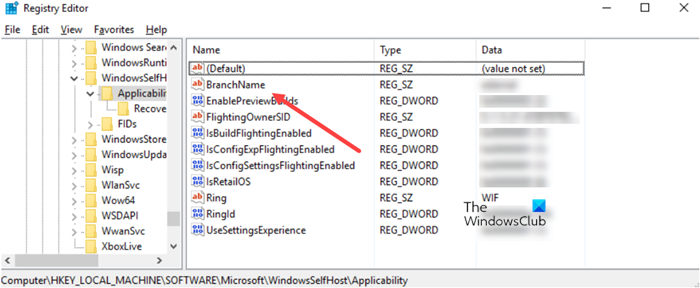
Some users have reported that changing this Registry setting helped them. So create a System Restore point first and then, do the following –
Open the Registry Editor and navigate to the following path address –
HKEY_LOCAL_MACHINE\SOFTWARE\Microsoft\WindowsSelfHost\Applicability
Here, double-click on BranchName and change the ‘Value data’ to ‘fbl_impressive‘.
Then check for updates again.
4] Delete $WINDOWS.~BT & $Windows.~WS folder contents
After you notice that an update has failed, look for the following two folders on your System or C Drive named $Windows.~BT and $Windows.~WS. $Windows.~BT is a temporary folder and might interfere with the update process. You can safely delete it.
Right-click on Start button to open the WinX Menu. Select Command Prompt (Admin). Then, copy-paste the following and hit Enter to delete the contents of $Windows.~BT directory.
takeown /F C:\$Windows.~BT\* /R /A
icacls C:\$Windows.~BT\*.* /T /grant administrators:F
rmdir /S /Q C:\$Windows.~BT\<\code>
Next, copy-paste the following and hit Enter to delete the contents of $Windows.~WS directory
takeown /F C:\$Windows.~WS\* /R /A
icacls C:\$Windows.~WS\*.* /T /grant administrators:F
rmdir /S /Q C:\$Windows.~WS\
5] Disable antivirus settings temporarily
It’s also possible that an antivirus program running in the background is interfering with the update process, preventing you from installing updates. So, try disabling it for a while and try updating the system again. It should work.
What are the Windows Update components?
Windows Update is an essential component of Windows that enables you to download and install the latest updates, including bug fixes, security patches, and drivers. Besides, it is a mechanism for downloading new feature updates and preview builds.
How do I fix Windows Update Standalone Installer error 0x800f0905?
If you encounter errors 0x800f0905, 0xc80003f3, 0x800b0001, etc., when using the Windows Update Standalone Installer, check that the date and time settings on your system are correct. Also, run the SFC scan, temporarily disable your antivirus tool and then try again. Or else, you can also perform an in-place upgrade.
