
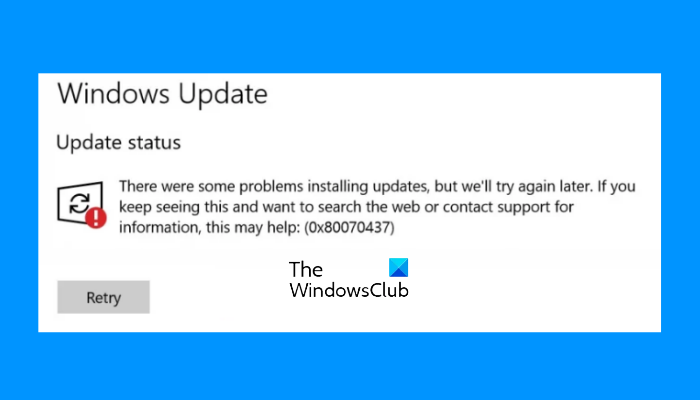
If you are facing Windows Update error 0x80070437 while updating Windows 11/10, then this post might come in handy to solve this error. When this error occurs on your computer, you will see the following message under the Update status section:
There were some problems installing updates, but we’ll try again later. If you keep seeing this and want to search the web or contact support for information, this may help: (0x80070437)
What causes Windows Update error 0x80070437
If you see the Windows Update error logs you will probably see the following message:
0x80070437, Error_Different_Service_Account. The account specified for this service is different from the account specified for other services running in the same process.
The cause for this could be permission issues for required Windows Services or corrupted Windows Update files.
Fix Windows Update error 0x80070437
The following solutions may help you fix this Windows Update error 0x80070437:
- Run Windows Update Troubleshooter
- Run DISM tool to repair Windows Update components
- Reset Windows Update components manually
- Run Windows Update in Clean Boot State
- Manually download the Update and run it from your Administrator account.
Let’s check these solutions one by one.
1] Run Windows Update troubleshooter
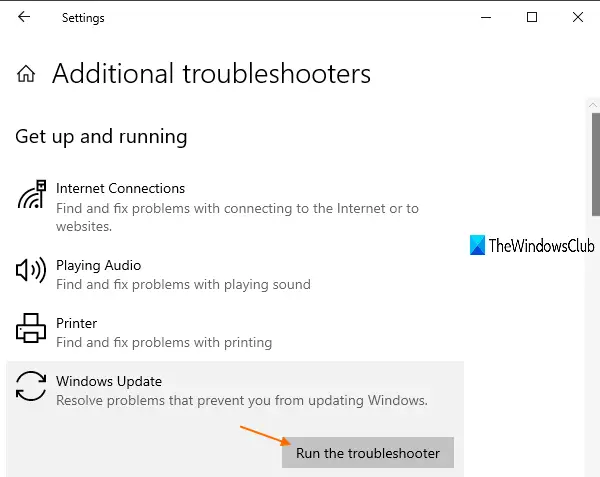
As the name implies, Microsoft has developed this tool to fix the Windows Update errors. Hence, whenever you encounter some Windows Update error, you can run Windows Update troubleshooter and see if it fixes that error. This might work for this error code 0x80070437 too. Here are the steps:
- Use Win+I hotkey to open the Settings app
- Click on the Update & Security category
- Select the Troubleshooter page from the left section
- Scroll down and select the Additional Troubleshooters option
- Click on the Windows Update section
- Hit the Run the troubleshooter button.
2] Run DISM tool to repair Windows Update Components
DISM (Deployment Image Servicing and Management) is a built-in, command-line tool that helps fix or repair corrupt system files related to Windows Update and other Windows Update components required for successful update installation. So, if you face some Windows Update error, run the DISM tool to repair Windows Update components, and then try to update your system. It might work for this error also.
3] Reset Windows Update components manually
Another solution to solve this error 0x80070437 is by resetting Windows Update components manually to default.
For this, you need to perform multiple steps, such as stopping the Windows Update services, deleting qmgr*.dat files from the storage location, renaming or resetting the catroot2 and SoftwareDistribution folders, etc.
Once all the necessary steps are completed, restart your computer and attempt to install Windows Update. That might solve your problem.
4] Run Windows Update in Clean Boot State
Clean Boot in Windows 10 lets you start Windows with a minimal set of startup programs and drivers. While adjusting settings for Clean Boot State, you are able to select load only basic services and devices for Windows, disable all third-party services, etc., which might be causing the Windows Update error.
So, first, perform Clean Boot, and then Check for updates. If you are able to download and install Windows Update, then there must be some third-party program or service that was causing the issue. In that case, you need to locate and remove the item so that it won’t cause any further trouble for Windows Update.
5] Manually download the Update and run it from your Administrator account
You can also download Windows Update manually and then install it as an administrator. To do so, access the Microsoft Update Catalog website. After that, search for the required KB number related to your Windows Update. Once you find it, download its EXE file to your PC.
Finally, right-click on the downloaded file, select the Run as administrator option, and install the update.
We hope these solutions help you resolve this issue.
Windows Firewall can’t change some of your settings
You can also see Error code 0x80070437 with the message Windows Firewall can’t change some of your settings. This post offers suggestions to fix Firewall Error 0x80070437.
