
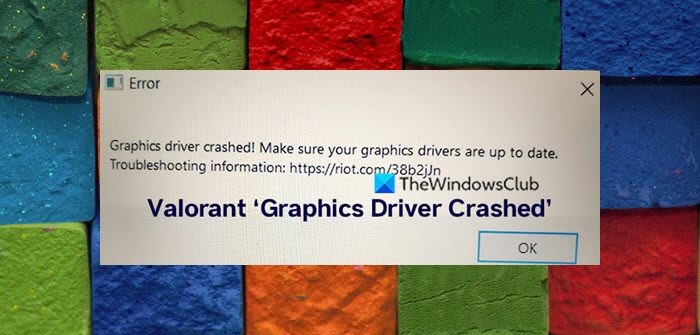
Valorant is a free-to-play first-person shooter game developed exclusively for Microsoft Windows by Riot Games. Valorant is inspired by the tactical shooter series Counter-Strike. It heavily borrows many elements like buy menu, spray patterns from that one. Many players are seeing ‘Graphics driver crashed‘ error while playing Valorant on their PC. In this guide, we have a few solutions to help you fix the issue.
Valorant Graphics Driver Crashed
When you see Graphics driver Crashed! Make sure your graphics drivers are up to date error on Valorant, you can try the following fixes. But first, restart Graphics Driver using Win+Ctrl+Shift+B shortcut and see if that helps.
- Make sure your PC has required graphic memory
- Update the graphics driver
- Update DirectX
- Set your game to windowed mode
- Turn off VSync
- End unnecessary processes in the background
- Update Riot Client
Let’s look at each way in detail.
1] Make sure your PC has required graphic memory
The developers of games and programs set a minimum hardware requirement to run the program without issues. Riot Games set the minimum requirements for Valorant, too. You need a minimum GPU of Intel HD 4000(Shader Model 5.0) with 1GB of Video RAM. If your PC doesn’t meet the requirements, you need to upgrade it.
2] Update the graphics driver
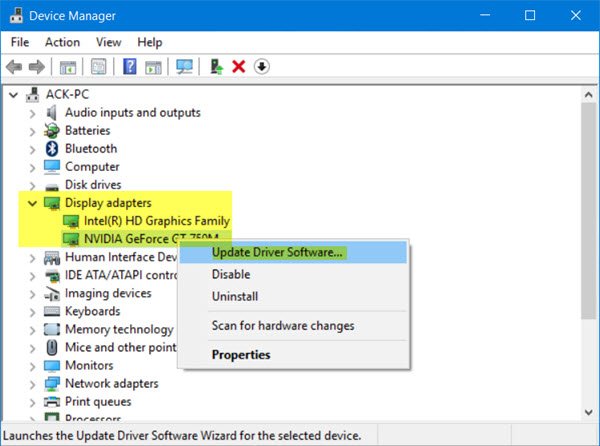
Since the error is directly related to the graphics card, you need to update the graphics drivers to the latest version to eliminate the graphics driver as the cause of the issue. So, try updating the graphic drivers and check if the issue still persists. You can use one of the methods below to update your device drivers:
- Check for Driver Updates via Windows Update to update your drivers
- Visit the manufacturer’s site to download the drivers.
- Use a free driver update software
- If you have the INF driver file already on your computer then:
- Open Device Manager.
- Click the driver category to expand the menu.
- Then choose the relevant driver and right-click on it.
- Select Update Driver.
- Follow the on-screen wizard to finish updating your graphics drivers.
Once you have completed updating the graphics drivers, check whether the error persists.
3] Update DirectX
DirectX on your PC enhances multimedia experiences. The chances are high that it can also cause the Graphics Driver Crashed error on Valorant. So, you need to update DirectX to fix the error. Download the latest version from Microsoft and run the installer to update the existing one.
4] Set your game to windowed mode
Playing Valorant in the windowed mode fixed the Graphics card crashed error for many. Windowed mode uses fewer resources than full-screen mode. To set your game to windowed mode, press Alt+Enter while the game is loading. You need to do it every time you launch Valorant on your PC.
5] Turn off VSync
VerticalSync or VSync is a built-in feature that matches your monitor’s frame rate with the game’s frame rate. It might also be the cause of the error on Valorant. You need to turn the VSync off on your PC.
To turn VSync off on NVIDIA Control Panel,
- Open NVIDIA Control Panel from the desktop context menu
- Click on Manage 3D Settings
- Then click on the dropdown button beside Vertical sync
- Select Off to turn it off
To turn VSync off on AMD Radeon Software,
- Open AMD Radeon Software from the desktop context menu
- Click on Gaming
- Then click on the drop-down button beside Wait for Vertical Refresh
- Set it to Off, unless the application specifies
6] End unnecessary processes in the background
The processes running in the background of your PC might be consuming more resources than Riot Valorant. Open Task Manager and end all the processes that seem unnecessary and consume more memory in the Processes tab.
7] Update Riot Client
An outdated Riot Client, or corrupted or missing files, might also trigger the Graphics card crashed error. Check for any updates pending for Riot Client or Valorant and install them on your PC after downloading them from the Epic Games Store. Uninstall the Riot Client and reinstall it if no updates are available.
These are the different ways you can fix the Graphics Card Crashed error in Valorant.
How do I fix a crashed graphics driver?
You can fix the graphics driver crash by updating the graphics card driver or reinstalling it. If the error still persists, you need to update DirectX.
You can also run Windows in Clean Boot State to know if the error is caused by a third-party program and fix it.
Why does my Valorant crash for no reason?
Valorant might crash for many reasons. To begin with, your PC might not have met the minimum system requirements, the graphics driver is outdated or corrupted, the cache built upon the PC might be corrupted, the game files are missing or corrupted, or there might be some program interfering with the processes of Valorant, like an antivirus.
