
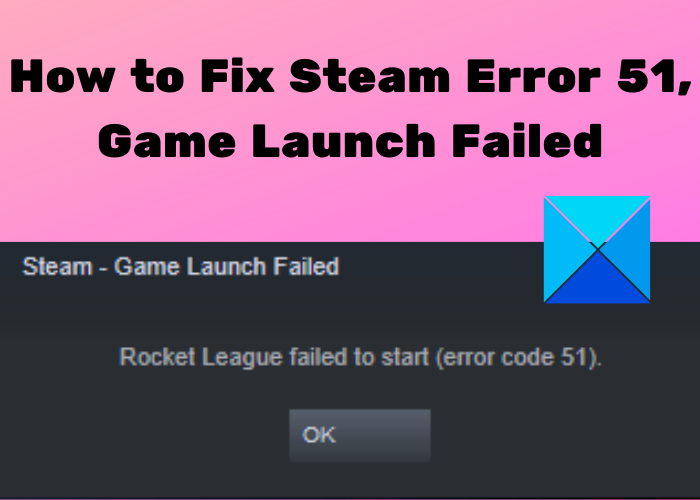
Here is a full guide on how to fix error code 51 on Steam. Some Steam users have reportedly experienced the error code 51. This error code is triggered while trying to launch a game on Steam. It essentially prevents a game from launching, thereby preventing you from playing the game. If you are also experiencing the same error code on Steam, we’ve got you covered. In this post, we will show you some working fixes to help you resolve the error. Let us check out!
What causes error code 51 on Steam?
Before discussing the actual fixes, let us try to understand what can potentially cause this error code on Steam. Here are some of the possible reasons for the error code 51 on Steam:
- This error can be a result of corrupted or missing game files causing the game to fail to launch. If this is applicable, you can try verifying the integrity of your game file.s.
- Third-part application conflicts can be another reason for this error. This is especially applicable to your antivirus as it can block processes related to Steam and cause error 51.
- Missing Microsoft Visual C++ Redistributable can also be a reason for this error. If the scenario is applicable, you can try installing Microsoft Visual C++ Redistributable manually.
- Corrupted Steam client configurations files can also be a reason for this error. In that case, you can try refreshing game files.
Now, let us get straight to solutions!
Fix Steam Error Code 51, Game Launch Failed on PC
Here are the methods to fix error code 51 on Steam, Game Launch Failed:
- Verify the Integrity of Game Files.
- Temporarily disable Antivirus.
- Uninstall Conflicting Third-party Applications.
- Install DirectX and Microsoft Visual C++ Redistributable Manually.
- Update Graphics Drivers.
- Modify Game Configuration.
- Refresh Steam files.
Let us elaborate on the above solutions now!
1] Verify the Integrity of Game Files
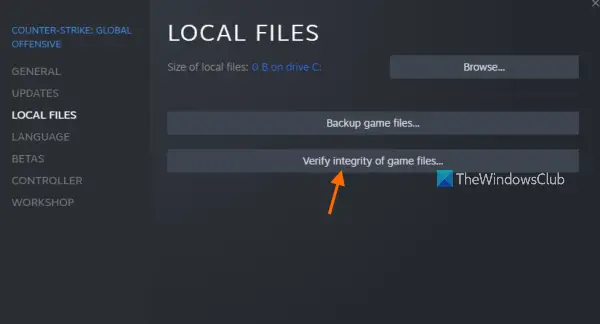
If you are encountering this error with specific games, there is a high chance that you are dealing with corrupted and bad game files. Steam provides a dedicated feature to verify and repair your game files. It verifies, compares, and replaces corrupted or missing game files with the latest game files from Steam servers so, if the reason behind getting error code 51 when trying to launch a game is that you should be able to fix it up by verifying the integrity of game files.
To verify the integrity of game files in Steam use the steps below:
- Firstly, launch the Steam client as an administrator and then click on the LIBRARY tab from the top menubar.
- Next, right-click on the problematic game and then select the Properties option.
- Now, move to the Local Files tab and tap on the Verify Integrity of Game Files option.
- After that, Steam will start checking the game files and attempt to replace any bad or missing game files. The process will go for some time, so be patient.
- Then, close all Steam-related tasks from Task Manager and restart the Steam client as an administrator.
Try launching the game that was throwing error 51 and see if the issue is now fixed.
Read: Fix Steam App Configuration Missing or Not available error
2] Temporarily disable Antivirus
It is a known fact that antivirus programs interfere and block Steam-related processes suspecting them to be malicious. Try disabling your antivirus and then see if the error is resolved. If the problem is resolved, your antivirus is the main culprit. While permanently disabling your antivirus protection is not recommended, we suggest adding Steam to the exception list of your antivirus so that it doesn’t block processes related to Steam.
3] Uninstall Conflicting Third-party Applications
The error might be caused by problematic third-party applications installed on your PC, which might be conflicting with Steam. So, try identifying problematic apps; see if you started getting this error after recently installing an app and uninstall it to fix the problem.
See: Steam games won’t launch; Stuck on Preparing to Launch
4] Install DirectX and Microsoft Visual C++ Redistributable Manually
Some games on Steam require DirectX and Microsoft Visual C++ Redistributable to launch. Usually, Steam automatically downloads and installs the package when you install the game. However, there is a chance that it might be interrupted or halted due to various reasons, resulting in the failed installation of this module. If that is the reason for error 51 on Steam, you can try manually installing DirectX and Microsoft Visual C++ Redistributable to resolve the error.
Here are the steps to manually install DirectX and Microsoft Visual C++ Redistributable:
Firstly, open the File Explorer and then navigate to the below address:
C:\Steam\steamapps\common\<Steam-Game>\_CommonRedist\vcredist
In the above address, replace <Steam-Game> with the name of the problematic game.
Here, run the executables and let the installation finish. When the installation is complete, go to the following location:
C:\Steam\steamapps\common\<Steam-Game>\_CommonRedist\DirectX
Again, in place of <Steam-Game>, enter the name of the problematic game. Here, please, is a full guide on how to fix error code 51 on Steam. A lot of Steam
Once the installation process is complete, reboot your PC and then try to launch the game on Steam without encountering error code 51.
See: An error occurred while installing or updating the Steam game
5] Update Graphics Drivers
Graphics drivers are crucial for running games on your PC. In case you are using outdated or faulty graphics drivers, you might encounter this error code while launching a game on Steam. Hence, if you haven’t updated your graphics drivers in a while, consider updating your graphics drivers and then see if the error is fixed.
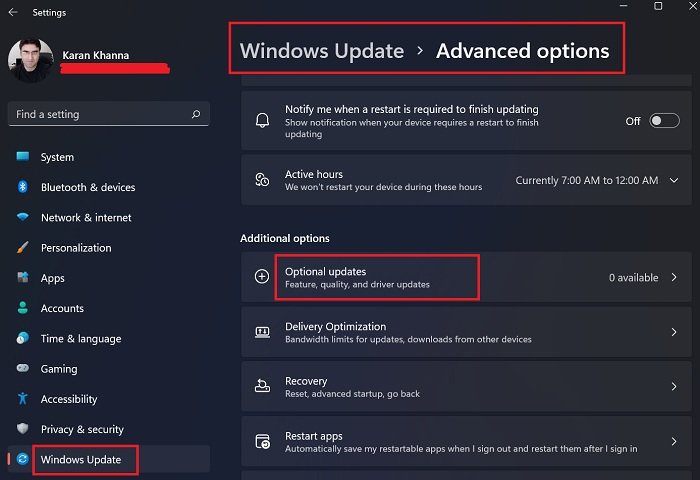
You can manually update graphics drivers on Windows 11 via Optional Windows Updates. Additionally, you can visit the official website of your device manufacturer to obtain the latest graphics drivers. Besides that, you can even automatically update all your graphics drivers using a third-party driver updater.
Once the graphics drivers are updated, restart your PC to see the changes. You can then try launching the game on Steam, and hopefully, you will no longer receive the error code 51.
See: How to fix Steam Error Code 83 on Windows PC
6] Modify Game Configuration
Steam engine configurations are stored on your PC, which is required by the game engine. If these configurations become corrupted or are incorrectly set, you may encounter error code 51. If the scenario applies, you can try flushing the configuration and then auto-config the game to resolve the error. Here are the steps to modify the game configuration for Steam:
- Firstly, close the Steam client completely from the Task Manager.
- Now, open the Run dialog box by pressing Windows + R hotkey.
- Next, enter the below command in it:
steam://flushconfig
- When prompted “Allow This Website to Open a Program”, click Allow.
- After that, restart your PC and then launch the Steam client.
- From the top toolbar, go to the LIBRARY tab, right-click on the problematic game, and tap on the Properties option.
- Then, navigate to the General Tab and select “Set Launcher Options”.
- Finally, enter -autoconfig and press OK.
Try this method to see if it resolves the issue for you. If not, move on to the next potential fix to resolve the error.
7] Refresh Steam files
If none of the above solutions work for you, you should consider refreshing the Steam files. Refreshing Steam files will delete the Steam client configuration files and then reinstall them. To do that, here are the steps you need to follow:
- First, close all tasks and processes related to Steam by opening the Task Manager.
- Next, navigate to the Steam installation directory on your PC using File Explorer.
- Now, except the steamapps folder and the Steam.exe application file, you need to select all the other files.
- After that, clear all the selected files using the Delete button.
- Finally, reboot your system and start the Steam client with administrator privileges. Hopefully, you won’t encounter the error code 51 while launching a game now.
See: Steam Error E502 L3 on Windows PC
How do I Fix Error 53 on Steam?
Error code 53 is typically triggered when Steam servers are unable to handle your request. If you are receiving this error code, you can fix it by restarting your game, rebooting your device, and checking your internet connection. If all these general fixes don’t help, make sure Steam servers are not down. You can also disable your antivirus or change the Download region. There are additional solutions to fix error 53 on Steam that you can explore.
Now read: Steam is having trouble connecting to Steam servers.
