
Since its inception, Gmail has become one of the web services more and more people use. It serves both professional and personal purposes, with a plethora of features that are easy to use. For something so widely used, Gmail’s servers also have little downtime and face only a small number of errors and glitches. One of the most common ones is the “Something went wrong” error which is mostly faced by users when they’re trying to set up a new Gmail account or log in to an existing one. In this article, we’ll cover fixes you can use to bypass this error.
The “Something went wrong” error message on Google can block sign-in even when you enter the correct credentials, which, if you’re an avid Gmail user, can feel helpless. It can restrict you from creating, adding or linking an account on Gmail.
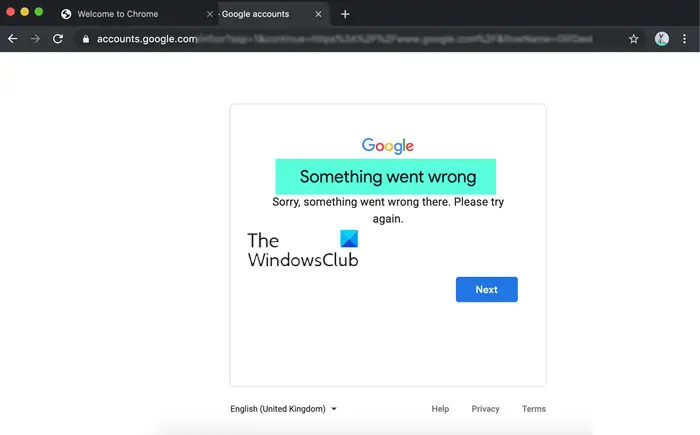
Sorry, something went wrong there, Please try again.
Fix Something went wrong error in Gmail
This is usually a server-side error and there is little you can do except wait for a while and try again later. Nevertheless, here are some suggestions that can help you bypass the Something went wrong error in Gmail :
- Clear browsing data
- Check Internet connection
- Use different Internet connection
- Use Incognito or Private Mode
- Use another browser
- Use VPN and see.
Before you begin, press the CTRL key and then refresh the page to check if the issue has been resolved or not.
1] Clear browsing data
Right off the bat, you can try clearing the browsing data of the browser that you are facing this issue on. For Chrome, you can do it as follows:
- Click on the Ellipse’s icon at the top-right corner of the browser window
- Here, select More tools and further click on Clear browsing data
- When asked about the time range, select All time from the dropdown
- Finally, click on Clear Data
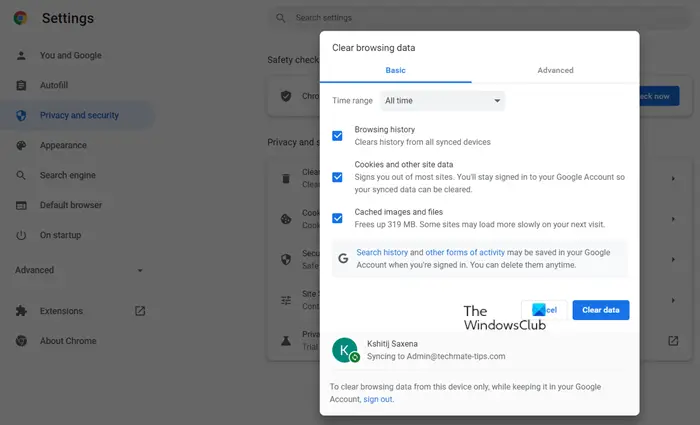
Then relaunch Google Chrome and check whether the error continues to show.
Users of Edge, Firefox, etc. can follow these steps to update the browser manually.
2] Check the Internet connection
Often, issues like this can be triggered by something as simple as a faulty internet connection. So you can make sure that you’re connected to a working internet system, and if not, connect to one and try processing your Gmail request again. You can check this in the System Tray or Windows Settings. If you find your Wi-Fi not working, you can try restarting the modem.
3] Use different Internet connection
If you continue to face this error despite having a working internet setup, you can try switching to a different Internet connection. You can do that by selecting the System Tray icons, clicking the Wi-Fi option, and selecting one from the available list.
4] Use Incognito or Private Mode
While your browser is open, Chrome and Edge users, press Ctrl+Shift+N and Firefox users press Ctrl+Shift+P to launch your browser window in Incognito or Private Mode and then see if it helps.
5] Use another browser
You may also be seeing this error because you are running a faulty or outdated browser version, or because internal issues like bad cookies are causing it. In that case, we recommend switching to a different browser, which isn’t as tedious anymore since we have plenty of options like Microsoft Edge, Firefox, Brave, Vivaldi, etc.
6] Use VPN and see
If none of the above fixes work for you, try using a VPN to bypass the “Something went wrong” issue on Gmail. A VPN can help if the issue is with your IP. VPNs change your IP and provide a security cushion while browsing by adding a layer of security to your private and public networks.
We hope this post helped.
Read: Gmail address tricks to get more out of your email ID.
Why does Gmail keep saying something went wrong?
If you’re wondering what causes this error, it may be triggered by outdated Gmail account settings. Another scenario that may cause this issue is trying to log in with incorrect credentials, in which case you may see this error.
What will happen if I clear data on Gmail?
A common question when clearing data on your Gmail account for the first time is whether it will delete the account’s emails, both sent and received. If you’re one of them, you can rest assured: clearing data using the ‘Clear Data’ option in the app won’t delete your emails. It is only the settings, passwords and configuration of your Gmail account that will be deleted.
