
If you recently upgraded your monitor and are seeing a partially hidden Taskbar, Blurry font, odd-looking display, and other screen issues, you are not alone. This issue occurs on Windows when you switch from a lower-resolution monitor to a higher-resolution one. Windows may not be able to detect the current monitor, and therefore, some changes are required to work properly again.
Fix Screen Resolution Monitor problems
If you face problems after moving to a larger Monitor with a higher Screen Resolution, like Blurry Fonts problem, odd colors or incorrect display scaling, here are a few things you should try.
1] Reinstall or Update Graphics Driver
Updating your Graphics Driver is the first task you should do after plugging in a higher resolution monitor. The existing graphics driver may not be able to detect the new monitor’s resolution and thus you may end up facing such issues.
2] Change Screen Resolution manually
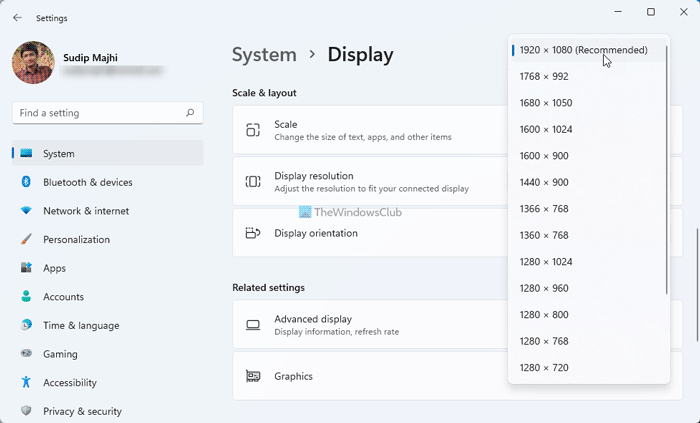
“Advanced Display Settings” is a function in Windows Settings panel that allows users to identify all plugged-in monitors (for dual-monitor setup), set resolution, etc. You can change the monitor screen resolution manually. For example, if your monitor has a maximum resolution of 1920 x 1080 pixels, you should use that as the default resolution. Otherwise, your screen will look odd or blurry. You will see the settings here – Settings > System > Display > Advanced display settings.
3] ClearType Text Tuner
ClearType Text Tuner helps users to set the best font type in Windows. You can open the ClearType Text Tuner from “Advanced display settings” or use the Taskbar Search Box of Windows 10. After opening it, follow the screen options, turn on ClearType, set the best text according to your wish, and save the settings.
4] Change DPI
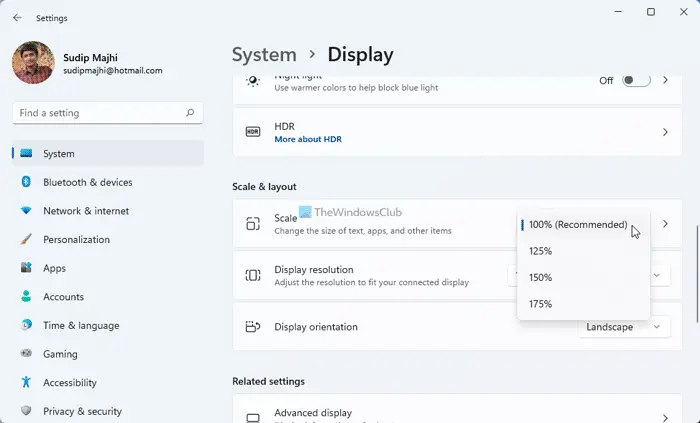
DPI or Dots Per Inch option plays a vital role in this case. If your DPI is not set to 100%, or the “Recommended,” your screen will look blurry. There are two different ways you can change the DPI in Windows. First, open Settings panel > go to System > Display. Here, you can find a bar under the option called Change the size of text, apps, and other items. Use the scale to set a higher DPI.
You can also use the Control Panel to do the same. Open Control Panel > Display. Here you can find an option called Set a custom scaling level. Although Microsoft does not recommend this, you can use it as well. Set a different scale and hit the OK button.
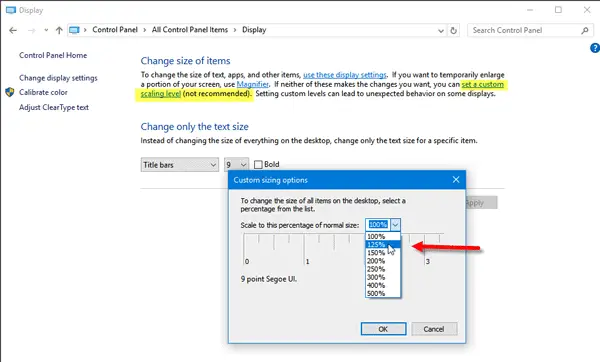
You have to log out and log in for the changes to take effect.
5] Use HDMI instead of VGA/DVI-D and vice versa
There are three ways to use a monitor: using an HDMI cable, a VGA cable, and a DVI-D cable. Sometimes, older monitors may not be able to detect HDMI cables or other types of cables correctly. Try changing the cables and see if that resolves your issue.
6] Check the HDMI source
Modern monitors use a PC as an HDMI source. However, if you are having any problems with that setting, try changing it to AV. Having said that, if you are having problems with AV, try changing it to PC.
Read: Second monitor appears blurry on Windows PC
7] Use Auto-Adjustment of monitor
Almost all monitors have this “Auto Adjustment” feature that allows users to set up the screen for better resolution and picture quality. Therefore, you can use the same option to adjust the resolution.
Here are some other tips that will show you how to better adjust your monitor for better screen resolution.
What happens if increase the resolution of a monitor?
When you increase the resolution of a monitor, the text and icons get bigger accordingly. However, if your monitor does not support that resolution, and you are moving from a lower to a higher resolution, the text may get blurry. However, changing the scale might fix the issue in some cases.
Can I play at a higher resolution than my monitor?
If you play at a higher resolution than the original one, you might sometimes get problems. Generally, computer games accept all resolutions. However, if your monitor doesn’t support that specific resolution, you will have problems while playing a game.
