
In this article, we will see how to fix the OneNote sync error 0xE000005E (ReferencedRevisionNotFound). When this error occurs, OneNote cannot sync your notebooks or any section of them. According to Microsoft, this is a temporary error; users are advised to wait and see if it resolves on its own. In this article, we will explore some possible fixes to help you get rid of this problem.
The complete error message that you may see is:
We’re sorry, something went wrong during sync. We’ll try again later. (Error code: 0xE000005E)
OneNote sync error 0xE000005E (ReferencedRevisionNotFound)
Some users were able to fix the problem by moving the affected section to another notebook, then back to the same notebook. You can also try this trick and see if it fixes the OneNote sync error 0xE000005E. If not, try the solutions written below if OneNote is not syncing:
- Force sync your notebooks
- Check if the WebClient service is running
- Create a new section or notebook
- Break your notebook into multiple sections
Below, we have described all these solutions in detail.
1] Force sync your notebooks
The first thing that you should try is to force sync your OneNote notebooks. The following instructions will help you with that:
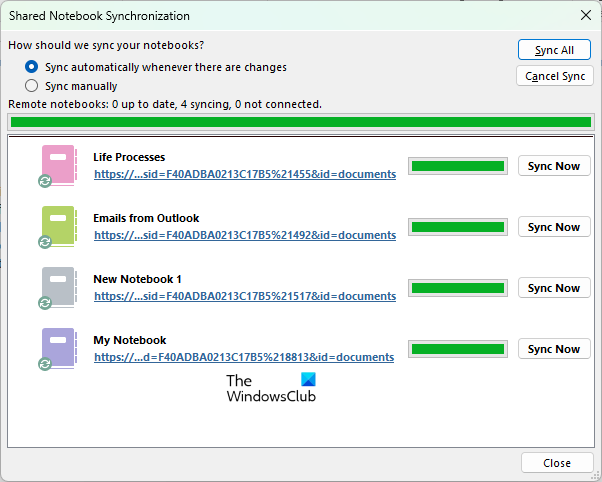
- Open OneNote.
- Go to “File > Info > View Sync Status.”
- Now, click on the Sync Now button next to the problematic notebook.
2] Check if the WebClient service is running
WebDAV, or Web Distributed Authoring and Versioning, is a set of extensions to HTTP that lets clients move, copy, or share files through a web server. OneNote uses WebDAV to sync notebooks. When OneNote is unable to use the WebDav server, you may experience syncing issues. Make sure that the WebClient Service is running on your system. The WebClient service allows clients to connect to the WebDAV server.
Starting the WebClient service can fix this problem. We have explained the process below.
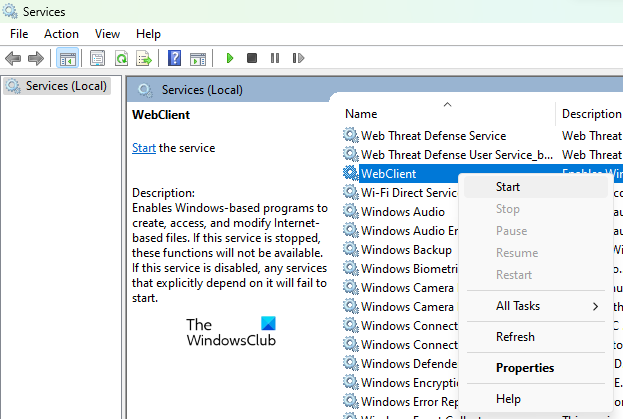
- Launch the Run command box by pressing the Win + R keys.
- Type
services.mscand click OK. This will open the Services app on your Windows 11/10 device. - Now, in the Services app, scroll down and locate the WebClient service.
- Right-click on the WebClient service and select Start.
3] Create a new section or notebook
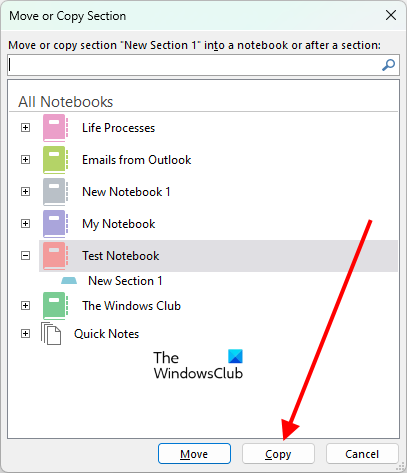
If the error is occurring with a particular section in a notebook, create a new section in the existing netbook and move or copy all the content to the new section. For this, simply copy all the content from the section that is not syncing and paste it into the newly created section. Alternatively, right-click on the section that is not syncing and select Move or Copy. Now, select the same notebook when the Move or Copy Section window appears, and then click Copy. This will create a new section in the existing notebook automatically and copy all your data there. You can rename that section later.
After copying the content to the new section, OneNote will begin syncing it. This should fix the problem.
4] Break your notebook into multiple sections
Another cause of this error is the size limit of the sections in OneNote notebooks. The exact size limit for a section in a OneNote notebook is still unknown. If none of the above solutions fix your problem, it is possible that the section that is not syncing might have exceeded the size limit. You can check this by breaking that particular section into different sections. For example, if Section 1 is not syncing and OneNote throws error code 0xE000005E, you can split that section into two or three sections, such as Section 1(A), Section 1(B), and Section 1(C). This will reduce the size of a particular section and fix the error.
The users who were getting this error with a particular section in a OneNote notebook tried this trick and the error was fixed.
Read: Fix OneNote Error 0xE0000007, We ran into a problem syncing your notebook.
How do I fix OneNote sync error?
OneNote can display different sync errors in different scenarios. You can try some common solutions to fix the OneNote error codes, like:
- Sign out from OneNote and sign back in.
- Force your OneNote notebooks to sync.
- Empty the OneNote Recycle Bin (if it contains the sections or pages you don’t need).
- Create a new section or notebook and move all your content into it.
- Clear the OneNote cache.
Read: Fix OneNote Not working, Not opening, Problems, Errors, Issues.
How do I fix OneNote error 0xE0001075?
This error usually occurs if you have disabled OneDrive on your system. To fix this, enable OneDrive and reboot your system. If this does not help, clear the OneNote cache. To clear the OneNote cache, open the File Explorer and navigate to the following path:
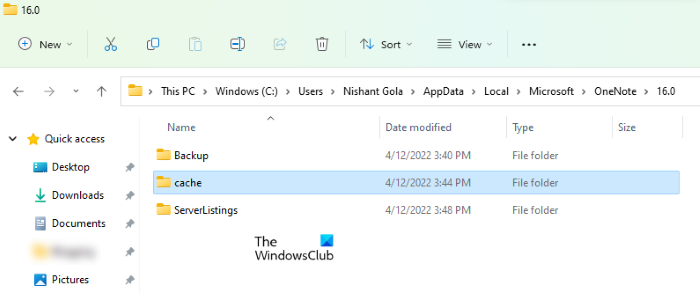
C:\Users\username\AppData\Local\Microsoft\OneNote
The easiest way to follow the above path is to copy and paste it into the address bar in File Explorer. After that, hit Enter. In the path above, replace the username with your Windows 11/10 profile name. Otherwise, you will get an error.
The path above will take you into the OneNote folder. Now, open the folder that indicates your Office version. For example, if you have installed Microsoft Office 2016, open the 16.0 folder. After opening the 16.0 folder, you will see a cache folder. Open that folder and delete all the files it contains. This will clear the OneNote cache.
If the problem persists, reset OneNote for Windows app and repair Microsoft Office. Before resetting the OneNote app, backup all your data in another software like Microsoft Word. After resetting the OneNote app, you have to log in again.
Read next: Fix OneNote sync error 0xE0190193.
