
Spotify is the leading music streaming platform today. And quite frankly, it deserves the top spot. However, many users are finding it hard to use the app on Windows. According to them, when they play a song, they hear no sound in Spotify. If you are facing a similar issue, check this article for solutions.
Why is Spotify not playing sound on PC?
You may not hear any sound on Spotify if the correct sound device isn’t selected. Even though Windows can detect and select the correct device, there are instances where users have reported audio issues as a result. Also, sometimes it can be an issue with your system’s audio. We are going to probe Spotify’s settings as well and identify any misconfigurations we can fix to resolve the issue.
There are some Windows utilities and methods you can use to troubleshoot the issue. Also, we need to check your computer’s settings to see if that’s preventing you from listening to your playlist. So, without wasting any time, let us begin the troubleshooting.
No Sound in Spotify on Windows PC
Before going to the troubleshooting guide, it is recommended that you check whether your system is on mute. You can see the sound icon in the Taskbar and increase the volume from there if it is low. Also, check the sound icon in Spotify and make sure that it is not muted.
If you are hearing no sound on Spotify, try the following solutions to resolve the issue.
- Check if the song is playing
- Restart the app and system
- Open Spotify as an administrator
- Check Spotify Output Device
- Run Audio Troubleshooter
- Disable Audio Enhancement
- Reinstall the app
Let us talk about them in detail.
1] Check if the song is playing
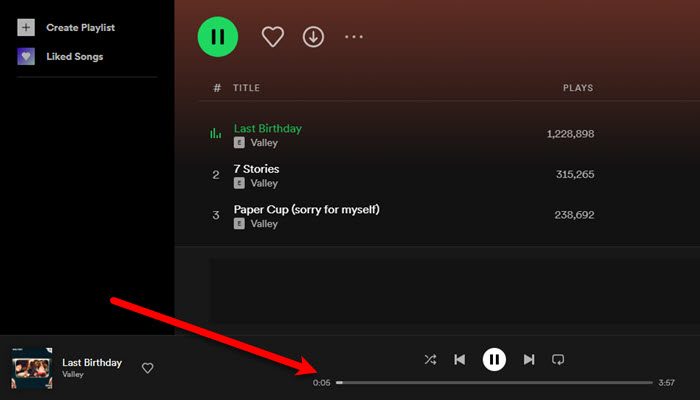
First, we need to check whether the song is playing. So, when you play a song, check whether the scroller/slider is moving; if it is, you can move to the next solution. But if the scroller is static, then we can say that the music is not playing. The reason why it is not playing will more often than not be a poor Internet Connection. What you need to do is use a free Internet Speed tester and check your bandwidth. If it is slow, restart your router, and if that doesn’t work, contact your ISP. Also, check our guide on how to fix slow Internet.
2] Restart the app and system
If the Internet isn’t the issue, maybe there is a glitch that’s troubling you. Try restarting the app and see if that works. In case restarting Spotify is to no avail, reboot your computer to resolve the issue. Hopefully, that will resolve the glitch and issue.
3] Open Spotify as an administrator
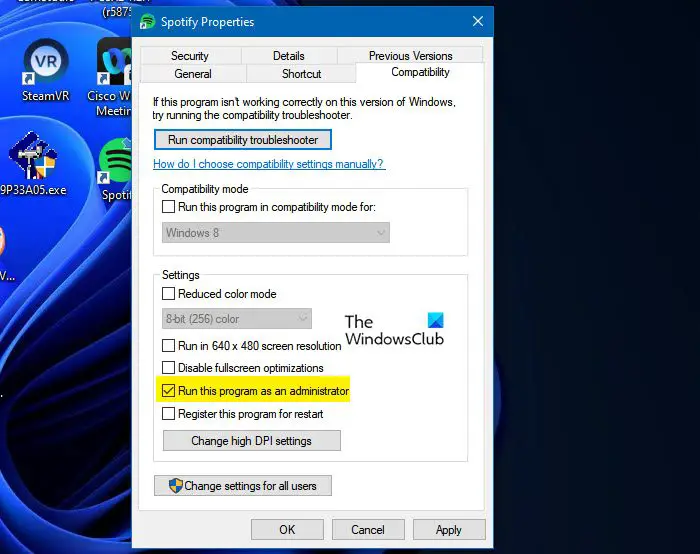
Maybe the reason why you are unable to hear music on Spotify is the lack of privilege. What you need to do is open the app as an administrator and see if that works. To do that, just right-click on the and select Run as administrator. You can also make the app always open in elevated mode. Follow the given steps to do the same.
- Right-click on the Spotify icon and select Properties.
- Go to the Compatibility tab.
- Tick Run this program as an administrator.
- Click Apply > Ok.
Now, open the music player and see if that works.
4] Check Spotify Output Device
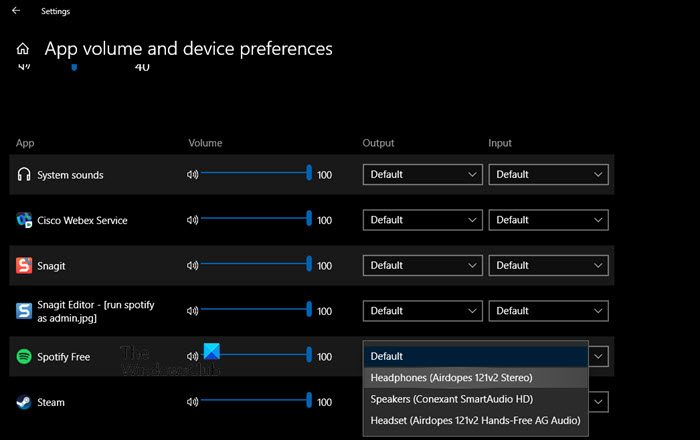
Usually, Windows detects the output device that you are using and assigns it to all the apps. But sometimes it fails to do the same, which can stop Spotify from making any sound. We are going to see if that is the case in this situation. Follow the given steps to do the same.
- Right-click on the Sound icon present in the Taskbar and select Open Sound settings.
- Now, click App volume and device preferences from Advanced Sound options.
- Then, change the Output of Spotify to the active device.
Finally, open Spotify and see if that works.
5] Run Audio Troubleshooter
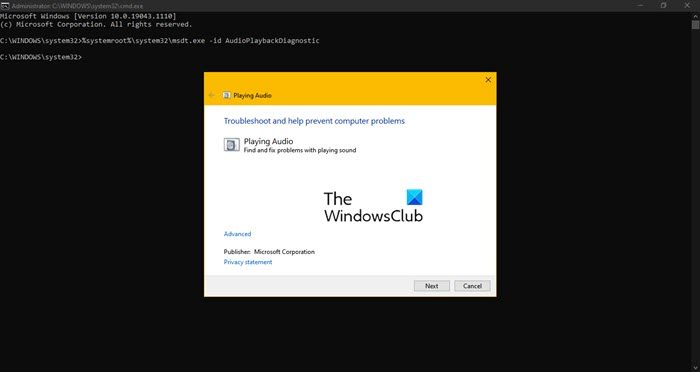
Next up, let us try to run the audio troubleshooter and see if that works in this case. Open Command Prompt as an administrator and execute the following command.
%systemroot%\system32\msdt.exe -id AudioPlaybackDiagnostic
Playing Audio troubleshooter will pop up, you just have to follow the on-screen instructions to complete the task.
6] Disable Audio Enhancement
Audio Enhancement is designed to improve the musical experience. But it has created problems for many third-party apps, such as Zoom, Google Meet and Spotify. Therefore, you should disable Audio Enhancement and see if the issue is resolved.
7] Reinstall the app
If nothing works, then your last resort is to uninstall the Spotify app completely and then reinstall it to see if that works. This way, if the issue is due to a corrupted installation package, reinstalling will do the job.
Hopefully, you are able to resolve the issue with the mentioned solutions.
How do I listen to Spotify on my computer?
Spotify has its own app for computers, available from spotify.com. If you don’t want to download anything and still listen to songs, go to open.spotify.com to access its web player. You can use any platform to listen to Spotify on your computer.
Also Read:
