
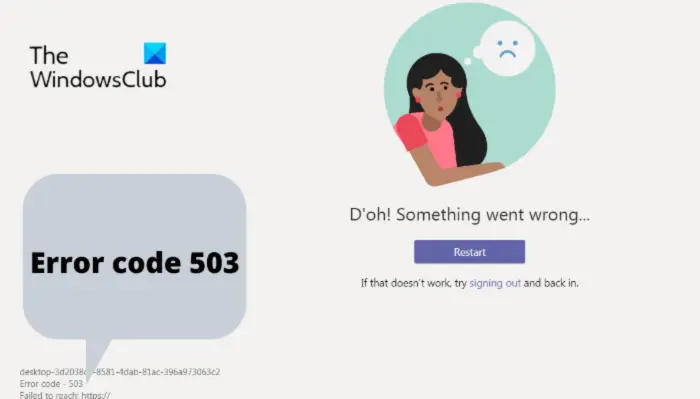
Microsoft Teams Error code 503 indicates that the program has trouble contacting the correct servers. This mainly occurs when there is some network restriction or the Firewall settings is blocking Microsoft Teams. If you are also encountering the same error, follow this troubleshooting guide to fix the issue.
What is Microsoft Team Error code 503?
Microsoft Teams Error code 503 mainly occurs when users try to sign in with their account, preventing them from accessing their account. The primary culprit behind this error message is the Firewall settings or the network restrictions. Depending on your system administrator’s network settings, the error message can be temporary or permanent.
When you encounter the issue, you will receive the following error message:
D’oh! Something went wrong…
Restart
If that doesn’t work, try signing out and back in.
Error code – 503
Failed to reach: https://
Continue with the guide to fix the problem.
Fix Microsoft Teams Error code 503
Here is a list of all the effective workarounds you can try to fix Microsoft Teams Error code 503.
- Restart Microsoft Teams
- Use Microsoft Teams web client
- Run Microsoft Teams with admin privileges
- Clear Windows Credentials
- Temporarily disable antivirus
- Flush DNS Cache
- Restart the connection
- Reinstall Microsoft Teams
Now, let’s check out all the solutions in detail.
1] Restart Microsoft Teams
The very first thing you should try is restarting Microsoft Teams. There may be a temporary bug causing the issue, and the best way to resolve it is to restart Microsoft Teams. Do it and check whether the problem is fixed.
2] Use Microsoft Teams web client
As reported by users, the error code mainly occurs in the desktop version of Microsoft Teams. To fix the problem, you can use the web client until the developers resolve it in the desktop version. Just open any browser and visit the Microsoft Teams official website. Log in with your account, and carry on with the work.
See: Fix Microsoft Teams error CAA20003 or CAA2000C
3] Run Microsoft Teams with admin privileges
The next thing you can try is to run Microsoft Teams with administrative privileges. As it turns out, a lack of administrative rights can cause various issues with the application, including the one mentioned. So, run Microsoft Teams with admin privileges and check if it makes a difference.
4] Clear Windows Credentials
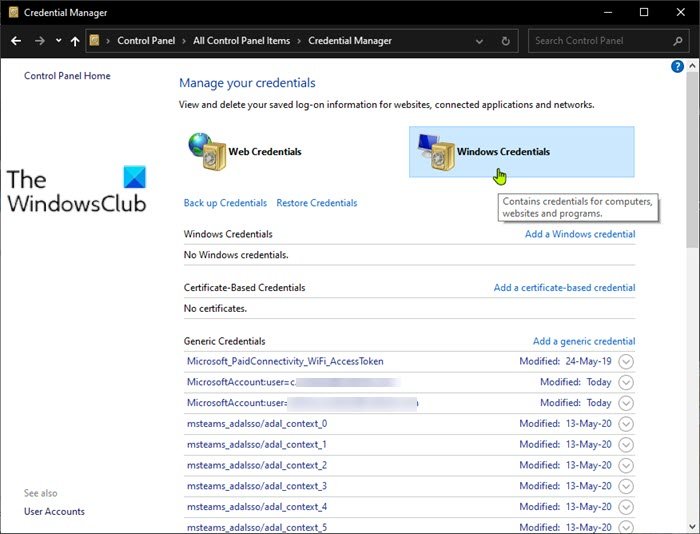
If the Windows Credentials on your system are corrupted, you will encounter the problem mentioned. You can confirm this by logging in to Microsoft Teams on another system. If the login was successful, it indicates that the credentials on your system are corrupted. In such a situation, you will have to clear Windows credentials on your system. Do it and check if it makes any difference. If not, try the next solution.
See: Fix Microsoft Teams Error 80090016
5] Temporarily disable antivirus
Another primary culprit behind the problem can be third-party security software. Any third-party security/antivirus program can interfere with the Microsoft Teams login attempt and cause the mentioned problem. In this situation, you will need to temporarily disable the antivirus program. Additionally, make sure you have allowed Microsoft Teams through the Windows firewall settings.
6] Flush DNS Cache
Clearing the DNS cache data can be another effective solution in the situation. To do so, follow the steps below.
First off, launch Command Prompt in the administrator mode.
In the command prompt window, copy-paste the command below and press Enter.
ipconfig /flushdns
Wait until the process is complete. Once done, launch Microsoft Teams and check if the problem is fixed or not.
7] Restart the connection
As Microsoft Teams Error code 503 is a network-related issue, the probability is high that there is something wrong with the connection, which is causing the problem. To fix the problem, you will have to troubleshoot your Wi-Fi connection. If the problem continues, we recommend trying an Ethernet connection.
Read: How to record Microsoft Teams meeting
8] Reinstall Microsoft Teams
If none of the above-mentioned solutions made any difference, you are left with no other option than reinstalling Microsoft Teams. In the process, you will first have to uninstall the Microsoft Teams app, delete the Teams AppData folder, restart your system, and download Microsoft Teams again.
After uninstalling the Microsoft Teams app, follow the steps below to delete the Teams AppData folder.
- Open the Run dialogue box by pressing Windows + R shortcut key.
- Type the below-mentioned command and press Enter.
%appdata%
- Locate the Teams folder.
- Right-click it and choose Delete from the context menu.
Now, restart your system, and download the latest version of the Microsoft Teams app.
Why is Microsoft Teams not connecting?
Most Microsoft Teams connection issues are related to Windows Firewall or proxy connectivity. So, make sure Microsoft Teams is allowed through the Windows firewall settings. Additionally, you can temporarily disable any installed security services while accessing Microsoft Teams.
Why is Microsoft Teams glitch?
Like any other application, Microsoft Teams can get glitchy sometimes. And whenever this happens, the program will fail to open on the system. To fix the problem, you can download the latest version of the app, go through the login process again, and download the latest graphics driver update.
Read Next: How to fix Microsoft Teams Error CAA5009D.
