
Users of the Insider Preview versions of the Windows 11 or Windows 10 OS may have seen a Green Screen of Death. Is it any different from the BSOD, and how to fix Green Screen of Death in Windows 11/10? We explain what it is in this post.
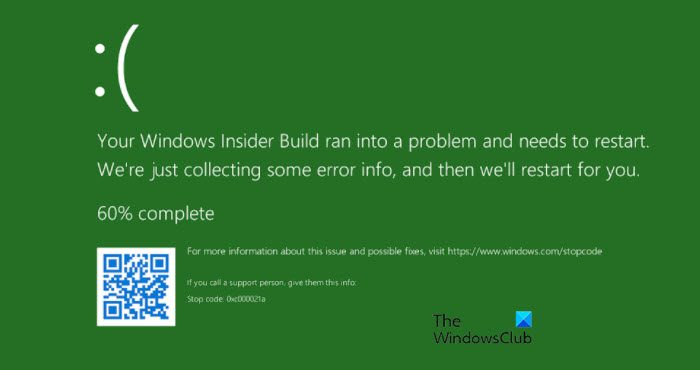
What is the Green Screen of Death (GSoD) in Windows 11?
The Green Screen of Death (GSOD) is basically a Stop Error screen and is similar to the Blue Screen of Death that you may have seen. You will typically see it on Windows Insider Builds. The issue can be caused by many different things such as corrupted system files, outdated drivers, etc. But these problems are solvable and with a bit of troubleshooting, we will be able to resolve them. There are some workarounds as well that we will be seeing in this article.
Fix Green Screen of Death in Windows 11/10
If you are stuck at the Green Screen of Death and you are not able to do anything, then the only thing you can do is a hard reset. Just press the Power button for 20-30 sec and your system will turn off. Then you can open your computer and start troubleshooting the issue.
If your computer will not boot, then you’ll need to use the recovery tools on your installation media. if you don’t have any installation media. To carry out some of these suggestions, you will have to boot Windows in Safe Mode, boot into the Advanced Startup Options screen, or use the Installation Media to boot or repair the OS.
You should first start by updating your Windows, make sure that you have all the bug fixes that may have been released for your channel, and then see if the issue is resolved. If it persists, then these are the things you can do to resolve Green Screen of Death in Windows 11/10.
- Update Graphics Drivers
- Remove the apps that you don’t use
- Run SFC and DISM
- Unplug Peripherals
- Reset your PC
- Report the problem to Microsoft.
Let us talk about them in detail.
1] Update Graphics Drivers
One of the most common reasons for this error is outdated Graphics Drivers. You need to make sure that you are running the latest version of Graphics Drivers. If not, you will see all sorts of errors. You can easily update your Graphics Drives and check if the issue persists.
Fix: White Screen of Death on Windows.
2] Remove the apps that you don’t use
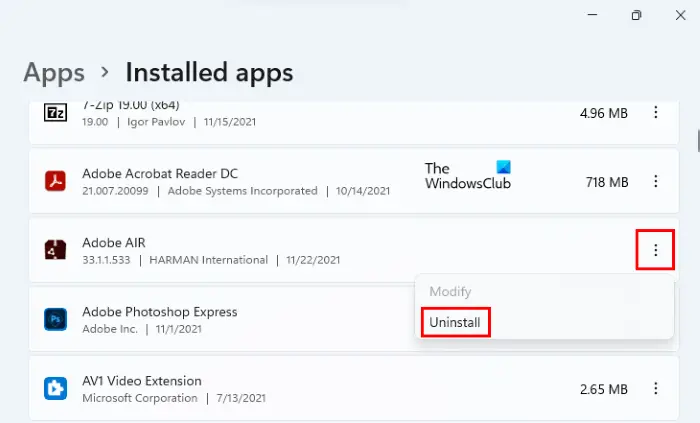
There are so many apps on our system that we don’t use. Those unwanted apps may be taking a toll on your CPU and causing system crashes. Therefore, if you are seeing GSOD frequently, it is important to remove the apps you don’t use. Follow the given steps to do the same.
- Open Settings by Win + I.
- Go to Apps > Apps & features.
- Look for the unwanted apps, click on the three vertical dots and select Uninstall.
After removing the apps, you need to restart your system and hopefully, your issue will be resolved.
3] Run SFC and DISM
If the issue is because of corrupted system files then the best solution would be to run SFC and DISM commands. So, open Command Prompt as an administrator and execute the following SFC command.
sfc /scannow
Please wait for some time as it will take a minute or two to fix the problem. Then restart your computer and check if the issue is resolved. If the issue persists, then run the following DISM commands.
Dism /Online /Cleanup-Image /ScanHealth
Dism /Online /Cleanup-Image /CheckHealth
Dism /Online /Cleanup-Image /RestoreHealth
Finally, check if the issue persists.
Read: Where is the Windows BSOD log file location?
4] Unplug Peripherals
The Green Screen of Death can be caused by corrupted external devices connected to your system. In most cases, we don’t know the exact device that’s causing this error. So, you should unplug all of them and see if the GSOD still appears. If it doesn’t, you know one of the external devices is the very reason your system is crashing. Now, plug them in one by one, and you will see which one is corrupted and causing the issue.
Fix: Orange Screen of Death in Windows
5] Reset your PC
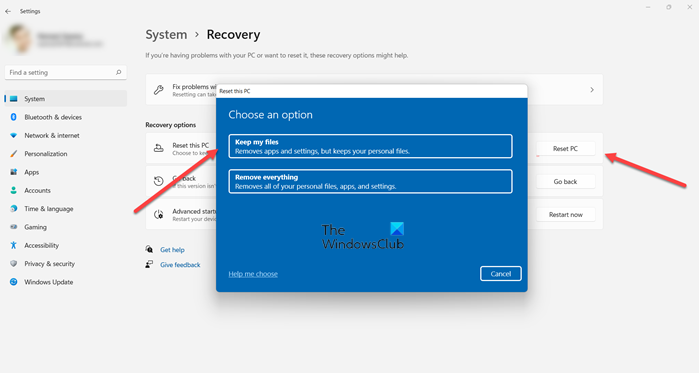
If the issue persists and nothing else works, try resetting your computer. This way, any glitch or misconfiguration can be resolved instantly. But before moving forward, it is highly recommended to back up important files.
To reset your PC, follow the steps below.
- Open Settings.
- Go to System > Recovery.
- Click Reset this PC.
- Choose either of the two options.
6] Report the problem to Microsoft
The Insider builds are expected to have bugs and so to help Microsoft, you should report the problem to Microsoft using the Feedback Hub.
Fix: Pink Screen of Death error in Windows
Is Windows 11 better than 10?
Windows 11 is hands-down a better option. It is an upgrade, so it has to be better. But how much? According to many users, the actual performance difference between Windows 10 and Windows 11 is not very significant. However, the modern UI element is very aesthetically pleasing. The answer to whether you should upgrade to Windows 11 comes down to your computer’s configuration. If you have a good, powerful system, you must upgrade to this newer variant.
Read Next: Purple, Brown, Yellow, Orange, Red Screen of Death explained.
