
This post will help you fix the 0x87e11838 Xbox error code. Many users report that when they try to launch a game on their Xbox console, they get error code 0x87e11838. This can happen because of a configuration issue, licensing issue, networking problem or other causes. Thankfully, there are some solutions for it that we have covered in this post. If you’re seeing this error code, these solutions can help fix it.
Fix 0x87e11838 Xbox Error Code
Here is a list of options that you can try to fix this Xbox 0x87e11838 error:
- Check Xbox Server Status
- Check your connection to the Xbox network
- Restart the Xbox console
- Use the account that purchased the game
- Clear Xbox Cache
- Delete locally saved data.
1] Check Xbox Server Status
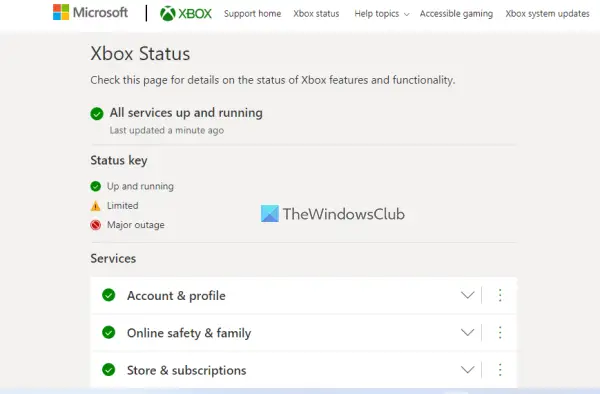
First, you should check if there is some problem with Xbox servers or if those are running fine. The official Xbox support site shows live status for different Xbox services such as Account & profile, Devices & networking, Games & gaming, Cloud gaming & remote play, etc.
If all the services are running fine, it will show a green tick mark which indicates their server is up and running. If there is some issue, it will indicate server status as Limited (a black exclamation mark with a yellow triangle) or Major outage (in a red circle). In such a case, you need to wait till the problem is resolved.
2] Check your connection to the Xbox network
If the network connection is not proper, then also you can face the problem while launching or playing a game. And, this could also be the cause for this error. Therefore, you should check your connection to the Xbox network. The steps are as follows:
- Press the Xbox button located on the controller to open the guide
- Select Profile & system
- After that, use the following path to perform the network test:
Settings > General > Network settings > Test network speed & statistics
If the test shows packet loss (or data loss) of more than 5 percent, troubleshoot your network connection to fix this error. You can access the Xbox Support Page available specifically to troubleshoot network connection errors. On that page, select the error type you are facing and follow the troubleshooting steps.
Related: Fix 0x87DD0003 Xbox sign in error properly.
3] Restart the Xbox console
Sometimes, restarting a device can help solve many problems. This can also help fix this issue. There are multiple ways to restart Xbox, such as from Power Center, Guide, etc. One of those ways is:
- Press and hold the Xbox button (or power button) present in the center of your Xbox controller
- When the Power Center is opened, select the Restart console option.
Once your Xbox console restarts, the problem should be gone.
4] Use the account that purchased the game
If you have purchased a game or app from another profile or account but you are signed in to Xbox with another account, then also you won’t be able to play or launch the game and this may be the reason that you are getting this 0x87e11838 Xbox error while launching a particular game. So, in this case, you have to use that account to your Xbox console that purchased the game.
Or else, if someone else (your friend or relative) has purchased the game, then you can set your Xbox console as the owner’s home Xbox so that you can play that game. For this, follow these steps:
- Sign in with the owner account on your Xbox
- Press the Xbox button on the controller to open the guide
- Access the My home Xbox section:
Profile & system > Settings > General > Personalization > My home Xbox
- Select the Make this my home Xbox option.
Read: How to change language in Xbox 360, Xbox One, Xbox Series X/S.
5] Clear Xbox Cache
If cached (temporary) data for games/apps is corrupted, you may also face multiple issues. Clearing the Xbox cache can help fix these issues, including this one. There are multiple ways to do it. Let’s check the steps to clear the Xbox cache with a full power cycle:
- Press and hold the Xbox button or power button present on the console for 10 seconds. It will turn off or shut down the console
- Unplug the power cable or power cord from the console
- Press and hold the power button and do this multiple times and wait for a minute
- Plug in the power cord or power cable again
- Press the power button or Xbox button available on the console to turn it on.
After this, launch the game you were having trouble with. It should solve your problem.
6] Delete locally saved data
The data stored locally on your Xbox console may be corrupted. If none of the above methods work, delete all locally saved data to fix this 0x87e11838 error. Here are the steps:
- Press the Xbox button on the controller. This will open the guide menu on the screen
- Now access the Storage using the following path:
Profile & system > Settings > System > Storage
- Use the local saved games option.
I hope this helps.
What does 0x87e11838 mean?
0x87e11838 is an Xbox error code that users face when they try to play or launch a game. This error code may occur when Xbox has trouble syncing game data, or when there’s a licensing or networking issue. To fix this error, try restarting the Xbox console, checking the Xbox network connection, signing in with the account that purchased the game, and more. This post covers all those fixes.
How do I fix Xbox error code 0x80070570?
To fix Xbox error code 0x80070570, you can try some fixes like:
- Clear Xbox Live cache and system cache
- Delete your profile and then re-download it
- Cancel pending and partial downloads and try to download the content again
- Download the content to a USB flash drive, etc.
Similarly, there are fixes for Xbox One startup errors or E error codes. Apply the fixes based on the error code you receive.
Read next: Fix Xbox error code 0x87af000D when installing or uninstalling a game.
