
Many Xbox users are seeing Error Code 0x87af000D when installing or uninstalling a game. This can be very exasperating. In this article, we will address Xbox error code 0x87af000D using simple solutions.
What is Xbox Error Code 0x87af000D?
As mentioned earlier, the error code in question occurs during the installation or uninstallation of a game. So, there are many reasons which can cause this issue such as some glitch in the Xbox or a poor Internet. As for the former, the solution is pretty simple, you have to reset your console, but you need to follow the tips mentioned later in this article if you want to resolve the issue.
Some other workarounds will be mentioned hereinafter. Therefore, review all the solutions and resolve your issue.
Fix 0x87af000D Xbox error code when installing or uninstalling a game
If you want to resolve Xbox error code 0x87af000D, when installing or uninstalling a game then use these solutions to resolve the issue.
- Check Xbox Server Status
- Check your Internet Connection
- Restart your Router
- Hard or Factory Reset Xbox
Let us talk about them in detail.
1] Check Xbox Server Status
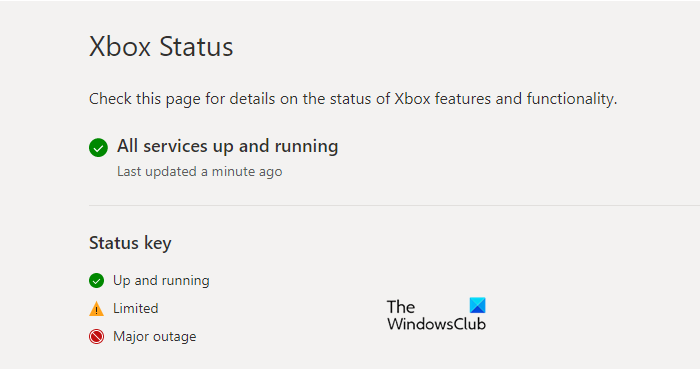
You need to make sure that the Xbox Server is not down. You can go to support.xbox.com and check if the server is down. If it’s down, then you have to wait for their engineers to resolve the issue. If it’s not down then you need to start troubleshooting.
2] Check your Internet Connection
First and foremost, ensure you have a stable internet connection. So, check if all the devices connected to your network have the same issue; if they are, then you need to restart your router and modem (steps are mentioned hereinafter) or contact your Internet Service Provider. If your device is only facing the network issue then follow the given steps to clear the Alternate MAC Address of your Xbox.
- Click on the Xbox button to go to the menu.
- Go to your Settings > Network > Advanced Settings.
- From the Change Settings section, select Alternate MAC Address, and click Clear.
Finally, restart your console and check if the issue persists.
3] Restart your Router
If the issue persists, you will need to restart your Router. Follow the steps below to complete the same task.
- Switch off your router and unplug it.
- Wait for 10-15 minutes.
- Then turn it back on.
- Connect your console to the wireless network and see if the issue persists.
Hopefully, this will resolve the issue.
4] Hard or Factory Reset Xbox
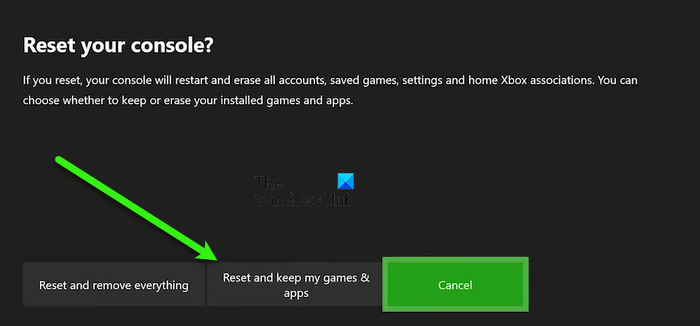
If restarting the router and clearing the MAC address is to no avail then we need to hard reset your Xbox and see if that can resolve the issue. There are two ways to do the same thing. We are going to see both.
First Method
- Press and hold the Xbox’s power button for 10 seconds.
- Now, wait for a minute or two before starting it again.
- Restart the console and see if the issue persists.
Second Method.
- Press the Xbox button and go to the menu.
- Go to your Settings.
- Then click System > Console info > Reset console.
- Finally, select Reset and keep my games & apps.
Factory reset should be your last resort if everything else fails. This will remove the cache and will definitely resolve your issue.
Hopefully, you are no longer encountering Error Code 0x87af000D on Xbox when installing or uninstalling a game.
Read: Xbox Cloud Gaming Controller not working.
How do I bypass Xbox One update?
If you want to play games on Xbox One without updating, then try offline mode. This way, some games that work online won’t run on your system, but if you have an offline game then it will run just fine. To use the Offline mode of Xbox, you can click on the Xbox button and open the menu, then go to Settings > Network > Go Offline.
Why won’t my Xbox let me install a game?
From not having an internet connection to offline servers – anything could be responsible for this error. That is why it is recommended to check your internet connection first before attempting to install any game on your gaming console. Apart from that, you can also log out of your account and re-sign into it.
Read Next: Fix 0x8007023e Xbox Game Pass Error on Windows PC
