
Some users cannot launch programs due to the “Failed to update the system registry” error. There is no specific program associated with the error. You may encounter this error while opening any program on your system. If you cannot use a particular program due to this error, this article will help you.
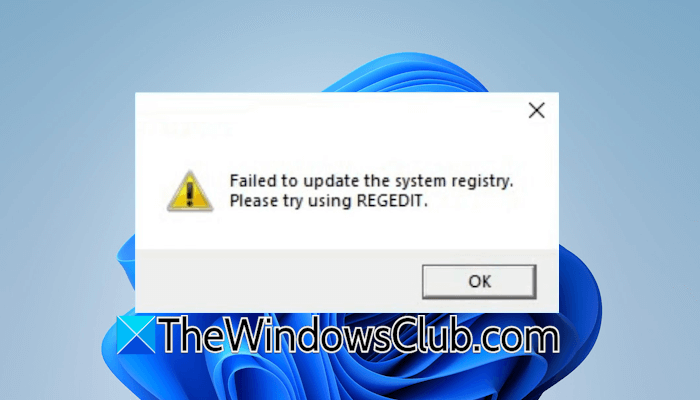
Failed to update the system registry. Please try using REGEDIT.
This message typically appears when a program attempts to modify the Windows registry but lacks the necessary permissions.
Failed to update the system registry, Please try using REGEDIT
To resolve the “Failed to update the system registry” error while opening a program, use these fixes:
- Launch the program as an administrator
- Uninstall and reinstall the software
- Give the Registry key Permission.
- Run the program in Compatibility Mode
- Temporarily disable your antivirus
- Sign out of all other user accounts
- Create a new user profile.
All these fixes are explained in detail below:
1] Launch the program as an administrator
Since this error occurs when opening a program, the administrator rights might be the cause of this error. Some programs require access to the features with elevated privileges. Such features become inaccessible for such programs when you launch them without elevated rights.
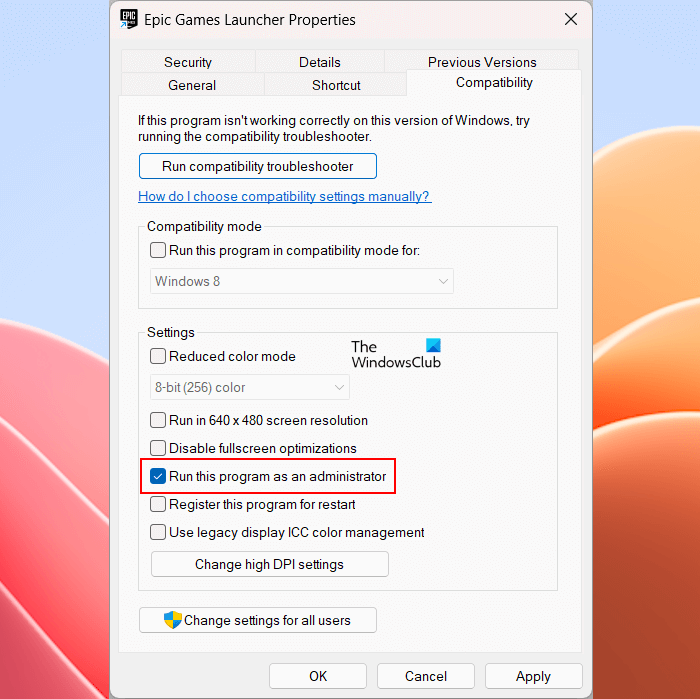
To launch the program as an administrator, right-click on it and select the Run as Administrator option. If this works, you can make the program always run as an administrator.
2] Uninstall and reinstall the software
If the error persists, try uninstalling and reinstalling the program. Completely remove the affected software using a third-party tool, such as Revo Uninstaller. Revo Uninstaller removes all the traces of the software after uninstalling it.
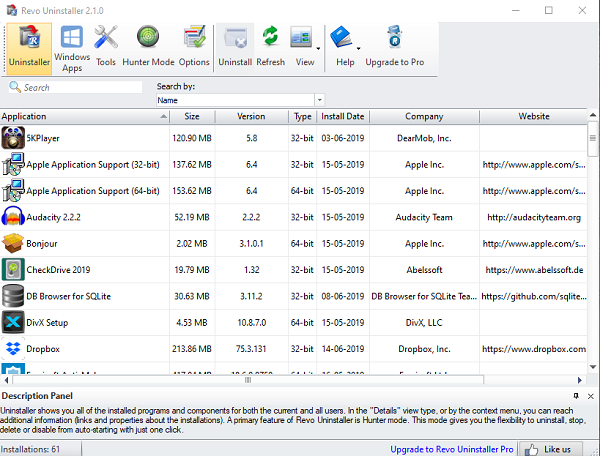
Restart your system after removing the affected software. Now, download the latest version of the software from the official website and install it.
3] Give the Registry key Permission
Open REGEDIT as administrator, navigate to the Registry key that the program is trying to edit, and Take Control of this Registry Key. You must grant the key Full Control.
If you’re not sure which one, you may need to check the program’s documentation or contact their support and describe your problem.
4] Run the program in Compatibility Mode
You can also try running the program in compatibility mode. Use these steps:
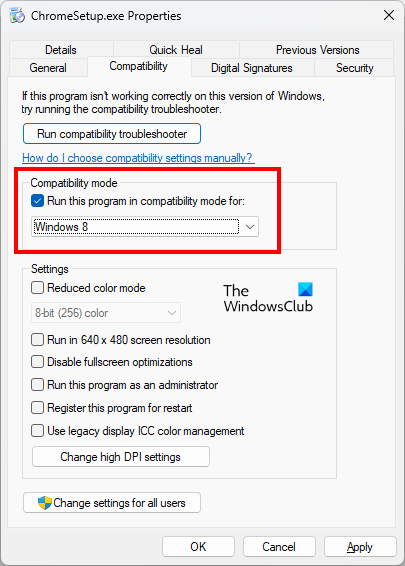
- Right-click on the desktop shortcut of the software.
- Select Properties.
- Go to the Compatibility tab and select the “Run this program in compatibility mode for” checkbox.
- Select Windows 8.
- Click Apply and then OK.
Now, launch the program. If the error occurs, select Windows 7 in the compatibility mode.
Alternatively, run the Compatibility Troubleshooter and see if it helps.
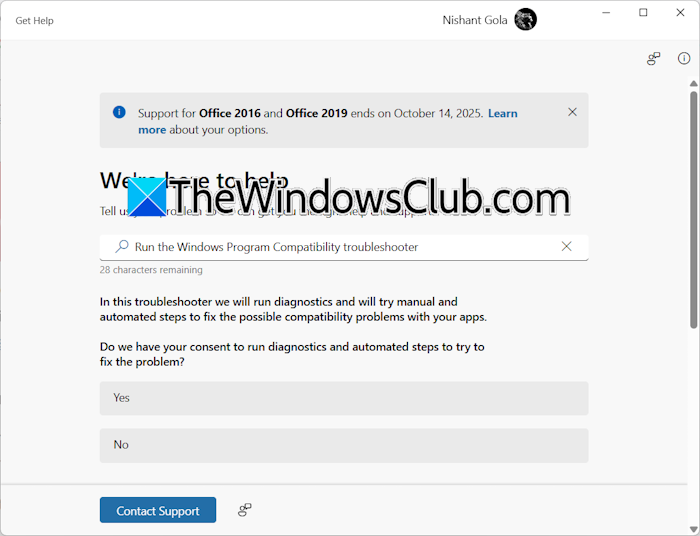
Follow these steps:
- Right-click on the desktop shortcut of the program and select Properties.
- Switch to the Compatibility tab and click Run Compatibility Troubleshooter.
- On Windows 11, the Get Help app will open, asking you permission to run the Compatibility Troubleshooter.
- Click Yes.
- It will display a list of all the installed programs. Select the problematic program and follow the on-screen instructions to troubleshoot the issue.
After the automated troubleshooting is completed, check if you can launch the program.
5] Temporarily disable your antivirus
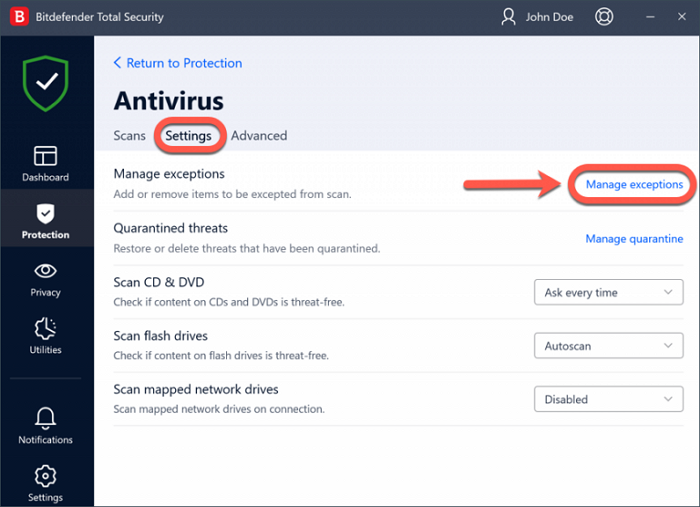
Your antivirus might be conflicting with the program and triggering this error. To check this, temporarily disable your antivirus and launch the program. If the error does not occur this time, add the program to your antivirus’s exception list. If this does not help, contact your antivirus support.
6] Sign out of all other user accounts
If you are signed in with multiple user accounts on your system, this error may occur. Sign out of all user accounts and check if the error occurs. To sign out of all other active user accounts, sign in to those accounts and then sign out.
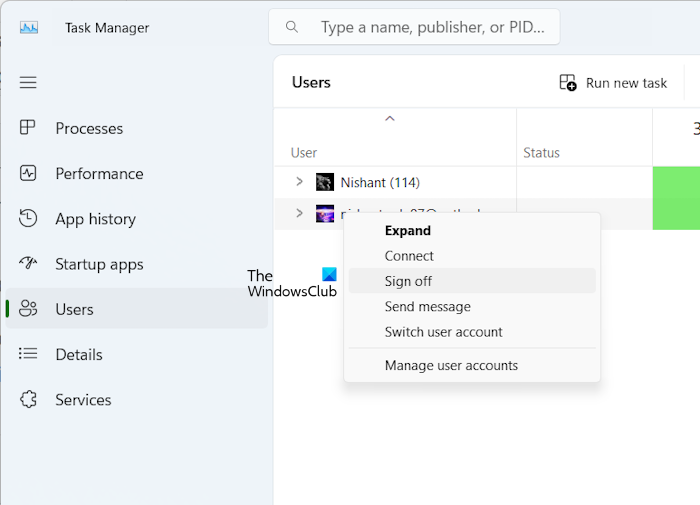
Alternatively, you can directly sign out of all other active accounts via the Task Manager if you are already signed in as an administrator. Follow these steps:
- Open the Task Manager.
- Go to the Users tab. You will see all active user profiles there.
- Right-click on each user account and select Sign off.
7] Create a new user profile
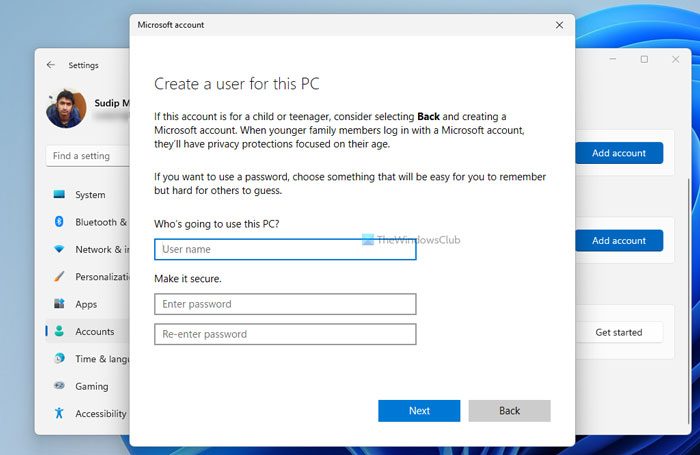
Sometimes, problems are associated with a particular user profile. That might be due to corrupt system image files or the corrupt user profile itself. Create a new user account. Now, log in to the new user profile and launch the affected program. If the error does not occur, your previous user profile might have been corrupted. In such a case, you can repair your user profile or transfer all its data to the new user profile.
That’s it. I hope this helps.
How to open the system registry regedit?
You can open the Registry Editor via Search or the Run command box. Click on Windows Search box and type regedit. Click on the Registry Editor to open it. To open it through the Run command box, press Win + R, type regedit, and click OK.
How to boot in Safe Mode?
Safe Mode is a troubleshooting mode in Windows devices. To boot in Safe Mode, open System Configuration (MSConfig) and navigate to the Boot tab, then enable the Safe Boot option. Click Apply and restart your computer. If you encounter a black screen, you can use Windows Recovery Environment to boot in Safe Mode.
Read next: This application has not been provisioned.
