
The Failed to create DX11 render device error in CS2, Dota, CSGA, etc. appears when a game or graphics application cannot initialize the DirectX 11 rendering engine. It is usually caused by outdated graphics drivers, unsupported GPU features, corrupted DirectX components, or the application using the wrong graphics processor. In this post, we will see how to resolve this issue.
CRenderDeviceMgrDx11::Init():
Failed to create Dx11 render
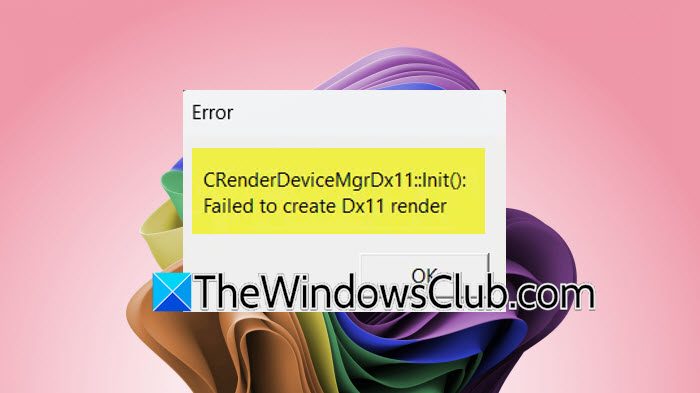
Failed to create DX11 render device in Windows 11
The Failed to create DX11 render device error means the application tried to create a DirectX 11 graphics device, but Windows or the graphics driver rejected the request. This commonly happens if the graphics driver is outdated, the GPU does not fully support DirectX 11, DirectX runtime files are corrupted, the game is forced to use an integrated GPU instead of a dedicated one, or required game files are damaged.
If Windows failed to create a DX11 render device, follow the solutions mentioned below.
- Update your graphics drivers
- Force the game to use the Dedicated GPU
- Verify the Game Files
- Install the Latest DirectX Runtime
- Check whether your GPU Supports DirectX 11
- Reset the Game Display Configuration
Let us talk about them in detail.
1] Update your graphics drivers

An outdated or corrupted graphics driver is the most common cause of this error. Installing the latest driver ensures your GPU can properly initialize DirectX 11 and support the game’s rendering requirements. So, first go ahead and update your driver. In case updating the driver doesn’t work, we need to reinstall the graphics drivers using the steps mentioned below.
- Open the Device Manager by Win + X > Device Manager.
- Expand Display Drivers.
- Right-click on the driver and select Uninstall device.
- Click Uninstall.
- Now, reboot your computer and download the latest version of the driver from the manufacturer’s website.
Finally, check if the issue persists.
2] Force the game to use the Dedicated GPU
Many laptops have both integrated and dedicated graphics. If the game launches using the integrated GPU, it may fail to create a DirectX 11 device. Assigning the dedicated GPU often resolves the issue.
First of all, open Settings and go to System > Display. Now, navigate to Graphics, select the affected game or add its executable. Click Options, choose High performance, click Save, and launch the game again.
3] Verify the Game Files
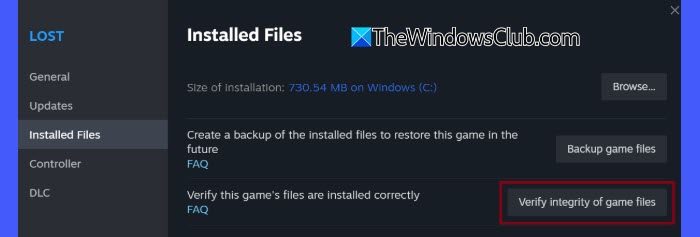
Missing or corrupted game files can prevent the DirectX renderer from initializing correctly. Verifying the installation restores any damaged files without requiring a complete reinstall. You need to verify the game files and see if that helps.
4] Install the Latest DirectX Runtime
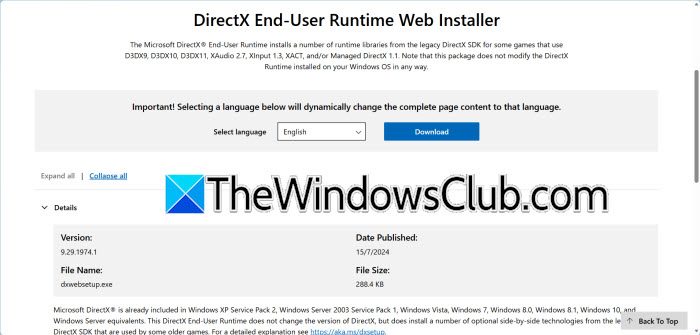
Even though Windows includes DirectX, some games require additional DirectX runtime components. Installing the latest DirectX runtime restores missing libraries that the game depends on.
You need to download the DirectX End-User Runtime Web Installer from microsoft.com. Now, run the installer, allow it to install any missing DirectX components, restart your computer, and launch the game again.
5] Check whether your GPU Supports DirectX 11
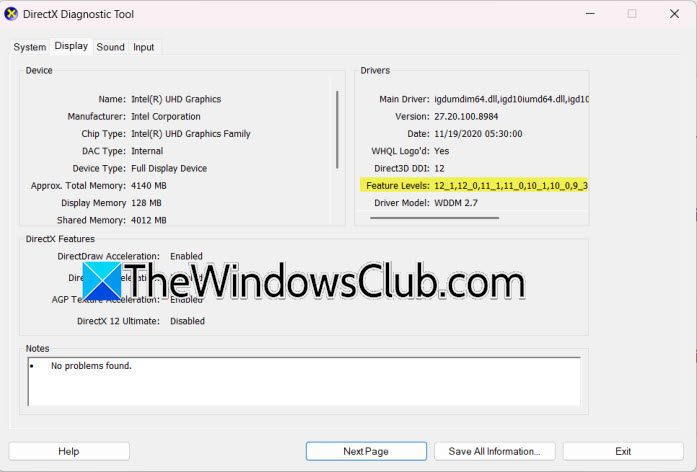
If your graphics card does not support DirectX 11 feature levels required by the game, the renderer cannot be created. Confirming hardware compatibility helps determine whether a hardware upgrade is necessary.
Hit Win + R, type dxdiag, and press Enter. Now, open the Display tab, check the Feature Levels section, and ensure 11_0, 11_1, or higher is listed. If DirectX 11 feature levels are missing, your graphics hardware does not meet the game’s requirements.
6] Reset the Game Display Configuration
If the game was previously configured to launch on a monitor that is no longer the primary display or is disconnected, it may fail to initialize the DirectX 11 renderer. Resetting the display configuration or deleting the game’s display settings forces the game to detect your current monitor setup and recreate the graphics configuration.
Follow the steps below to do the same.
- Close Steam completely.
- Open File Explorer.
- Navigate to C:\Program Files (x86)\Steam\userdata\<Your Steam ID>\
- Locate the game’s configuration folder (for Counter-Strike 2, this is 730).
- Delete or rename the folder.
- Launch Steam and start the game. Steam will recreate the configuration files automatically.
If you delete the configuration folder, your game’s video and control settings will reset. However, if Steam Cloud is on, it might restore some of your preferences. This solution is helpful if the error started after you changed monitor settings or checked the game’s files.
Finally, check if the issue persists.
Hopefully, with the help of these solutions, your issue will be resolved.
Read: DirectX failed to initialize error on Windows
Can outdated graphics drivers cause DX11 render errors?
Yes, outdated or corrupted graphics drivers are one of the most common causes of the Failed to create DX11 render device error. Drivers act as the communication bridge between Windows, DirectX, and your GPU. If they are incompatible or damaged, DirectX 11 cannot initialize properly. Updating or reinstalling the latest graphics driver from your GPU manufacturer’s website often resolves the issue and improves overall game stability.
Read: Fix Fatal DirectX Error Code 2, 3, 4, 6, 15
Can multiple monitors cause DX11 render issues?
Multiple monitor setups can sometimes cause the Failed to create DX11 render device error. This may happen if the game tries to start on a display that is not connected or is not set as the main screen. To fix this, you can change your primary monitor, temporarily disconnect other displays, or reset the game’s display settings. Once the game starts successfully, you can adjust your display settings again without running into the error.
Read: DirectX encountered an unrecoverable error.
