
Formatting issues in Excel occur due to several causes. The most common cause is the incorrect file format. Sometimes, an outdated version of Office also causes this problem, as it may contain bugs. If Excel is not saving formatting, the solutions provided in this article will help you.

Excel is not saving formatting
Use the following fixes if Excel is not saving formatting:
- Are you saving the file as CSV?
- Update Office
- Disable extensions
- Create a new Excel file
- Repair Office
All these fixes are explained below in detail.
1] Are you saving the file as CSV?
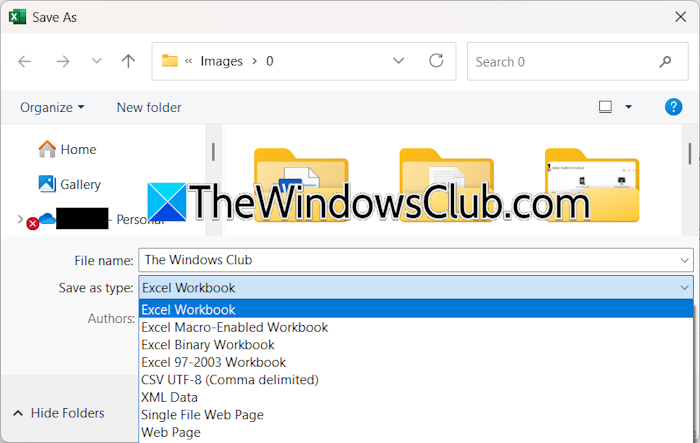
CSV is the Comma-Separated Values format for Excel files. Excel does not save formatting in CSV. Therefore, if you are saving the file as CSV, change its format. To do so, follow these steps:
- Open the Excel file.
- Go to File > Save As.
- Select a location to save the file.
- Select the Excel Workbook in the Save as type drop-down.
- Click Save.
The Excel Workbook format is the .xlsx file format.
2] Update Office
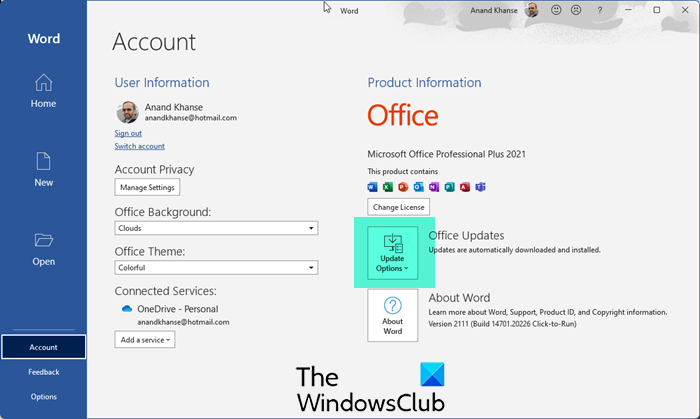
An outdated version of Office also causes several issues with Office applications. This might be the case with you. I suggest you manually check for updates in Microsoft Office. If the update is available, download and install it.
3] Disable extensions
Conflicting extensions in Excel might be causing this problem. To check this, disable all extensions. Follow these steps:
- Open Excel.
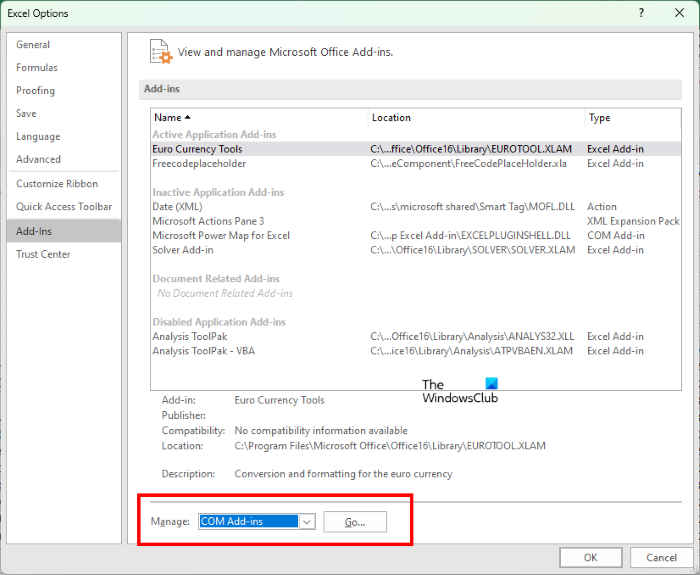
- Go to File > Options.
- Select Add-ins from the left side.
- Now, select COM Add-ins in the drop-down and click Go.
- Uncheck all checkboxes and click OK.
Now, save the file and see if it saves the formatting. If the issue disappears this time, you will need to identify the problematic add-in. For this, enable any one add-in and save the file. When the issue reappears, the add-in you have just enabled is the culprit.
4] Create a new Excel file
The Excel file might have been corrupted. Create a new blank Excel file and copy all the data from the previous Excel file to the new one. Now, save the new file with another name.
5] Repair Office

If nothing helps, repair Microsoft Office. This action will repair the entire Office suite and fix the corrupt Office files. Perform an Online Repair. The Online Repair process takes time, but fixes Office issues most of the time.
That’s it. I hope this helps.
Why is my Excel spreadsheet not saving formatting?
The most common reason why your Excel spreadsheet is not saving formatting is that it is saving the file in CSV format. To fix this issue, change the file format to xlsx. Additionally, this issue also occurs with corrupted Excel files.
How do I reset formatting in Excel?
To reset or clear formatting in Excel, select the targeted cells and go to the Home tab. Now, select Clear > Clear Formats. You will find this option under the Editing group.
Read next: Errors were detected while saving Excel file.
