
If Excel keeps showing the Want to save your changes message and it displays a “Save” dialog even though you haven’t made any changes, here is how you can fix the problem. It may appear for various reasons; here, we have consolidated the most common reasons and solutions to get rid of this problem.
Primary reasons:
- Use of such a formula that updates continuously.
- Use of an excessive number of macros that require continuous updates.
- A faulty printer driver can also cause this problem.
- Use of third-party app integrations.
- Use of functions that update data in real-time.
Although there are other reasons, these are among the most common.
Excel keeps showing Want to save your changes
If Excel keeps showing Want to save your changes, follow these instructions:
- Uninstall and reinstall faulty printer driver
- Change default printer
- Disable add-ins
- Try disabling functions that update data automatically
- Disable AutoSave
To learn more about these solutions, continue reading.
1] Uninstall and reinstall faulty printer driver
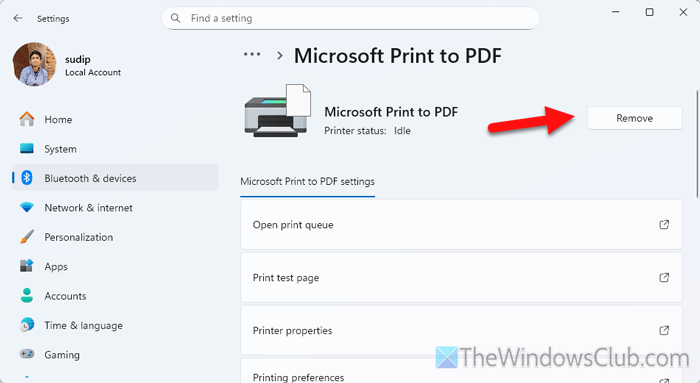
This problem mainly occurs when the printer driver malfunctions. Having said that, if the printer driver has some issues that are forcing Excel to print while editing the document, you can find the error above.
To uninstall the printer driver, follow the instructions:
- Open Windows Settings on your computer.
- Go to Bluetooth & devices > Printers and scanners.
- Click on the printer name.
- Click the Remove button and confirm it.
Once done, unplug the printer cable, then plug it back in. After that, visit your printer manufacturer’s official website and download the driver.
Read: How to delete or uninstall a Printer in Windows 11
2] Change default printer
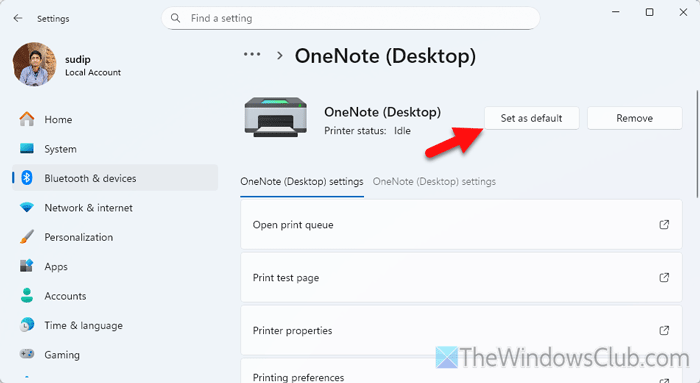
To change the default printer in Windows 11, follow these steps:
- Press Win+I to open Windows Settings.
- Go to Bluetooth & devices > Printers and scanners.
- Toggle the Let Windows manage my default printer button to turn it OFF.
- Click on the printer’s name that you want to set as the default printer.
- Click on the Set as default button.
Read: How to set the Default Printer in Windows 11
3] Disable add-ins
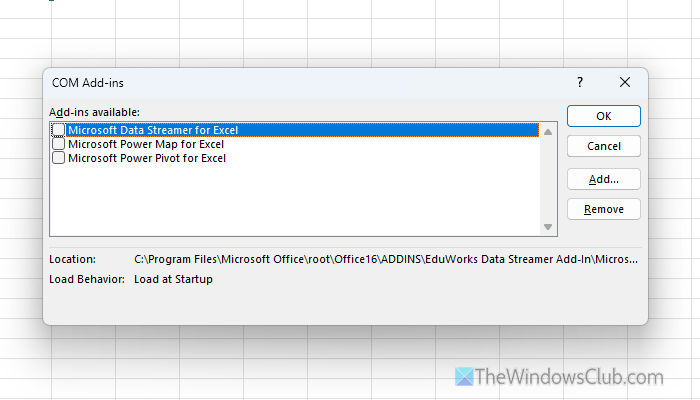
At times, add-ins can cause conflicts if they are not meant for the spreadsheet you are working on. Also, add-ins can malfunction in some cases. If, follow these steps to disable all the active add-ins in Excel:
- Open Excel and go to File > Options.
- Click on the Add-ins tab on the left side.
- Select COM Add-ins from the drop-down list and click the Go button.
- Remove the tick from all the checkboxes and click the OK button.
If it resolves the issue, enable one add-in at a time and check if the issue comes back or not. If yes, remove that add-in. To remove the add-in, select it in the COM Add-ins window and click the Remove button.
Read: View, manage, install and remove Add-ins from Office programs
4] Try disabling functions that update data automatically
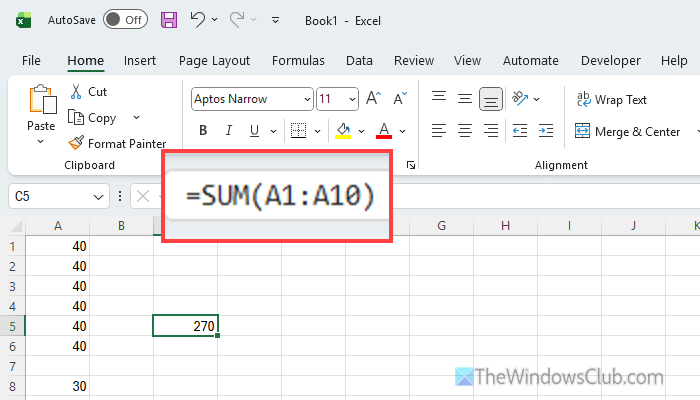
Countless functions update data automatically in your spreadsheet. For example, if you have used the SUM function to calculate the cells and you update one of them, the result will change too.
As there are other such functions, you must check them all if you are getting this problem. Not only formulas and functions, but you must also check for macros and VBA scripts as well. In case you don’t know how to disable macros in Excel, go through this step-by-step guide.
Read: How to insert Formulas and Functions in Excel
5] Disable AutoSave
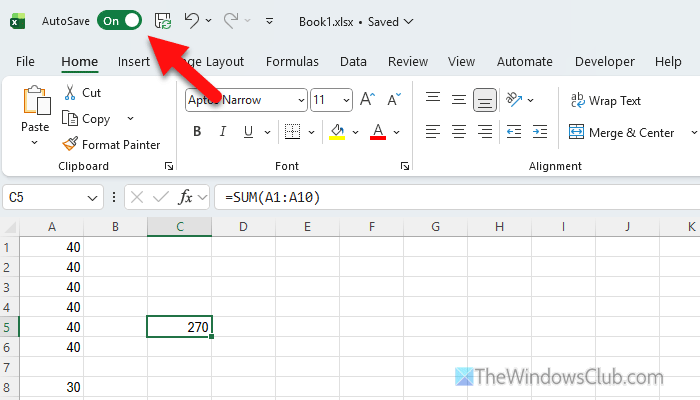
If you have enabled OneDrive AutoSave, there is a chance of getting this error while opening an Excel spreadsheet. That is why it is suggested to turn OFF the AutoSave feature. To disable AutoSave in Excel, open the spreadsheet and toggle the AutoSave button visible in the top-left corner.
Read: Too many different cell formats error in Excel
Why does Excel always ask if I want to save changes?
If you have a faulty printer driver, there is a high chance of getting this Save dialog along with the message mentioned above all the time. On the other hand, if you have turned on AutoSave and used some functions that update data automatically, you can find the same problem.
How do I stop Excel from prompting to save?
To stop Excel from prompting to save, find out the functions that data cells’ values in real-time, and turn off the AutoSave functionality. On the other hand, do not forget to change the default printer and reinstall the newest version of the printer driver.
