
There have been many types of malware, ever since the dawn of computers. While initially, it was for fun, back in the days of QDOS, malware creating and distribution is now a full-time business, with the end gains being the same as any other for-profit business. This article examines the Macro Virus and discusses strategies for staying safe from macro-targeted malware. Please note that both “macro virus” and “macro targeted malware” refer to the same thing.

What is Macro Virus in Office
Macro virus takes advantage of Macros that run in Microsoft Office applications such as Microsoft Word or Excel. Cybercriminals send you a macro-infested document via email and use a subject line that interests or provokes you into opening the document. When you open the document, a macro runs to execute whatever task the criminal wants.
By macro-infested document, I mean documents specially designed to download malware or perform other specific tasks. The macro can create malware that is resident on your computer, duplicate itself, and send itself to all the people on your contact list.
After finding out about the vulnerability, Microsoft disabled the macro functionality by default. That is, no macro would run in Microsoft Word until you turn macros on or run it manually. The same applies to macros in other Microsoft applications. There are certainly other programs that too make use of macros, but they are not as popular and hence may not be targeted by cybercriminals.
Enable or Disable Macros in Office
In case you do not know, a macro in Office refers to a series of commands and instructions that you group together as a single command to accomplish a task automatically.
Microsoft has now set the default settings in Office to Disable all macros with notification. Now, since the default setting of Macros is OFF or DISABLED, cybercriminals program the documents in a way that compels you to turn on the malicious macro. For example, you get an email saying your package is ready and that you should open the attached document for details of shipping, etc. When you open the document, you will see a message saying Macros have been disabled. Enable Content.
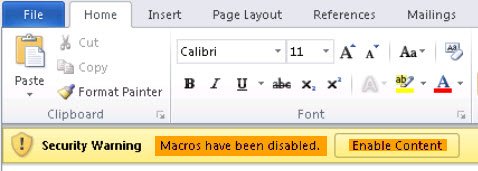
As you turn on the macro, it is executed to meet the purpose for which, it was designed and runs the malicious code.
Incidentally, the Macro settings in Word are available here. Open Word document > Options > Trust Center > Trust Center Settings > Macro Settings.
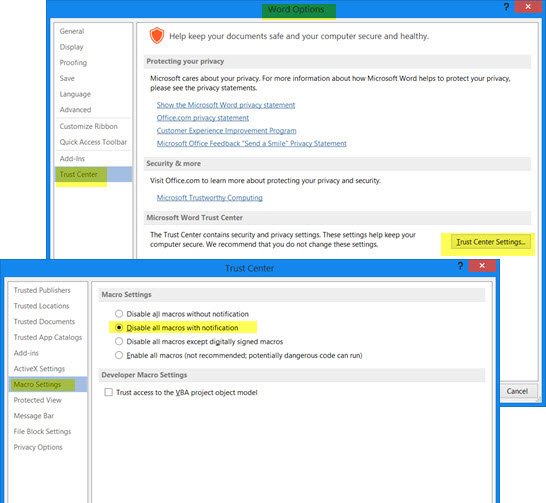
Here you will see the four settings available:
- Disable all macros without notification
- Disable all macros with notification (This is the default)
- Disable all macros except digitally signed macros
- Enable all macros.
Read: Block Macros from running in Office files using Registry or Group Policy.
How to stay safe from Macro Virus
The first thing to remember is to use your own reasoning skills. If you receive a document as an attachment, it would always be safe to open it in read-only mode. If you open documents via Outlook or any other popular email client, they open the documents in read-only mode and disable macros, etc. so that you are not affected.
If you receive a message asking you to enable macros, understand why the message is there and whether macros really need to be enabled. For example, if it looks like an invoice, there is nothing programmable, so there is no need for macros. In that case, you can be certain that the document is merely a decoy.
In any case, you should never open attachments from untrusted sources. If you receive a message stating that your parcel is ready, but you know you never ordered any parcel, there is no need to open the attachment. Online e-commerce companies seldom use attachments to inform you of the status of your orders. Most of this communication is contained in the email body, rather than in attachments.
It may happen that one of your contacts has been infected by such a macro virus, and their computer has sent emails to everyone in their contact list. In that case, you may feel confident about the file and open it. However, if the email only has an attachment without a message in the body, it is better to check with your friend to confirm if they have indeed sent it. I have seen emails that have nothing in the body except for “See the attachment” subject line or message. The attachment is usually a Word document and in most cases, it is best to Junk such mail. A contact of yours will likely be able to tell you what the attachment is about. If there is no message or only a message saying “Open the attachment”, it is better to ask your contact for details of the attachment.
Macro targeted malware can be easily acquired if you are not cautious. Your regular antivirus cannot be of much help here – unless the attachments also include malware or downloads it subsequently.
How to remove Macro Virus
To remove macro virus, the first thing Microsoft suggests is to use a good antivirus to prevent macros from downloading malware or sending unintended information out of your computer. Run the antivirus software if you feel it’s necessary.
While opening Word documents that you think may contain Macro Virus, press Shift while opening the document, that will prevent any macros from running, as Office documents start in Safe Mode when you press Shift and open them. You can then check out what all macros are present in the document. If anything looks suspicious, you can remove it before using the document.
Microsoft has in recent times seen a jump in the incidence of Macro Virus, using email as well as social engineering. In fact, the once-deadly VBA macro malware too has made a resurgent comeback in recent times.
Stay safe – exercise caution!
