
Here is a complete guide on how you can fix the error code 51900101 in World of Warcraft. World of Warcraft is an old and popular multiplayer online role-playing video game. However, it is not devoid of errors and bugs, and players keep encountering one or another error code in the game. One such error code in World of Warcraft is 51900101. This error code basically disconnects you from the servers that prevent you from establishing a stable connection in the game.
Now, if you are facing the same error code, we got you covered. In this guide, we are going to mention different fixes that helped affected users resolve the error in World of Warcraft. Let us check out!
What causes the error code 51900101 in World of Warcraft?
Here are the possible causes that might trigger the error code 51900101 in World of Warcraft:
- A server issue may cause this error. So, make sure the problem is not due to a server outage or maintenance. If there is a server problem, you will have to wait until the error is fixed on the server side.
- If you are experiencing inconsistencies with your default DNS server, you are likely to encounter this error code on and off. If the scenario applies, you can try using a more reliable public DNS server (e.g., Google DNS) to resolve the error.
- Another reason for the same can be internet connectivity issues. So, make sure you are connected to a stable, high-speed internet connection.
- It can also be triggered due to corrupted cache files associated with the World of Warcraft game. So, you can try clearing up the cache for the game and then check if the error is fixed or not.
There can be other scenarios that might trigger the error. Based on the scenario best suited to you, apply the suitable fix from the below-listed ones.
Fix Error Code 51900101 in World of Warcraft
Here are the methods to fix the error code 51900101 in World of Warcraft:
- Check for server status of World of Warcraft.
- Make sure you are using a stable internet connection.
- Delete the Game cache folder.
- Allow the game through Firewall
- Flush DNS and Reset Network
- Change DNS to Google DNS.
Let us elaborate on the above solutions now!
1] Check for server status of World of Warcraft
The first thing you should do when receiving this error is to check the server status of World of Warcraft. There is a high chance this error is due to the servers being down at the moment. It can be because the servers are overloaded or undergoing maintenance. In any case, you have to make sure that the error is not caused due to server issues.
To check the server status of Word of Warcraft, you can use a free service status checker website e.g., IsItDownRightNow.com, DownDetector.com, and many others. You can also check or contact the official handles of World of Warcraft on social networks including Twitter, Facebook, etc. There will be a mention of server problems if any.
If you find out that the error is indeed caused by servers being down, the error can’t be resolved on your end. So, you will have to wait until the World of Warcraft game servers are up and running again.
However, if the server status is up, there might be another reason causing the error. Hence, you can try the next potential fix to resolve the error.
Read: Fix World of Warcraft Error WOW51900314.
2] Make sure you are using a stable internet connection

This error can be triggered due to an internet connectivity issue, especially if you are receiving it on and off. Hence, you need to ensure that you are connected to a stable internet connection.
Check your bandwidth with Internet Speed Tester. Also, check other devices connected to the same network. If all of them have similar bandwidth, then restart your router, and if that doesn’t work, contact your ISP. If yours is the only device whose bandwidth is slow then fix the slow Internet speed. Also, make sure your network drivers are up-to-date.
See: How to fix Wow-64.exe application error in World of Warcraft?
3] Allow the game through Firewall
A very simple reason behind Error 51900101 flashing on your screen can be your Firewall or Antivirus. Firewall and Antivirus tend to block some functioning of the app.
You can either allow the game through the firewall/ antivirus or you can temporarily disable it. Now launch the game and see whether you are still facing this issue or not.
4] Flush DNS and Reset Network
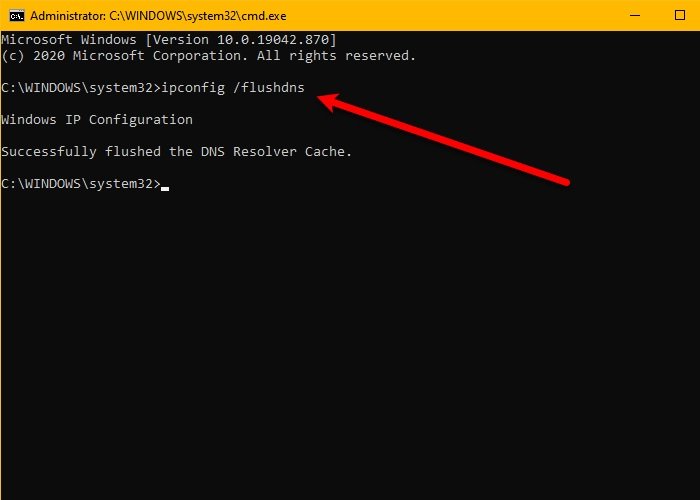
The issue can also occur because of a glitch in the network. In that case, we should execute some commands to get it back on track. We are going to flush DNS and reset your network. Open Command Prompt as an administrator and run the following commands.
pconfig /flushdns

ipconfig /registerdns

ipconfig /release

ipconfig /renew

netsh winsock reset
Restart your computer once, then check whether the issue persists.
5] Delete the Game cache folder
If none of the above solutions worked for you, the last resort to fix the error is to delete the cache folder of your World of Warcraft installation. There are chances that you are receiving the error code due to corrupted cache files associated with your game. Hence, clearing up the cache should help you eliminate the error on the World of Warcraft game.
Here are the steps to clear the cache files for the World of Warcraft game on Windows PC:
- First of all, make sure that you have closed the related programs, including Battle.net, World of Warcraft, and other Blizzard programs, and that they are not running in the background.
- Now, open Task Manager using the Ctrl + Shift + Esc hotkey.
- In Task Manager, go to the Processes tab, select the gent.exe or Blizzard Update Agent process, and then tap on the End Task button to close it.
- Next, close Task Manager and evoke the Run dialog box using Windows + R hotkey.
- After that, enter %ProgramData% in it to open up the Program Data folder.
- Then, locate the Blizzard Entertainment folder and delete the folder.
- Lastly, relaunch the Battle.net client, open the World of Warcraft game and check if the error is now fixed.
6] Change DNS to Google DNS
If you are encountering this error intermittently, it may be triggered by a DNS server issue. You might be dealing with a bad DNS range or some inconsistency with your default DNS server that is causing the error in hand. If the scenario applies, you should be able to resolve the error by changing the DNS server to Google DNS. It is a reliable DNS server used to tackle inconsistency with or default DNS server. Hence, it should fix the error for you.
Here are the steps to change your default DNS to the Google DNS server:
- First of all, launch the Run dialog box using the Windows + R hotkey.
- Now, type ncpa.cpl in it and then press the Enter button to open up the Network Connections window.
- Then, select your active internet connection and press the right-click, and then click on the Properties option.
- After that, in the Properties dialog window, select the Internet Protocol Version 4 (TCP/IPv4) option and then tap on the Properties button.
- Next, choose the Use the following DNS server addresses option and then you need to enter the following addresses to set up Google DNS Server:
Preferred DNS server: 8.8.8.8
Alternate DNS server: 8.8.4.4
- Once done, click on the OK button and go back to the previous screen.
- Now, press the Internet Protocol Version 6 (TCP / IPv6) option and tap on the Properties button.
- Next, enable the Use the following DNS server address checkbox and then use the following address in respective fields:
Preferred DNS Server: 2001:4860:4860::8844
Alternate DNS Server: 2001:4860:4860::8888
- Finally, click on the OK button to apply changes and finish the setup.
You can now try relaunching World of Warcraft to see if the error is fixed.
How to fix high latency in WoW?
The primary cause of lagging issues in World of Warcraft is incompatible hardware. If your system does not meet the minimum hardware requirements, you will experience latency and other issues in the game. Other causes include unstable internet connection, outdated or corrupted drivers, etc. To fix this issue, try power cycling your router, updating your device drivers, closing all bandwidth-hogging programs, etc.
Now read:
